
You have been logging expenses, work hours, mileage, and revenue entries throughout the year. The compliance dashboard is where all of that data comes together. It gives you a single view of where you stand against the IRS thresholds that matter most to STR hosts — without telling you what to claim. That decision belongs to you and your tax professional.
ArrivHQ is a record-keeping tool, not a tax advisor. It organizes your documentation so your CPA has clean, timestamped data to work with. The compliance dashboard is where you see the big picture.
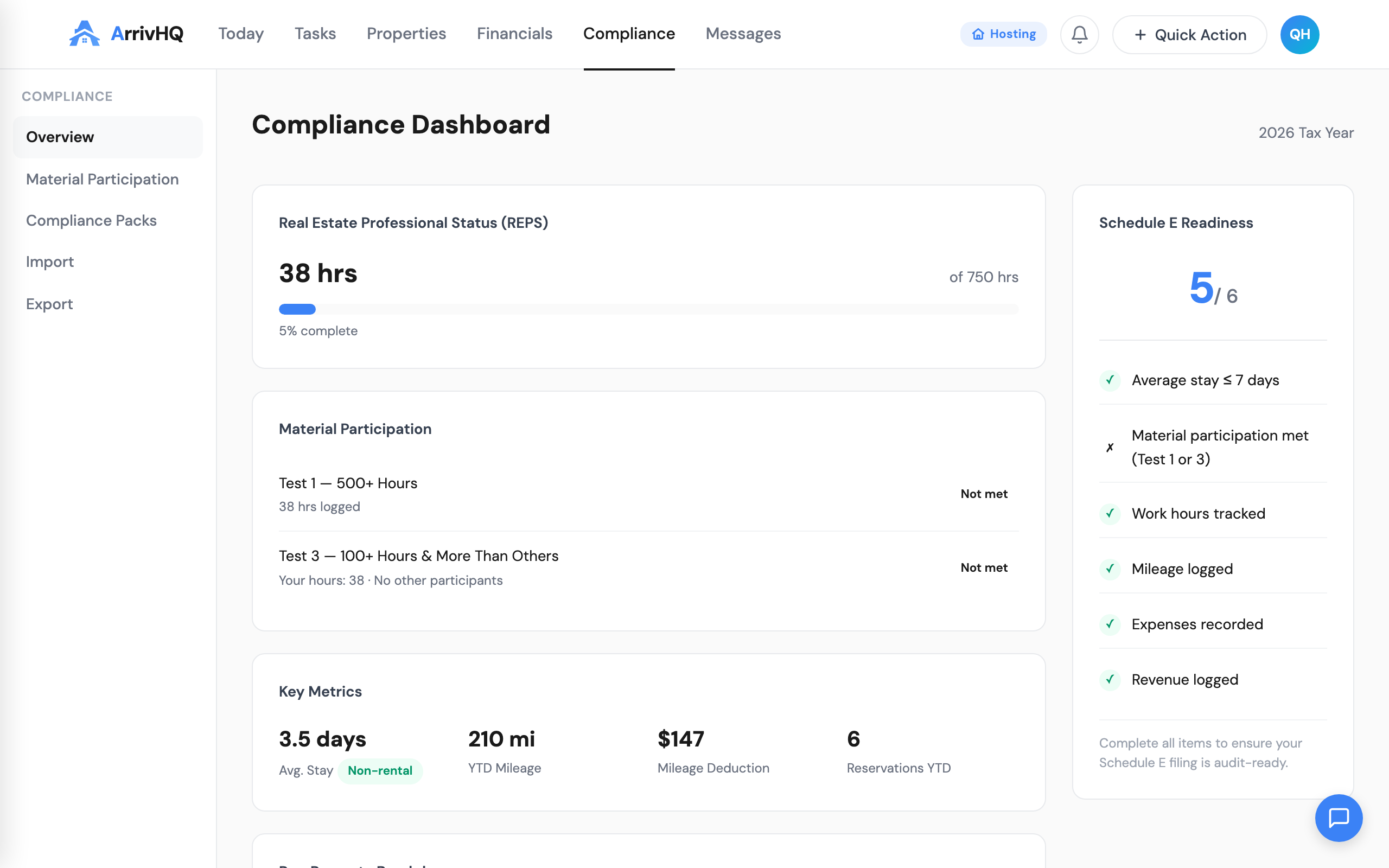
REPS progress
If you are pursuing Real Estate Professional Status, the dashboard shows your year-to-date hours alongside the 750-hour target. This running total is calculated from your work log entries for the current calendar year. It updates in real time — log a two-hour maintenance session, and the number moves immediately.
The 750-hour threshold is just one of two REPS tests. You also need to spend more than half of your total personal services in real property activities. ArrivHQ tracks your rental hours but does not track your non-rental work (like a W-2 job), so the more-than-half determination is something you discuss with your CPA.
If you manage multiple properties and have made a grouping election (treating all rentals as a single activity), your cross-property total is the number that matters. The Portfolio plan provides aggregated views across properties for this purpose.
Material participation tests
Material participation is separate from REPS. Even if you qualify as a real estate professional, you must still demonstrate material participation in each rental activity for the losses to be non-passive.
The IRS provides seven tests. You only need to pass one. The two that matter most to STR hosts are:
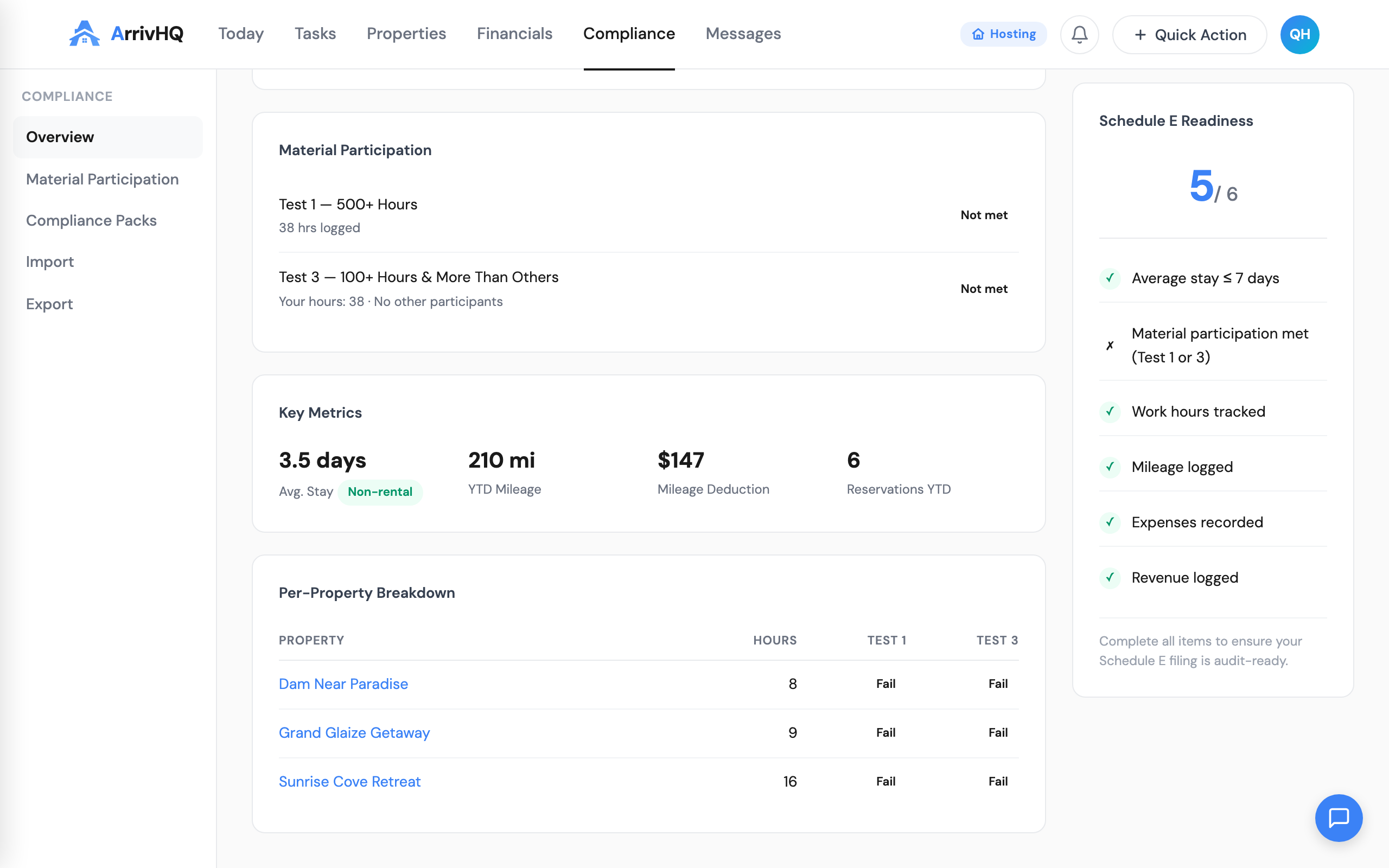
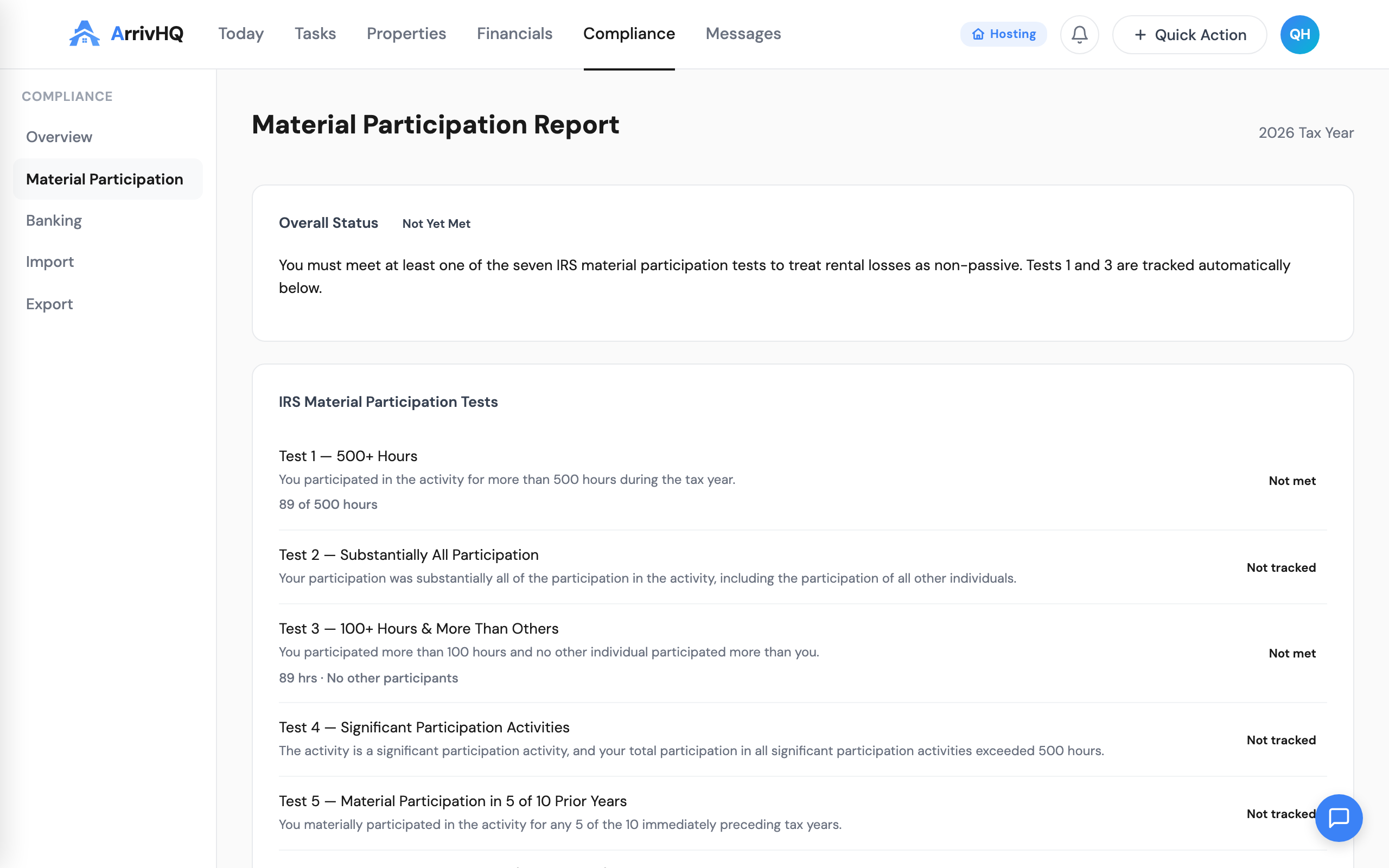
The 500-hour test. If you participate for more than 500 hours in a rental activity during the tax year, you pass. This is objective, easy to document, and the test most CPAs recommend aiming for.
The 100-hour / more-than-anyone-else test. If you participate for more than 100 hours and no other single individual (including cleaners, co-hosts, or property managers) participates more than you, you pass. This works well for self-managing hosts who handle the bulk of operations themselves.
The dashboard shows your running hour total against these thresholds. If you filter by property, you can see per-property totals — which matters if you have not made a grouping election and need to demonstrate material participation for each property individually.
For joint filers, spouses can combine hours for material participation (unlike the REPS tests, where each spouse is evaluated independently). If you and your spouse together exceed 500 hours on a rental activity, you meet the 500-hour test.
Schedule E readiness
Schedule E (Supplemental Income and Loss) is the IRS form where you report rental income and expenses. Each property gets its own section on the form, and you need organized records for both the income and deduction sides.
ArrivHQ helps you assemble what your CPA needs:
- Revenue entries filtered by property and tax year give you gross rents received.
- Expense entries filtered by property, tax year, and category give you deductions organized by Schedule E line items. The 15 built-in expense categories map directly to Schedule E lines — Repairs to Line 14, Utilities to Line 17, Insurance to Line 9, and so on.
- Mileage entries filtered by property and tax year give you total business miles for the standard mileage deduction (reported on Schedule E or referenced via Schedule C, depending on your situation).
- Work log entries document the hours you spent managing each property, supporting your material participation and REPS claims.
Together, these records give your CPA a complete financial and operational picture for each property, organized in the format they expect.
Monthly completeness checks
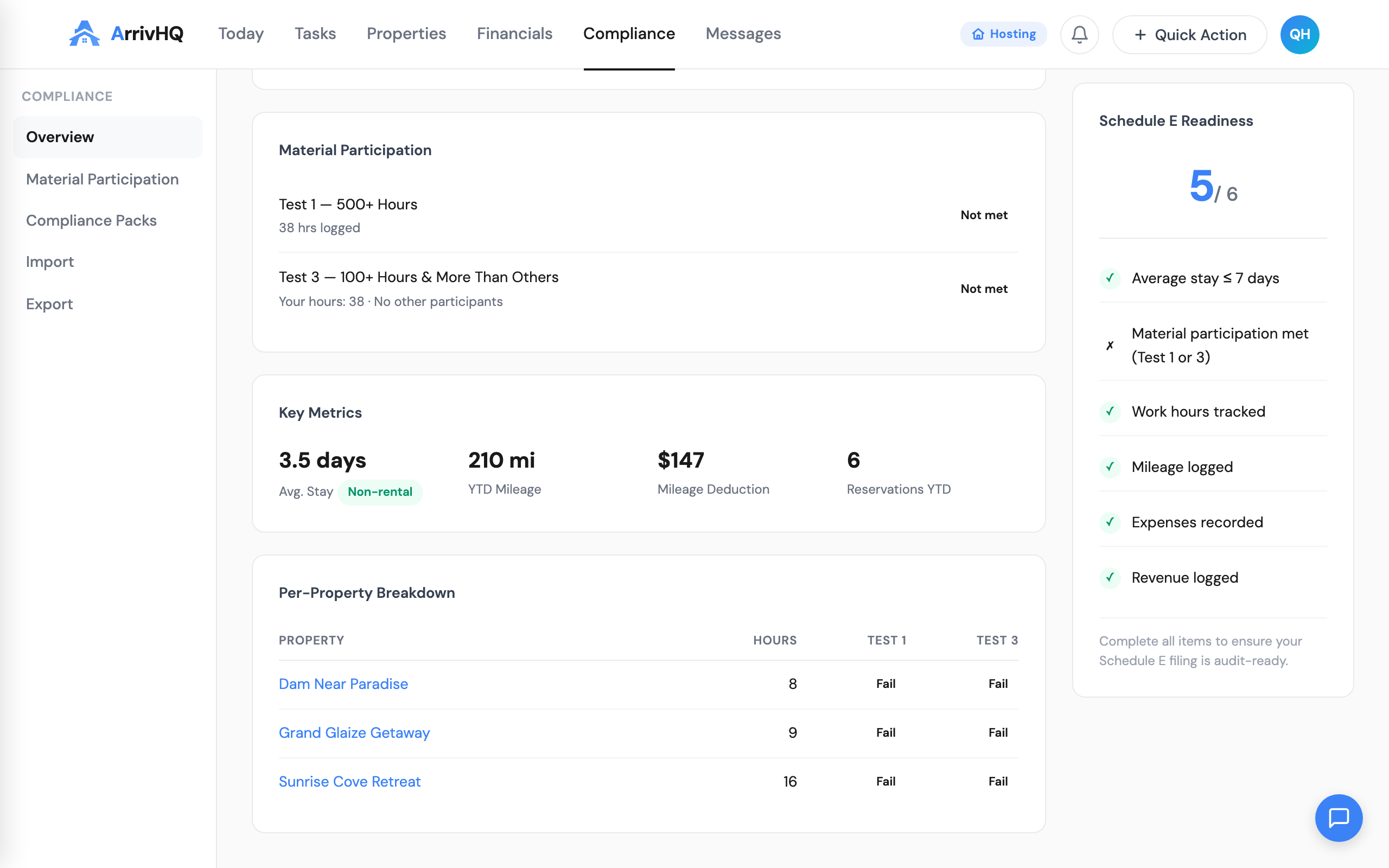
At the end of each calendar month, ArrivHQ automatically reviews your records for gaps. If you logged a specific expense category (like internet or insurance) in prior months but not in the current month, a flag appears. If a property had reservations but no corresponding revenue entry, that gets flagged too. The same applies to mileage and work log hours that drop significantly below your historical average.
These flags are informational, not blocking. Some months genuinely have fewer expenses or trips. You review each flag and either add the missing record or dismiss the flag if it is a false positive. Dismissed flags do not reappear for that month.
The point of completeness checks is to catch gaps while the details are fresh. Realizing in March that you forgot to log December's utility bills is harder than noticing the gap in January when the month just ended.
Exporting your records
When you need to share data with your CPA, respond to an IRS inquiry, or create an offline backup, the compliance section lets you generate exports.
You can export work logs, expenses, mileage, or revenue individually — or choose All records for a combined export. Set a date range (full year, quarter, or custom), choose the scope (one property or all), and select the format.
CSV files open in Excel or Google Sheets. They are the format most CPAs prefer because the data can be sorted, filtered, and imported into tax preparation software.
PDF exports produce a formatted report with totals and summaries. These are useful for printing, attaching to correspondence, or providing a readable overview.
Each export is a point-in-time snapshot. If you edit records after exporting, the export file is not affected. Many hosts generate exports at the end of each quarter and store them as permanent records. At minimum, generate an annual export after the calendar year ends.
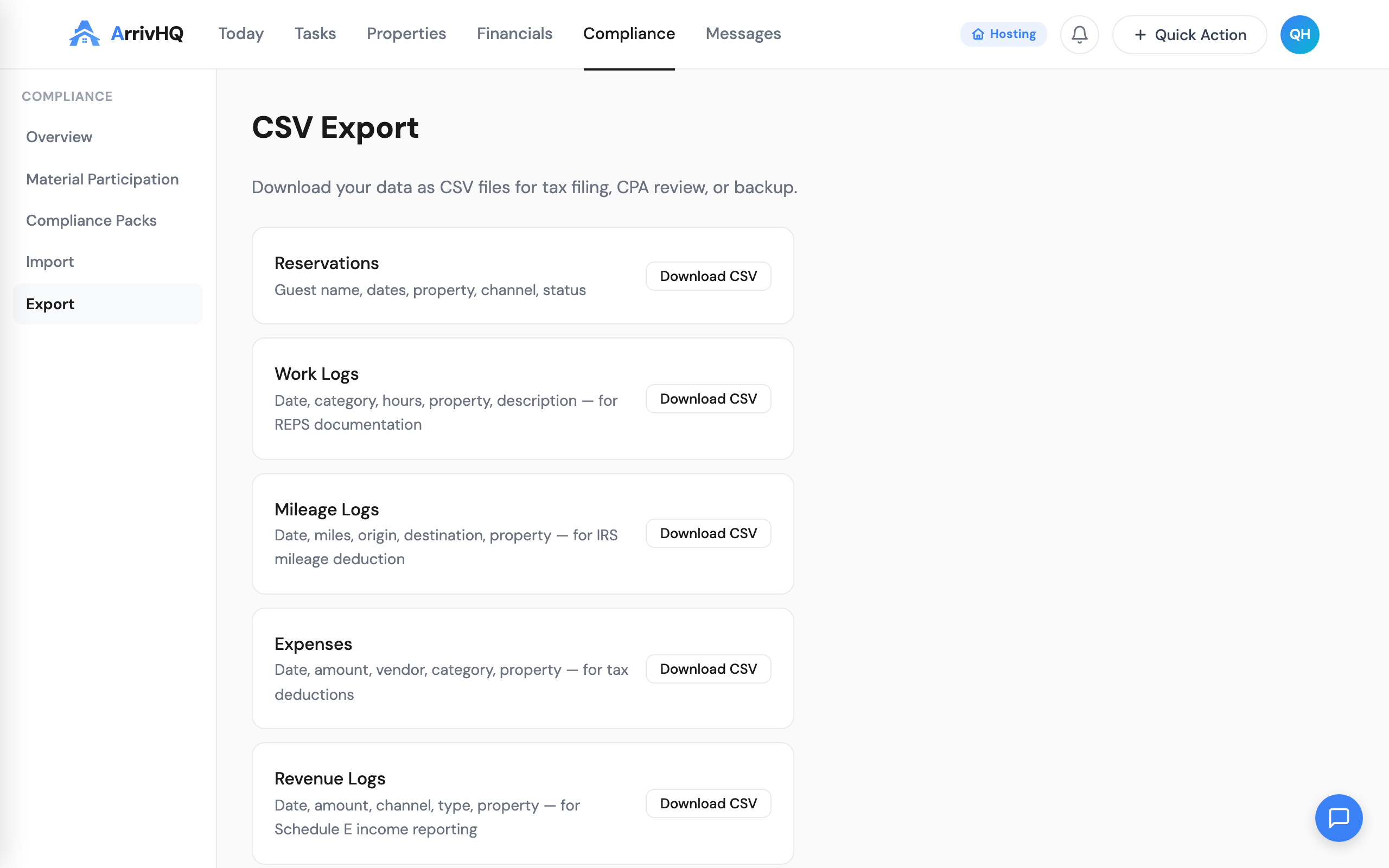
Cross-property exports (available on the Portfolio plan) include a property column so you can filter by property in your spreadsheet. This is essential if you make a grouping election and need to show aggregate hours across all rental activities.
For the complete reference, see the Compliance documentation.