
Your ArrivHQ account is where your profile, notification preferences, and stay history live. Whether you are staying at one property or juggling invitations from multiple hosts, everything runs through the same account. Here is how to keep it up to date.
Accessing your settings
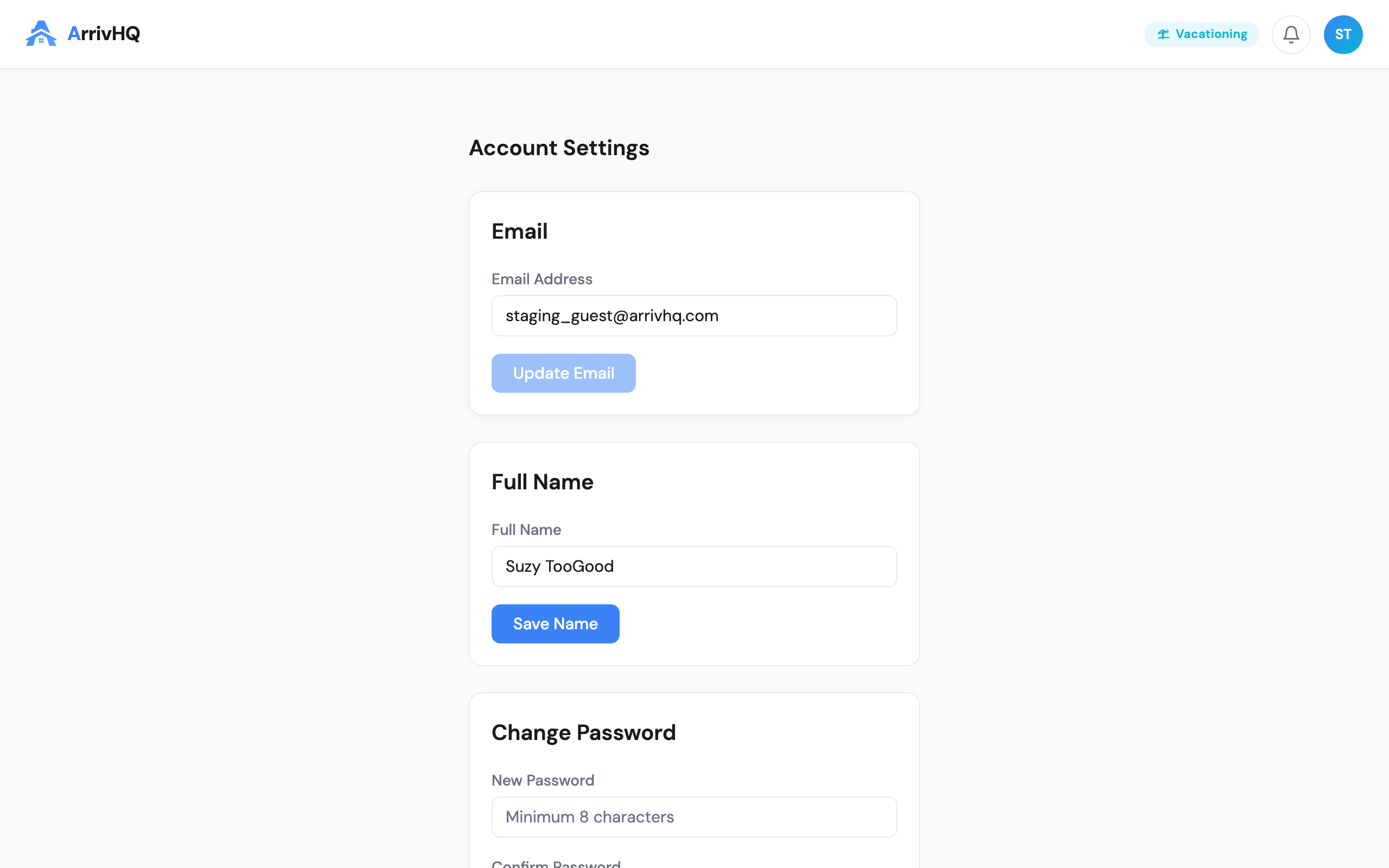
Click on your avatar or name in the top corner of the navigation and select Settings or Account. From here you can update your profile, adjust notifications, and change your password.
Updating your name
Your display name is what your host sees. If you go by a different name than what your host originally entered, update it so they can identify you easily. Change it in the profile section and click Save.
Updating your email
Your email address is where ArrivHQ sends invitation notifications, message alerts, and checklist reminders. If you change your email, all future notifications go to the new address. You also sign in with the new email going forward. Your stay history and account data remain unchanged — nothing is lost.
One thing to keep in mind: if a host sends you an invitation to a specific email address, you need to accept it using that address. If you change your email after accepting, your existing stays stay linked to your account.
Phone number
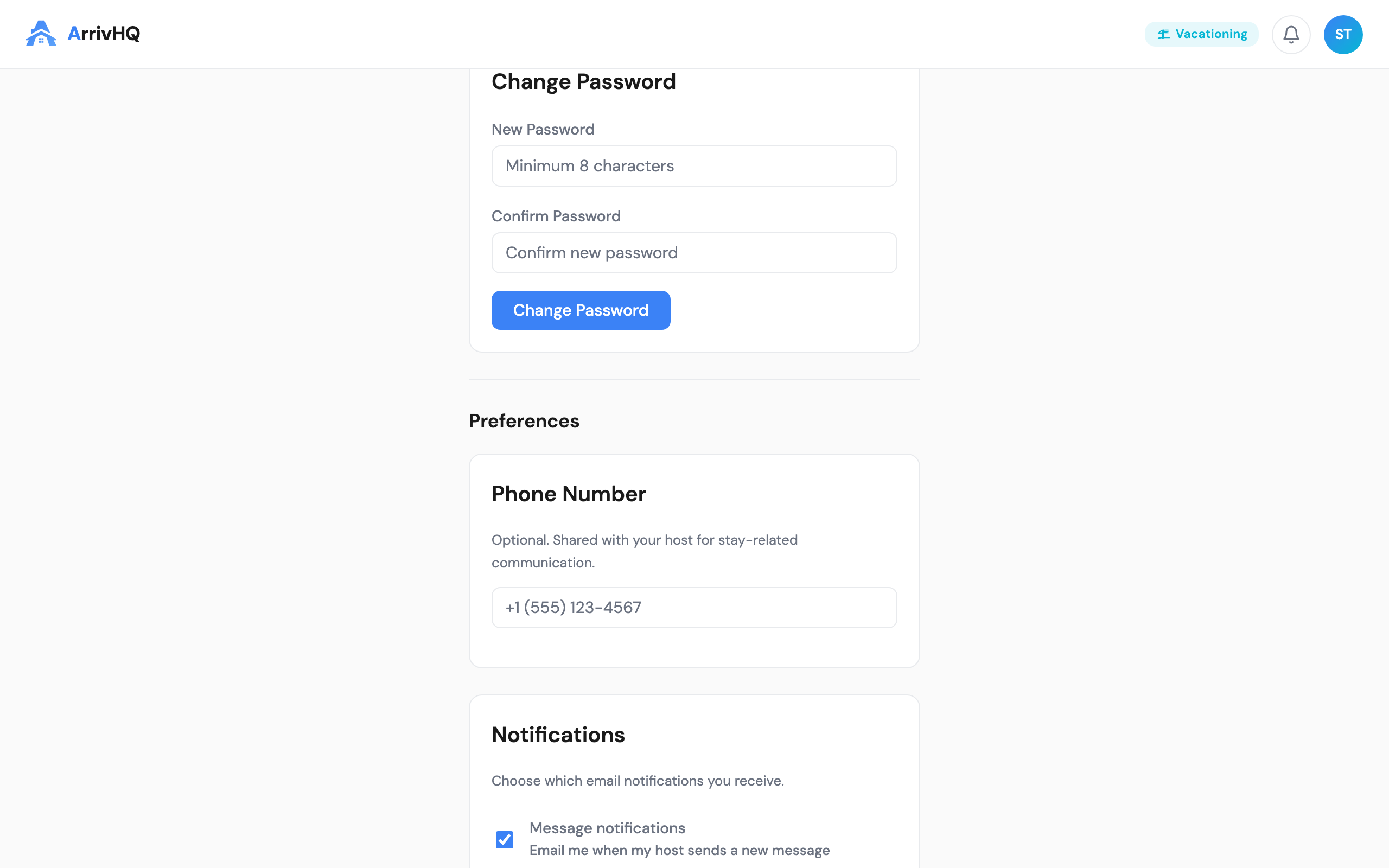
You can optionally add a phone number to your profile. If provided, it is shared with your host for stay-related communication. This is not required, but some hosts appreciate having a phone number for urgent situations like lockouts or last-minute check-in changes.
Notification preferences
ArrivHQ sends you email notifications for several types of events. You can toggle each category on or off from the Notifications section in your settings:
- New messages from your host — An email each time your host sends you a message. The email includes the message content so you can read it without signing in.
- Checklist assignments — An email when your host assigns a new checklist to your reservation. Includes the checklist name and a link to open it.
- Stay updates — Notifications about changes to your stay details.
Changes take effect immediately. Keep in mind that turning off message notifications means you might miss important communication from your host, so consider leaving that one on.
Notifications only apply to active and upcoming stays. Once a stay ends, you stop receiving notifications for that property.
Changing your password
In the profile section, you can change your password by entering your current one and setting a new one. If you have forgotten your password entirely, click Forgot password on the sign-in page. Enter your email address and check your inbox for a reset link. Follow the link to create a new password.
Reset links are valid for a limited time, so use them promptly. If the link has expired, request a new one from the sign-in page.
Managing stays across multiple hosts
Your ArrivHQ account is not tied to a single host or property. Every time a host invites you to a stay, it appears on your My Stays dashboard — whether it is the same host you stayed with last summer or a completely different one in another city. You do not need to create a separate account.
Your dashboard shows all your current, upcoming, and past stays. Click on any stay to switch to that property's view. When you switch, the property info, messages, and checklists update to show the selected property's content. Your account settings and profile remain the same across all properties.
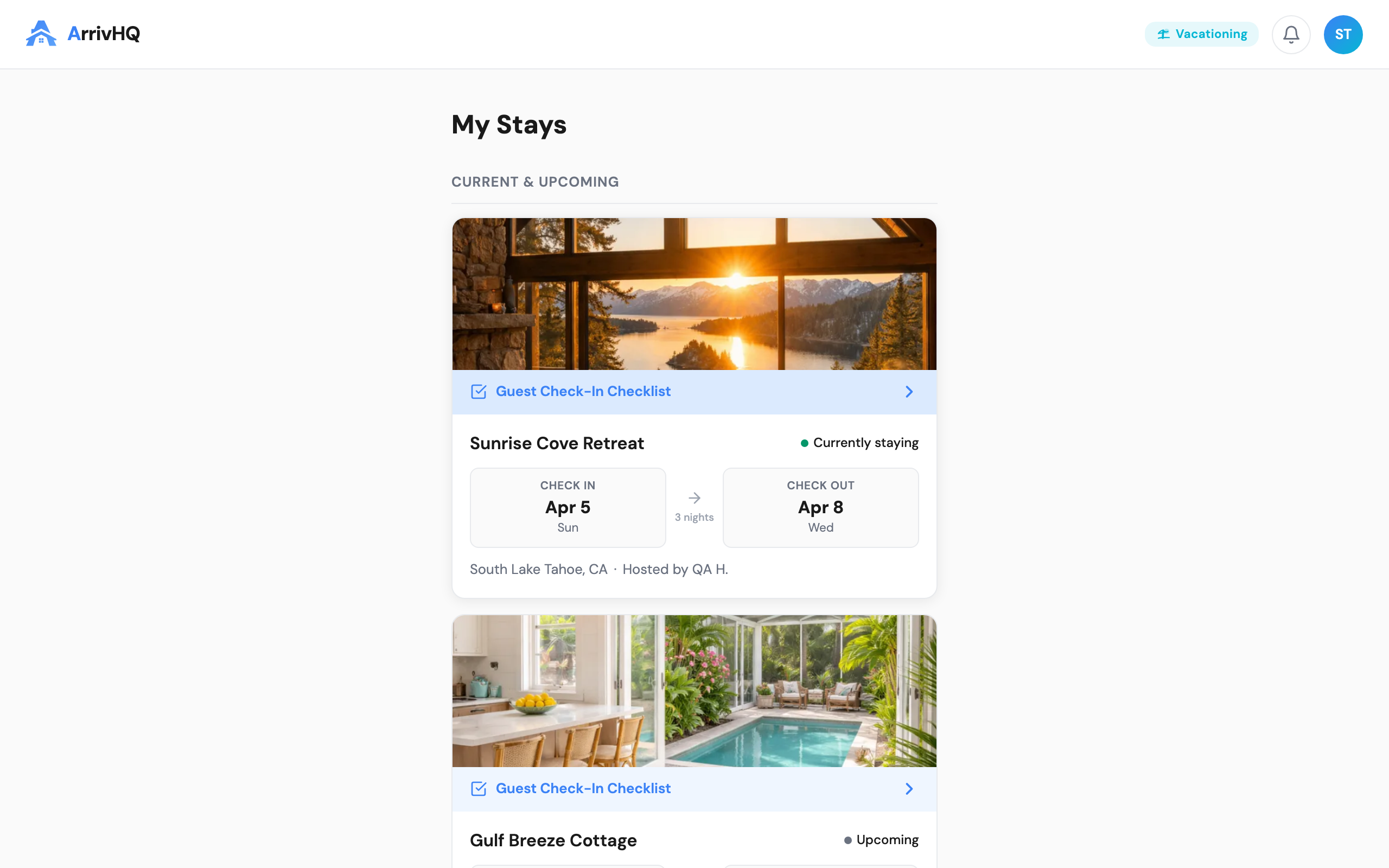
Messages are specific to each property. Switching between stays means you see the conversation thread for that property only — nothing crosses over.
Common questions
Can my host see my password? No. Your password is never visible to anyone, including hosts and ArrivHQ staff.
Do I need separate accounts for different hosts? No. One account handles all your stays. Every invitation is linked to the same account.
What email address do notifications go to? Notifications go to the email on your ArrivHQ account. If you change your email, future notifications go to the new address.
Is there a mobile app? ArrivHQ works in your mobile browser. There is no separate app to download. Navigate to the sign-in page on your phone and sign in with your email and password.
For more details, see the Guest Help Center.