
Why we redesigned the property page
The property detail page started with 9 flat tabs: Details, Reservations, Arrival Guide, Property Guide, Checklists, Tasks, Inventory, Damage, and Connections. That was too many. Hosts spent time clicking through tabs looking for the right one, and there was no way to see what needed attention across all areas at once.
We also needed to add financial data (expenses, revenue, bank sync) to the property page, which would have made 12 tabs. Instead, we redesigned the entire page.
What changed
Dashboard tab
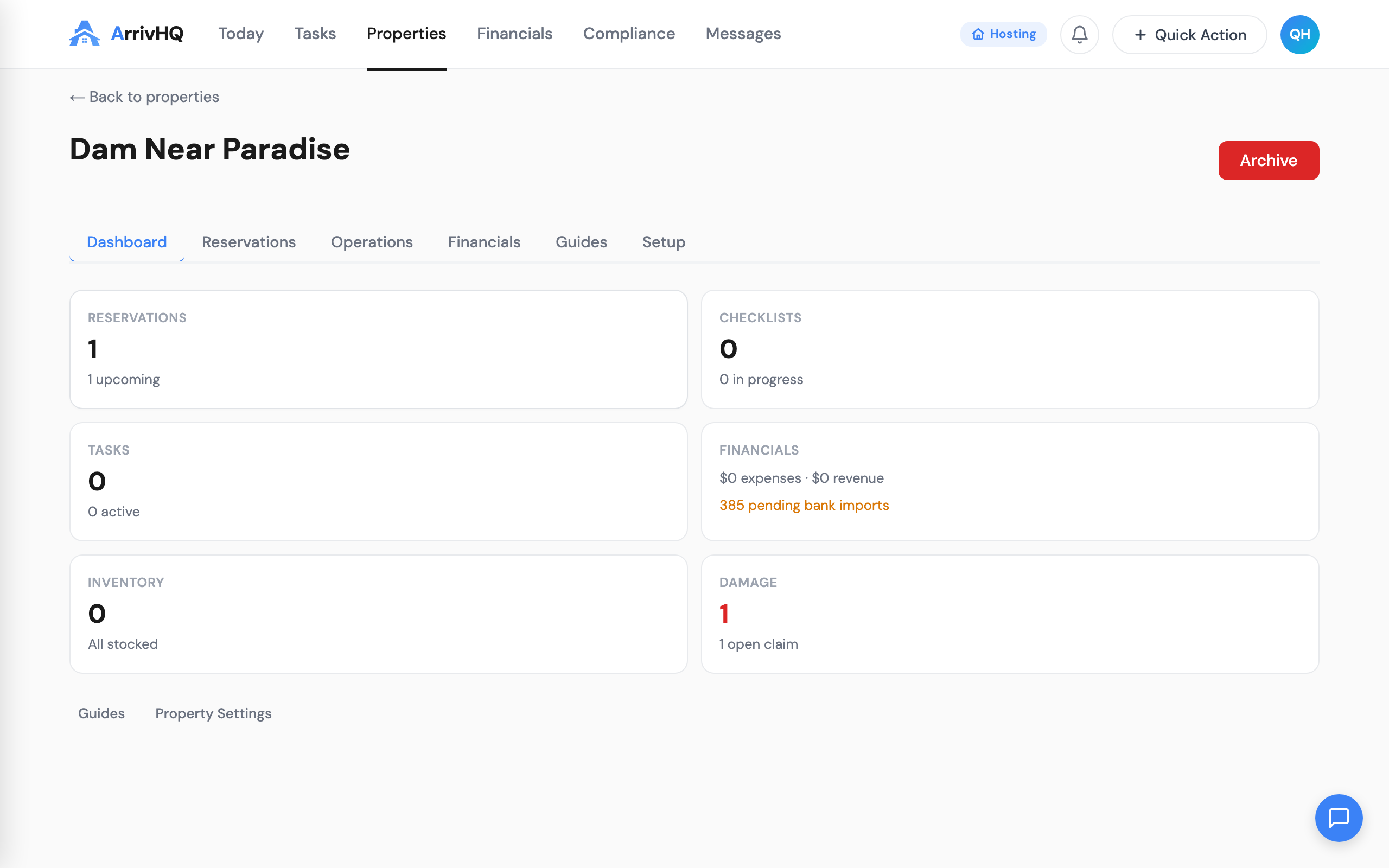
When you open a property, the first thing you see is a dashboard with summary cards:
- Reservations -- upcoming check-ins and check-outs
- Checklists -- in-progress and overdue runs
- Tasks -- active and overdue items
- Financials -- month-to-date expenses and revenue, pending bank imports
- Inventory -- low stock alerts
- Damage -- open claims
Each card is clickable. If you see "2 overdue" on the checklists card, click it to jump directly to the checklists section. Cards with zero items show a neutral state so you know the feature is available.
6 tabs instead of 9
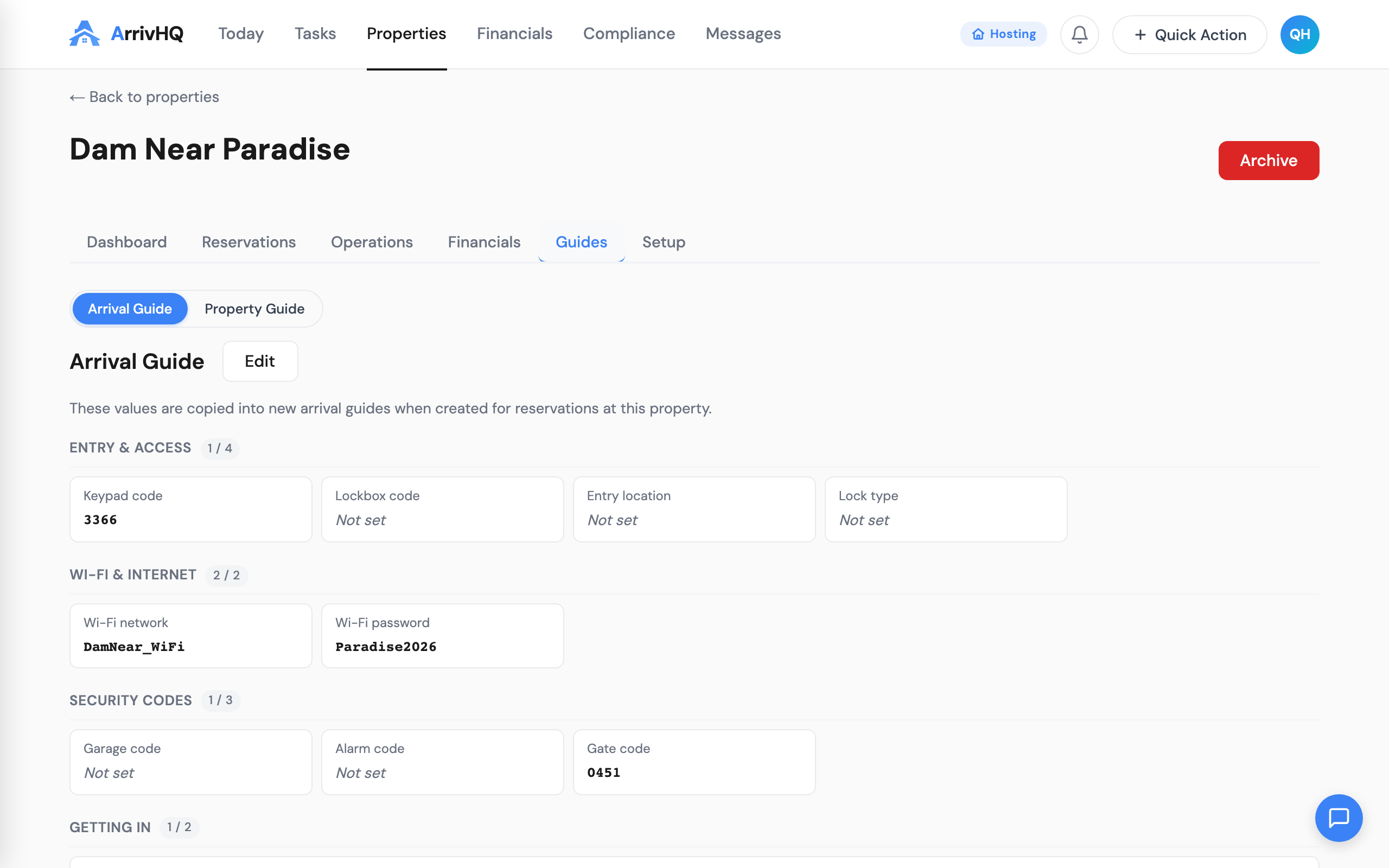
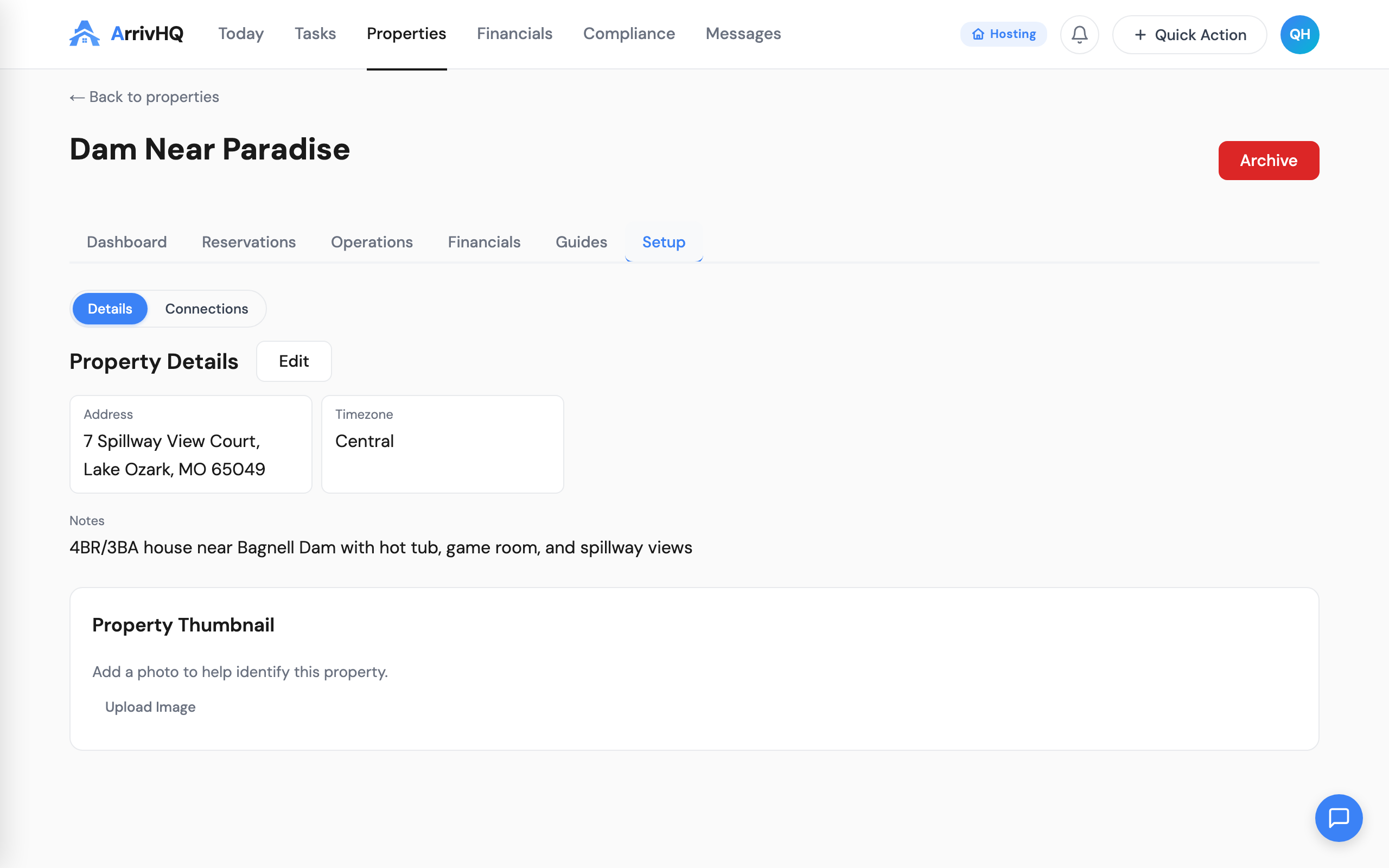
The 9 flat tabs are now organized into 6:
| Tab | Contains |
|---|---|
| Dashboard | Summary cards with live counts and alerts |
| Reservations | Same as before -- upcoming, current, past, cancelled |
| Operations | Checklists, Tasks, Inventory, Damage |
| Financials | Expenses, Revenue, Bank Sync |
| Guides | Arrival Guide, Property Guide |
| Setup | Property Details, Connections |
Pill sub-navigation
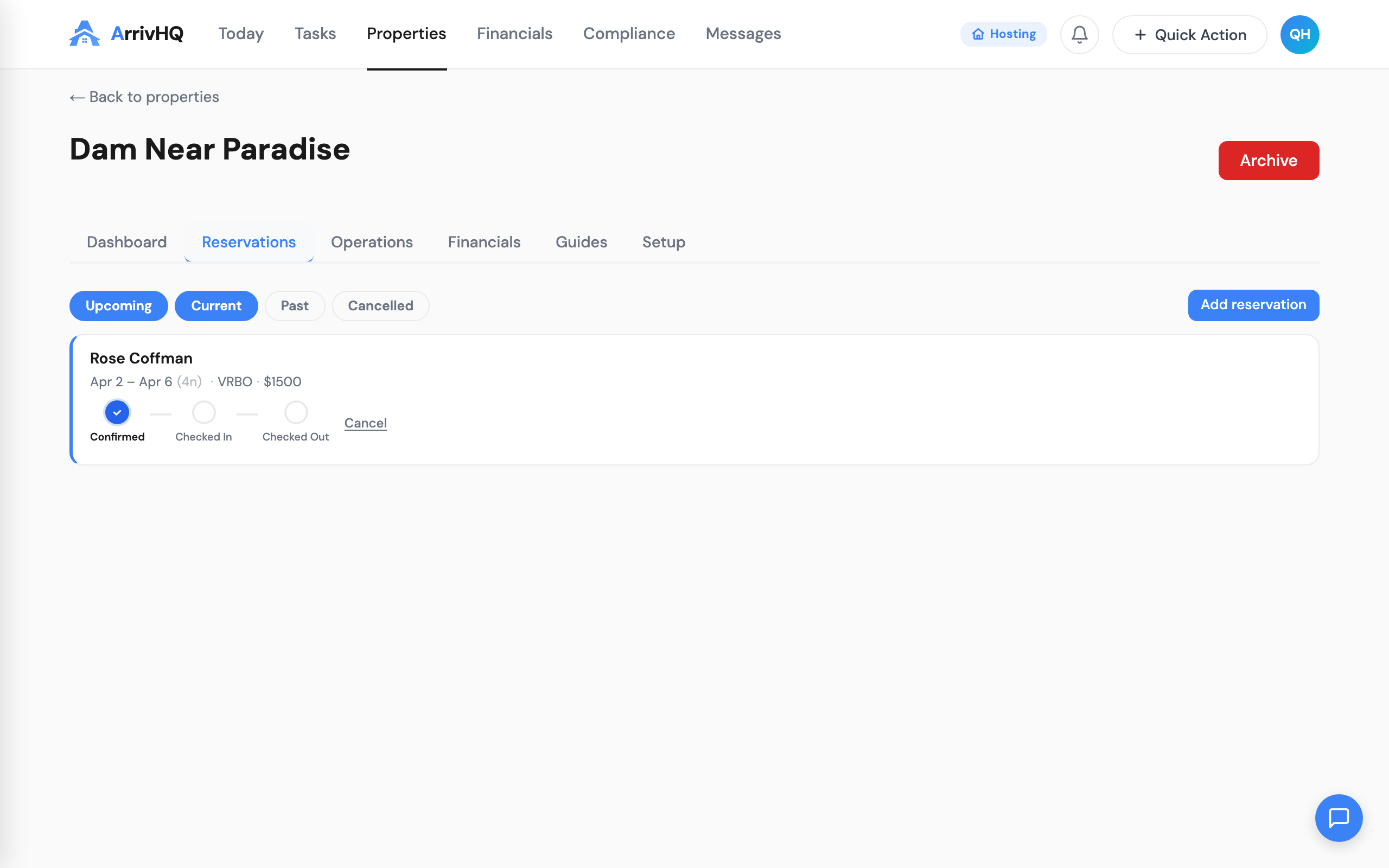
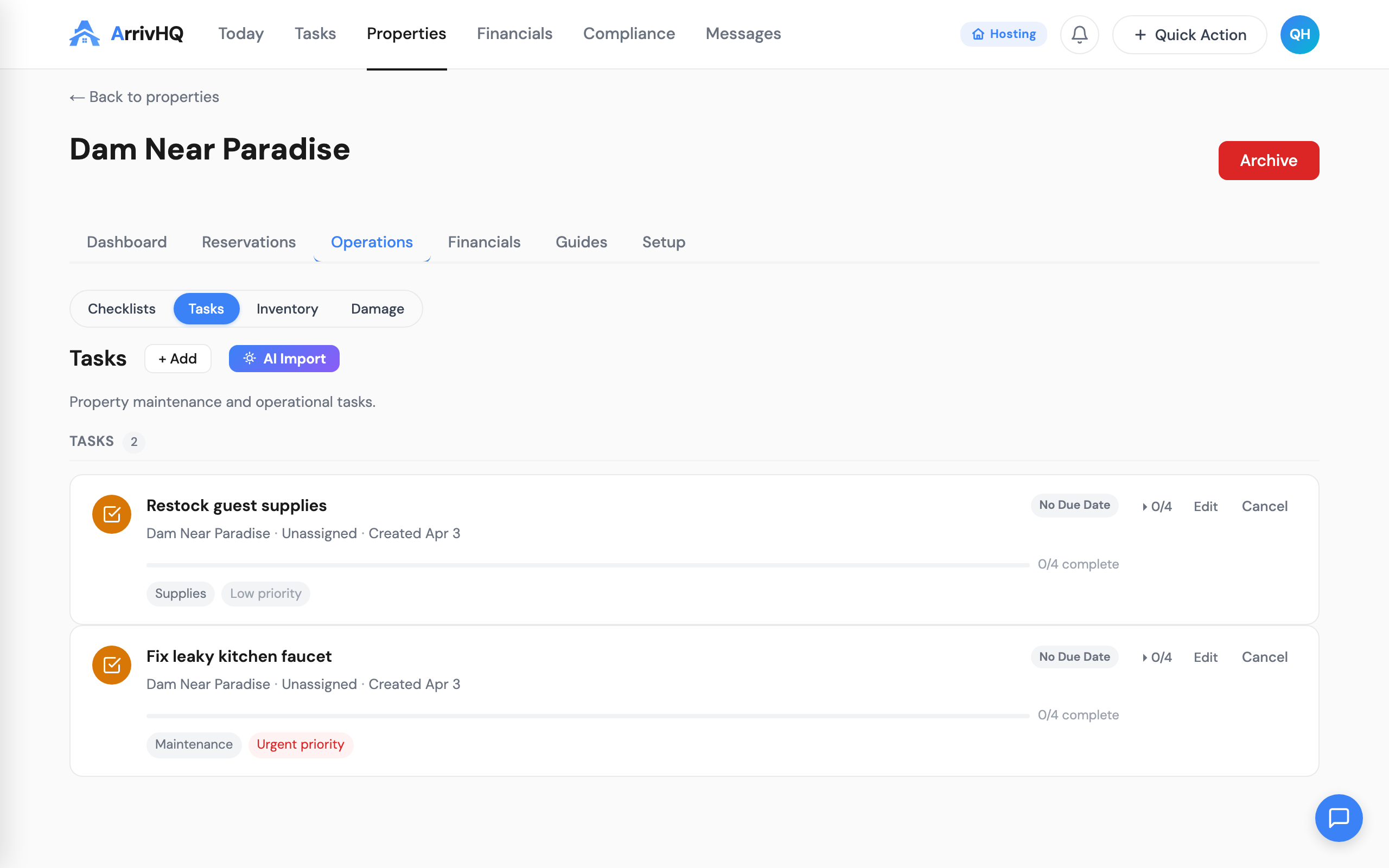
Each grouped tab uses a pill toggle to switch between its sections. Only one section shows at a time, at full width. You are not scrolling through stacked content.
For example, clicking the Operations tab shows pills for Checklists, Tasks, Inventory, and Damage. Click Tasks and you see the full tasks interface -- nothing else competing for space.
Financials on the property page
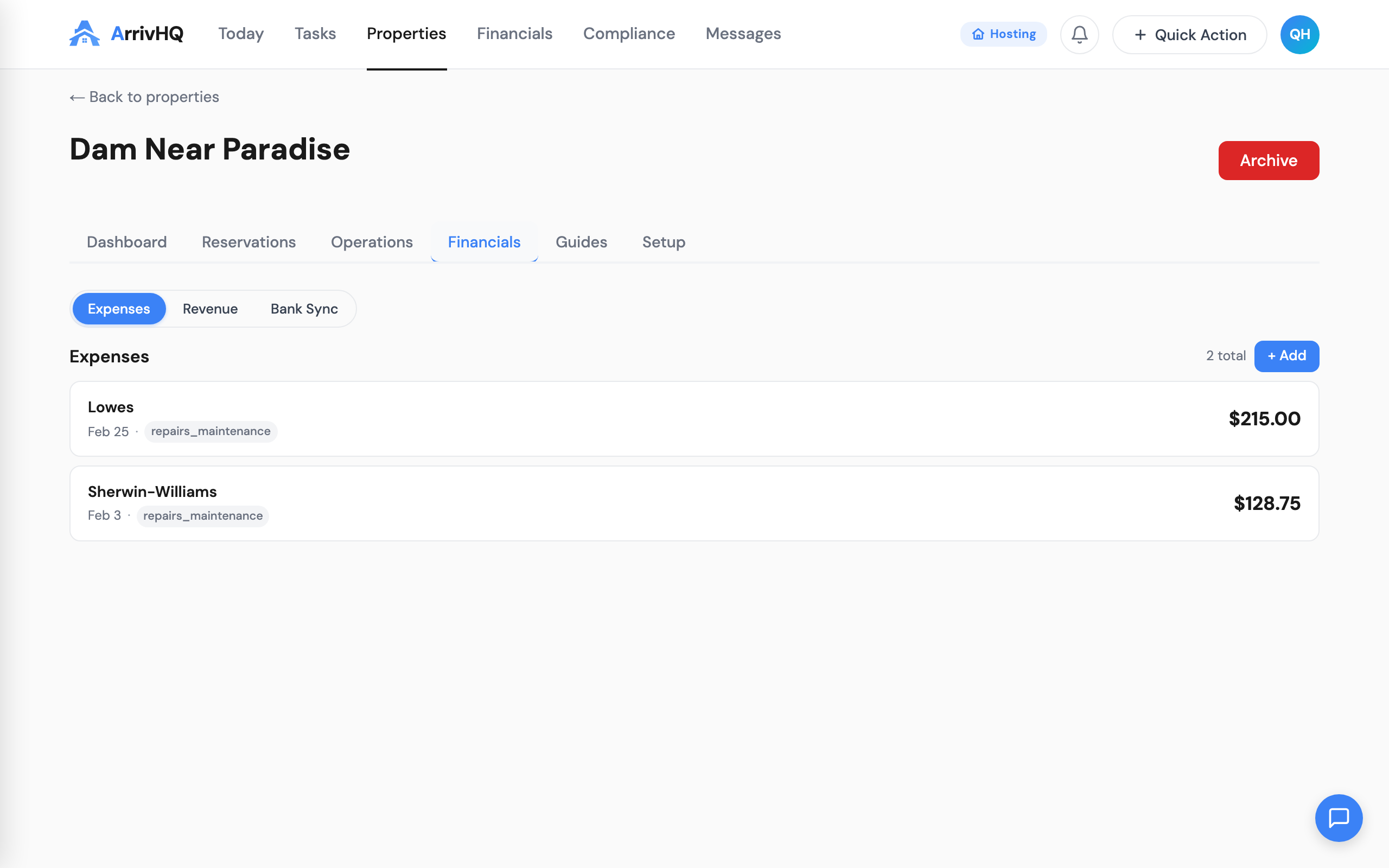
For the first time, you can see expenses, revenue, and bank sync status directly on the property page. The Financials tab has three pills:
- Expenses -- recent expenses filtered to this property, with a quick-add button
- Revenue -- recent revenue entries for this property
- Bank Sync -- connected bank accounts for this property, sync button, and pending import count
This means you can manage a property's finances without navigating away from the property page.
Old bookmarks still work
If you had a bookmarked URL like /properties/abc?tab=checklists, it still works. Old tab names are automatically mapped to the new structure:
?tab=checklists→ Operations > Checklists?tab=tasks→ Operations > Tasks?tab=damage→ Operations > Damage?tab=connections→ Setup > Connections?tab=guide→ Guides > Property Guide
Getting started
Open any property and you will see the new dashboard. Click any summary card or tab to explore.
For full property management details, see the Properties documentation.