
The problem with manual entry
If you manage even one short-term rental, you know the routine. Every cleaning bill, utility payment, supply run, and platform payout needs to go into your records. If you are tracking expenses for tax compliance -- and you should be -- that means entering each one by hand, assigning a property, picking a category, and hoping you did not miss anything.
Multiply that by a few dozen transactions per month, and you are spending real time on data entry that could be automated.
What bank sync does
ArrivHQ now lets you connect your bank and credit card accounts directly through Plaid. Once connected, your transactions are pulled in automatically and staged for your review.
Here is the flow:
-
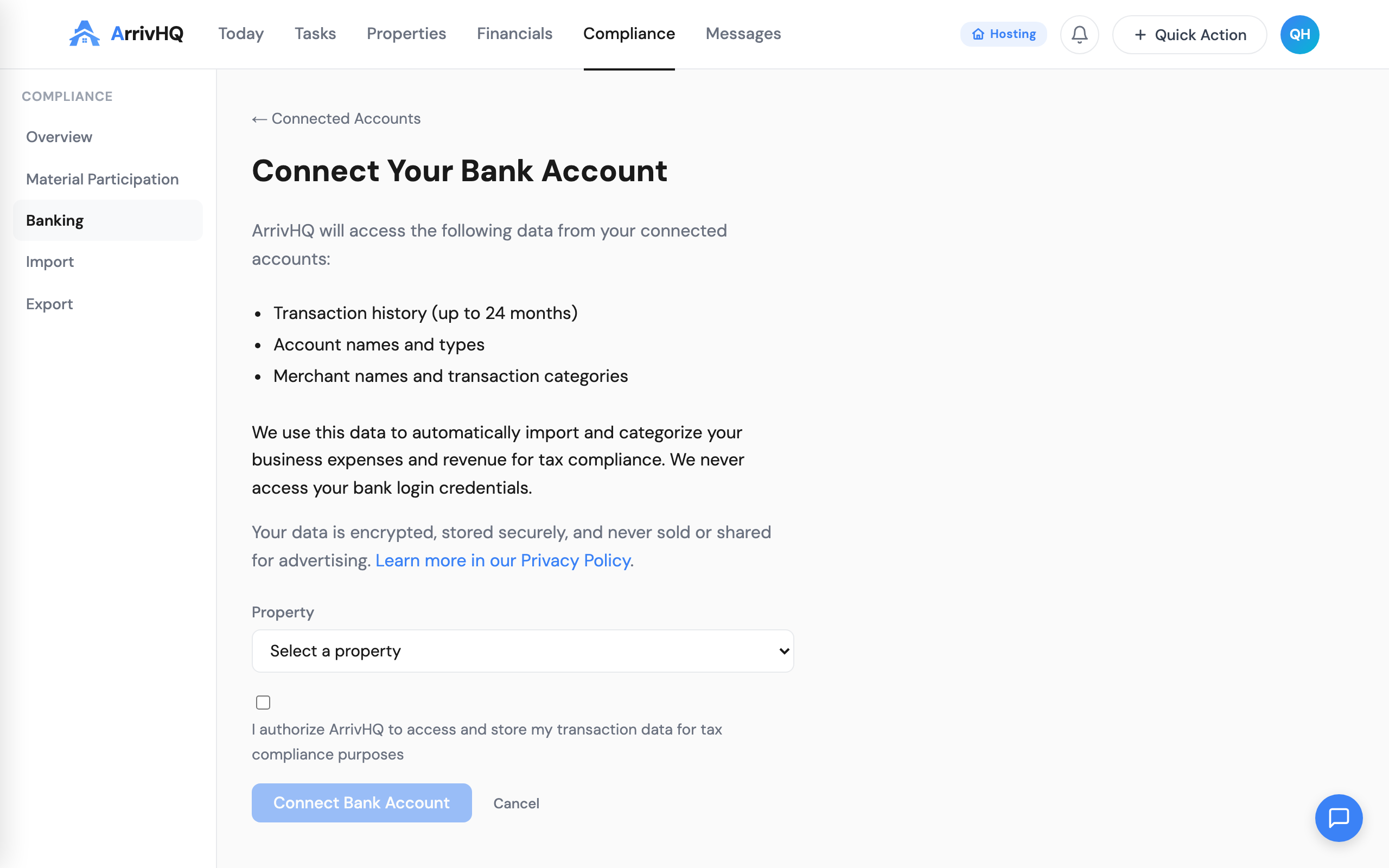
Connect your bank account from Compliance > Banking. You authenticate through Plaid's secure widget -- ArrivHQ never sees your bank credentials.
-
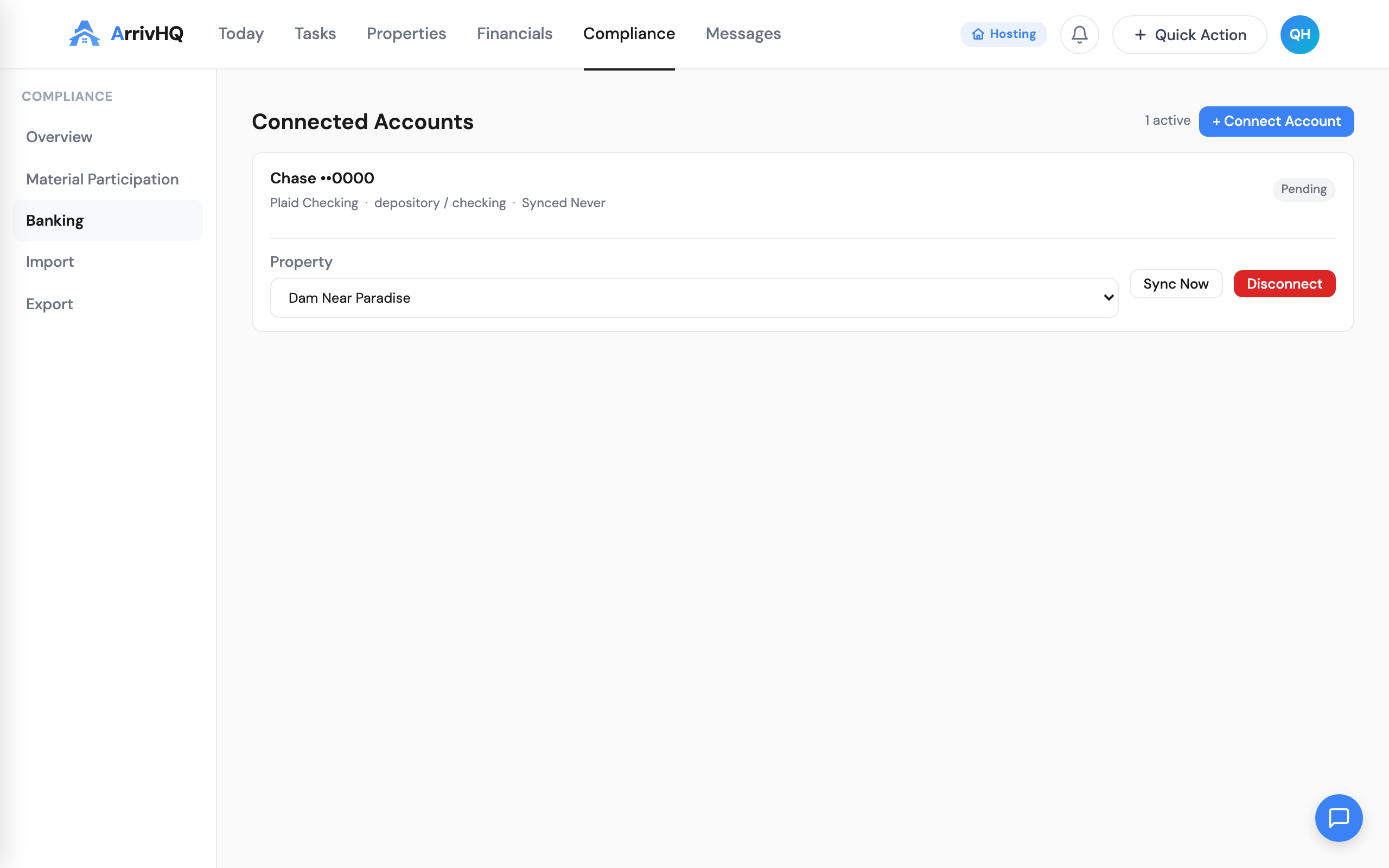
Transactions import automatically. Up to 24 months of history on the first sync, then new activity syncs periodically.
-
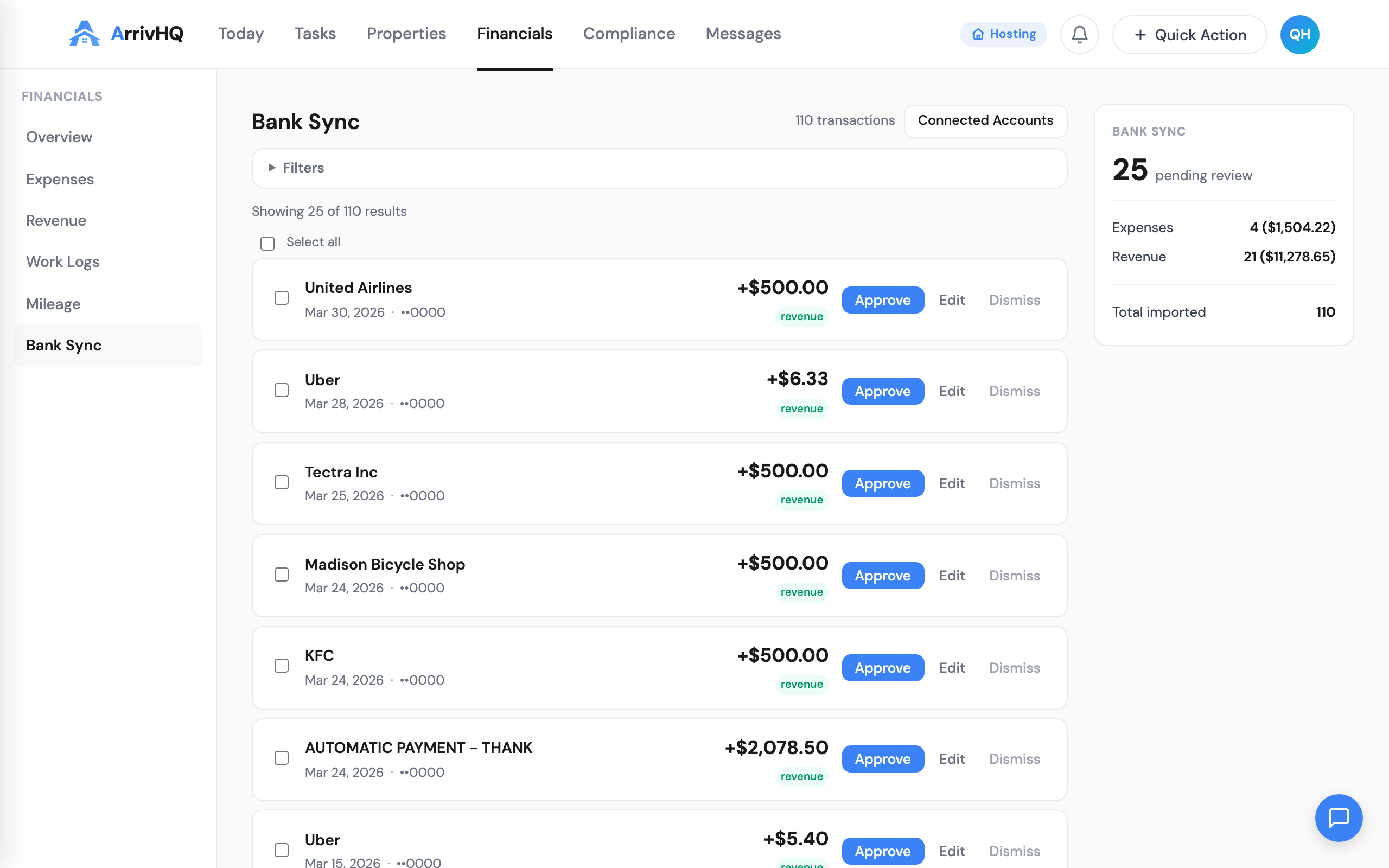
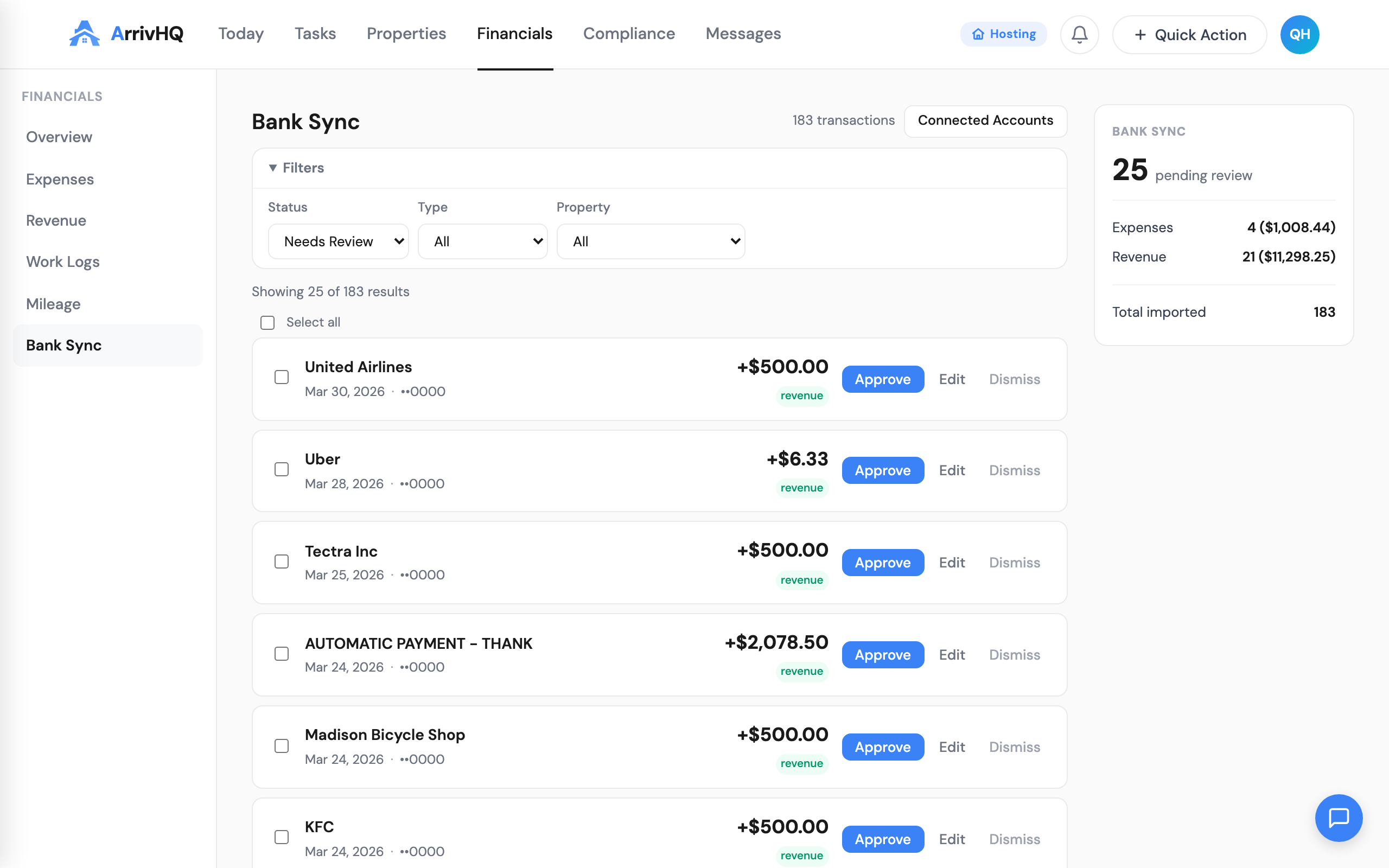
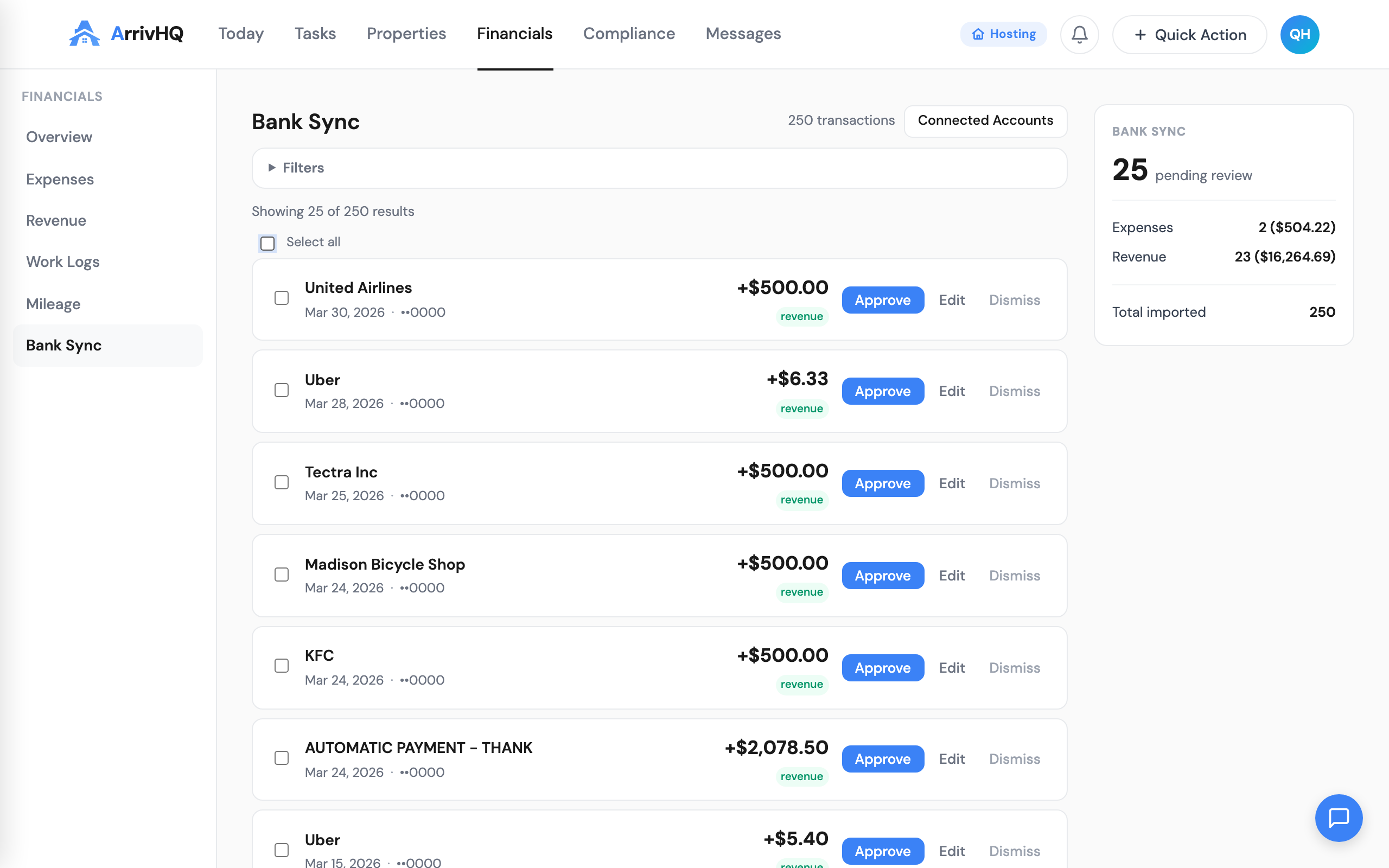
Review imported transactions at Financials > Bank Sync. Each one shows the merchant, amount, date, and whether it looks like an expense or revenue.
-
Edit and approve -- change the category, assign a property, fix the vendor name, add notes. Then approve it as a permanent expense or revenue entry.
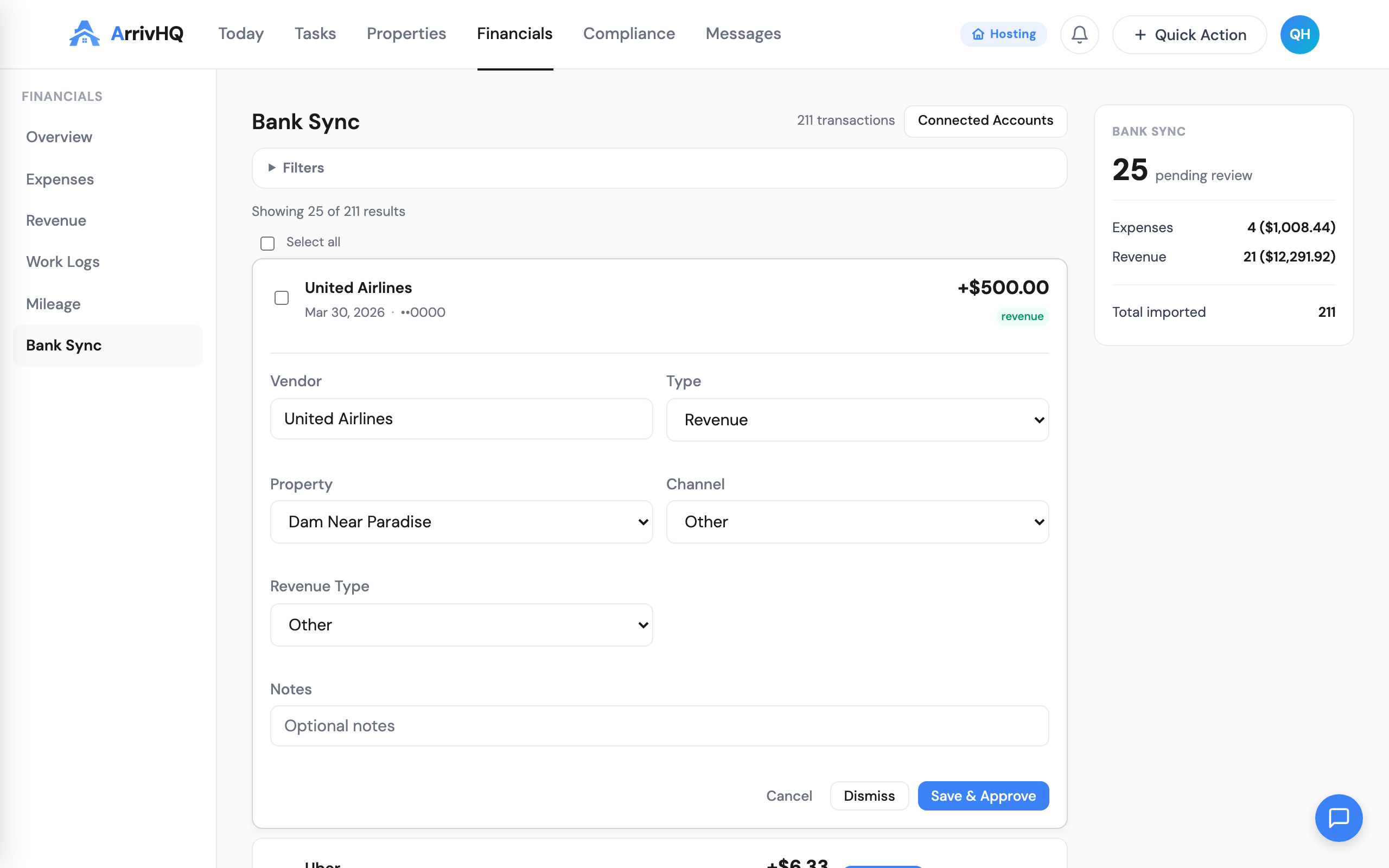 5. Dismiss anything that is not related to your rental business.
Safety first -- no silent overwrites
This is important: bank sync never automatically creates expenses or revenue entries. Every imported transaction sits in a staging area until you explicitly approve it.
If you already entered a transaction manually, the bank sync import does not overwrite it. You review both and decide what to keep. Your manual records always take priority.
Three ways to enter expenses
Bank sync is the third entry method in ArrivHQ, alongside:
- Manual entry -- type in the details yourself
- AI receipt scanning -- snap a photo and ArrivHQ extracts the vendor, amount, date, and category
- Bank sync -- connect your bank and import transactions automatically
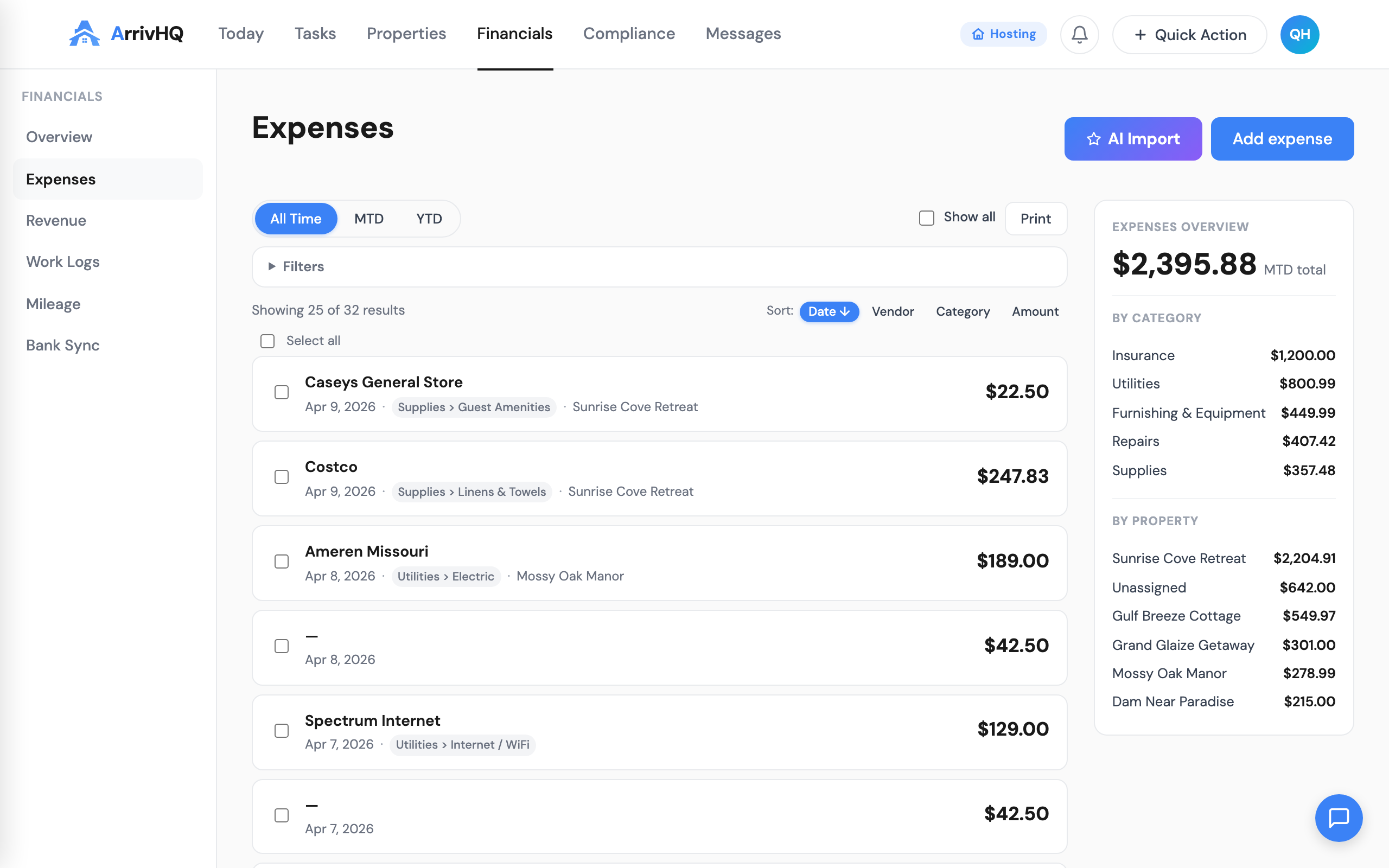
All three create the same expense record. In the expense list, bank-synced entries show a blue "Bank" badge so you can tell them apart. You can filter by source to see only manual, scan, or bank entries.
Bulk review for efficiency
When you have dozens of imported transactions, reviewing them one by one is slow. Bank sync supports bulk actions:
- Select multiple transactions using checkboxes
- Bulk edit -- set the property and category for all selected at once
- Bulk approve -- approve all selected as permanent records
- Bulk dismiss -- skip all selected
This is especially useful for recurring vendor charges (utilities, subscriptions, cleaning services) that always go to the same property and category.
Property-level financials
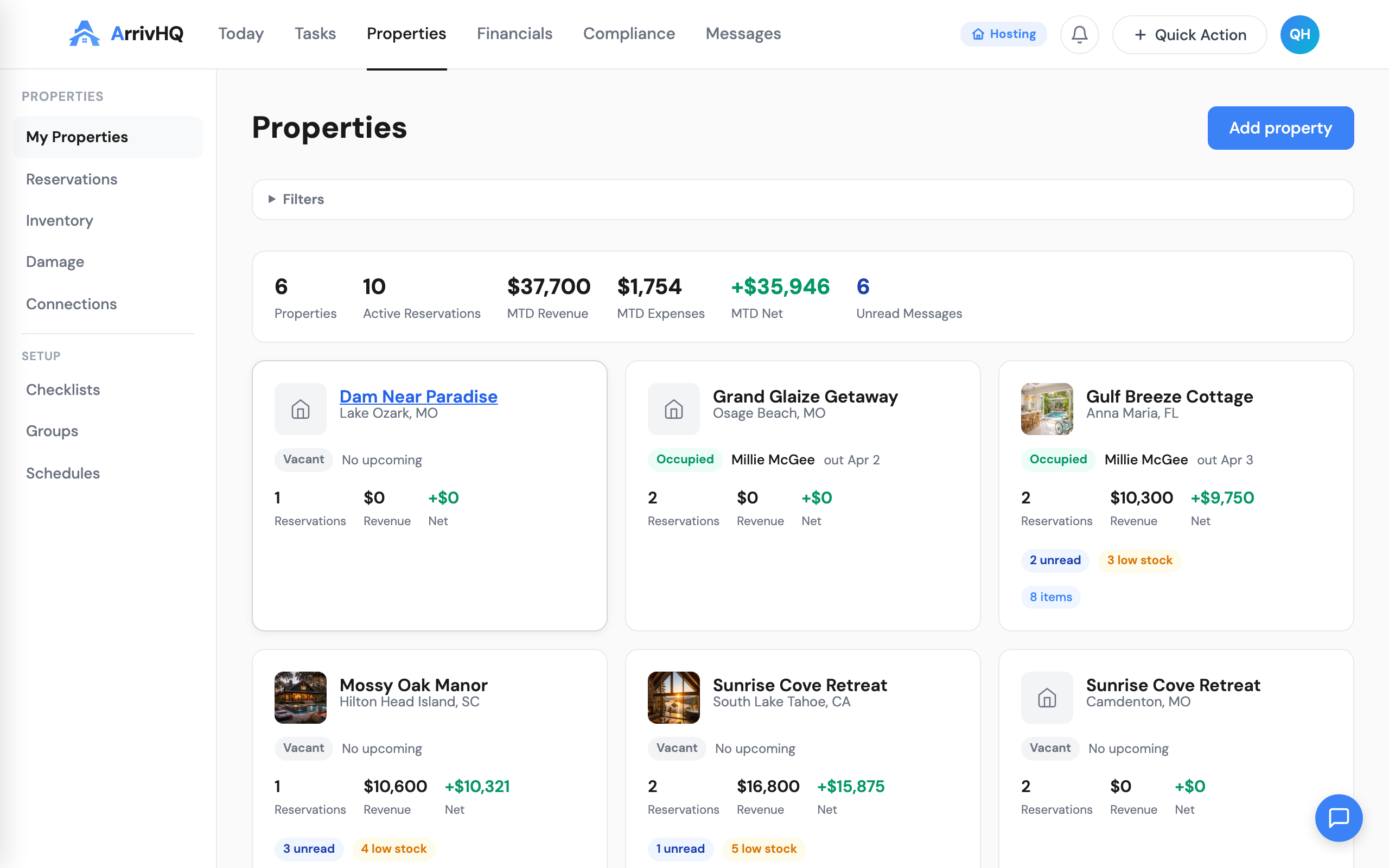
Connected bank accounts are assigned to a specific property. On the property detail page, the Financials tab shows:
- Recent expenses filtered to that property
- Recent revenue filtered to that property
- Connected bank accounts with a sync button
- Pending bank imports count with a link to the review queue
This means you can manage a property's finances without leaving the property page.
What you need
- Host plan ($34/mo) or Portfolio plan ($49/mo) -- bank sync is not available on the Comply plan
- A U.S. bank or credit card account supported by Plaid (most major banks are covered)
- Up to 3 accounts per property
Privacy and security
Your bank credentials are entered directly into Plaid's secure widget. ArrivHQ never receives or stores your username, password, or account numbers.
What ArrivHQ does receive:
- Transaction data (date, amount, merchant, category)
- Account metadata (institution name, account type, last 4 digits)
You must grant explicit consent before connecting, and you can revoke access at any time from Settings > Privacy. Revoking immediately disconnects all linked accounts.
For full details, see the Bank Sync documentation and the Privacy Policy.
Getting started
- Go to Compliance > Banking
- Click + Connect Account
- Select your property, grant consent, and connect through Plaid
- Head to Financials > Bank Sync to review your imported transactions
For a complete walkthrough, see Connecting Bank Accounts in the docs.