
Property damage is part of the business. A guest breaks a lamp, a storm takes out a window screen, or you discover a stain during a turnover inspection. What matters is how well you document it — because your documentation is what insurance companies, booking platforms, and deposit dispute processes actually look at.
ArrivHQ gives you a structured system for recording damage incidents, attaching photos, tracking estimated costs, and managing the resolution process. It does not file insurance claims or process deposit disputes for you. Those actions happen outside of ArrivHQ with the platforms (Airbnb, VRBO) or your insurance provider. What ArrivHQ does is organize the records you need when you get there.
How damage claims work
A damage claim in ArrivHQ represents an incident — something happened at a property. Inside each claim, you add one or more issues — the individual items that were damaged. A post-checkout inspection might result in one claim with three issues: a broken mirror, a stained couch cushion, and a damaged door frame. Each issue has its own title, description, severity, estimated cost, and photos.
This structure keeps your documentation organized. When you are on the phone with your insurance company describing the broken mirror, you are not scrolling through photos of stained cushions to find the right ones.
Logging an incident
Navigate to Damage in the sidebar and click New Claim. Fill in the claim header:
- Title — a short summary. ArrivHQ auto-suggests a title in the format "Damage — [Property Name] — [Date]" when you select a property.
- Property — where the damage occurred.
- Reservation — optional. If the damage is associated with a guest stay, linking it makes a simplified status visible in the guest portal.
- Description — an overall incident summary.
Then add one or more damage items (issues):
- Title — what was damaged (e.g., "Broken lamp shade").
- Location — where in the property (e.g., "Master bedroom").
- Severity — minor, moderate, or major.
- Estimated cost — your estimate for repair or replacement, in dollars. This is optional and can be updated later as you get quotes.
- Photos — attach photos of the damage directly in the form.
Click Submit Claim. ArrivHQ creates the claim and all issues in a single operation, and a set of guided resolution steps is generated automatically.
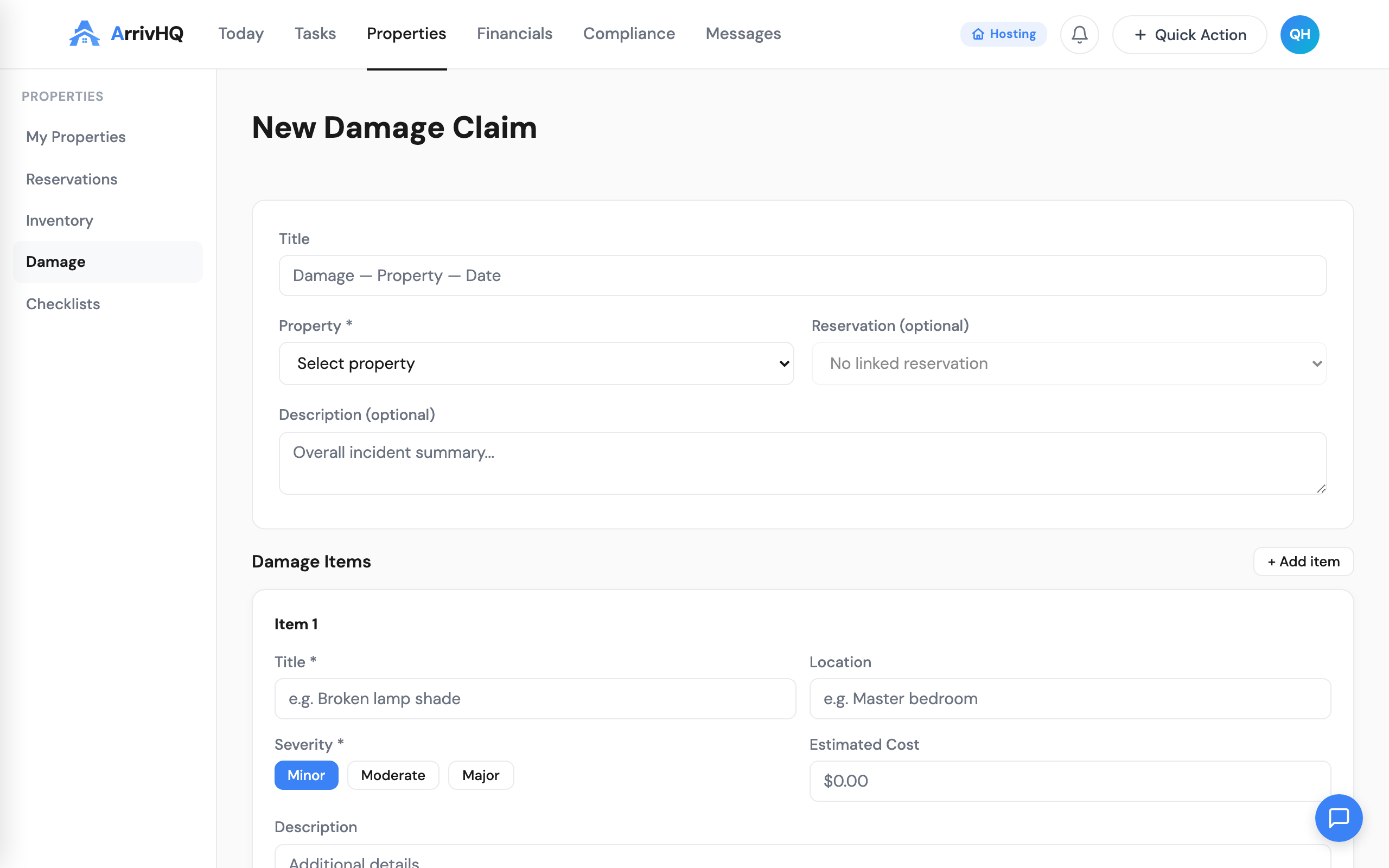
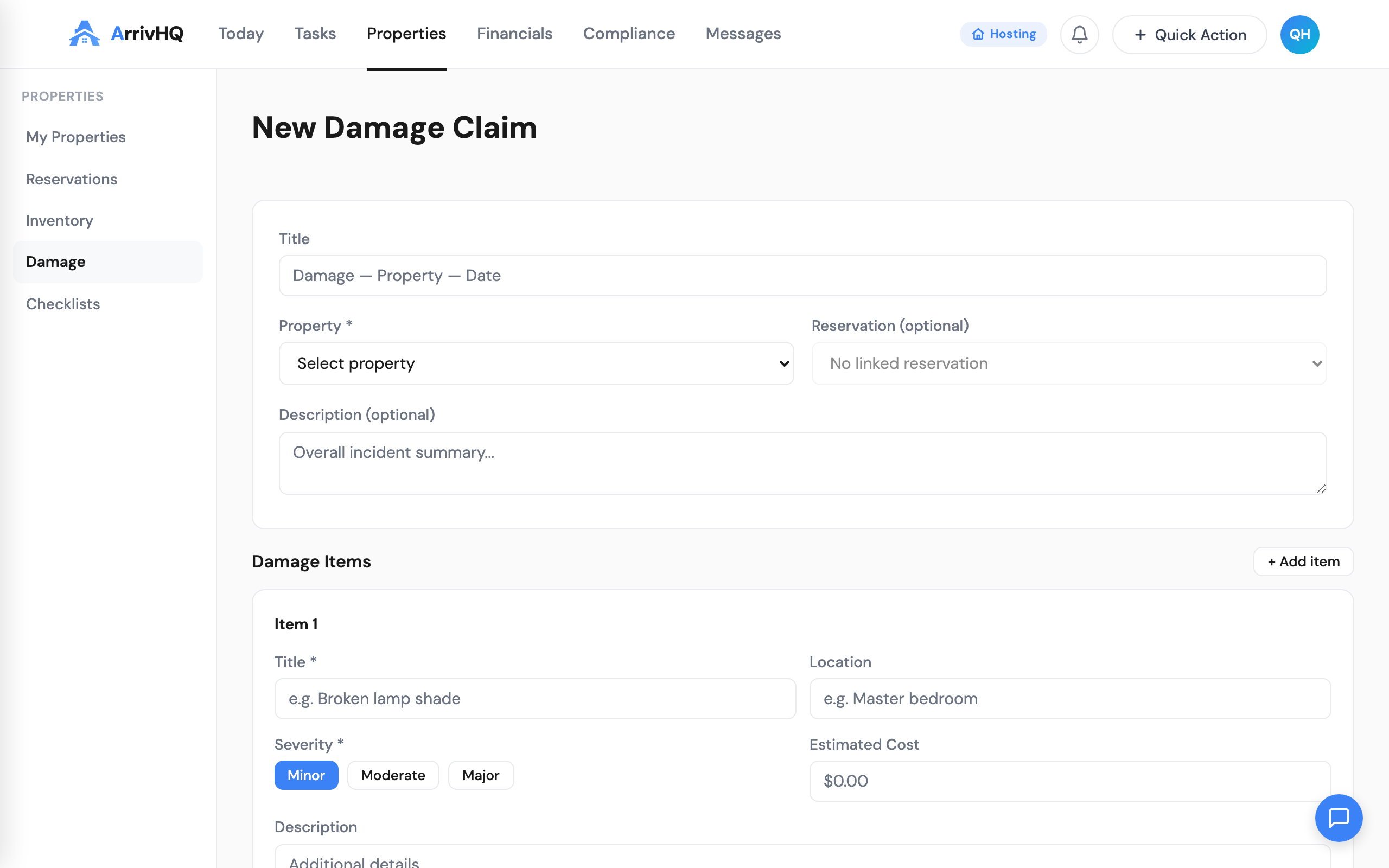
Photo documentation
Photos are the strongest evidence you can include. ArrivHQ lets you attach photos to each individual issue within a claim, not just to the claim as a whole. This keeps your documentation structured — photos of the broken window are attached to the broken window issue, not mixed in with photos of the stained carpet.
You can upload photos during claim creation or add them later from the issue detail view. Supported formats are JPEG, PNG, and WebP, with a 2 MB per-file limit after compression. The browser compresses images before upload to reduce file size while preserving quality.
The best practice is to document damage with photos as soon as possible. Before-and-after photos are particularly valuable — take photos of the damage when you discover it, and then again after repairs are completed.
The resolution workflow
Every new claim starts in Open status. ArrivHQ generates a set of guided resolution steps to walk you through the process:
- Confirm all damage is photographed and described.
- Record repair or replacement estimates for each issue.
- Notify the platform (Airbnb, VRBO) or file an insurance claim.
- Schedule repair or replacement.
- Confirm repair complete — add before/after photos.
- Mark the claim resolved and record final costs.
These steps are a guide, not a requirement. You can complete them in any order or skip steps that do not apply.
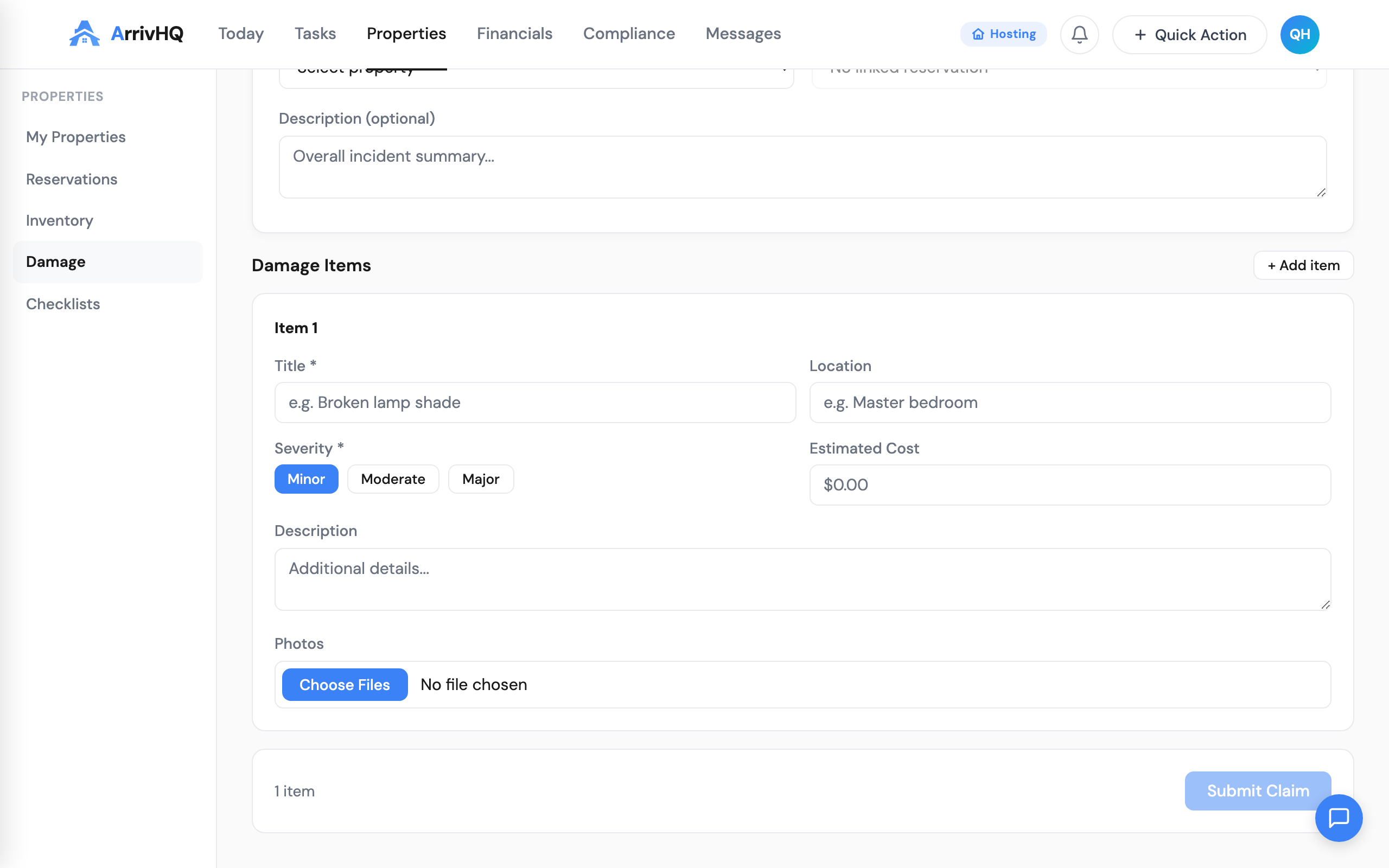
The claim moves through statuses as you work it:
- Open — damage has been documented.
- Investigating — you are actively assessing, gathering quotes, or determining responsibility.
- Disputed — the claim is being contested by a guest or denied by a platform.
- Resolved — repairs are completed or compensation was received.
- Closed — no further action needed, regardless of outcome.
Once a claim reaches Resolved or Closed, it cannot be reopened. If new damage is discovered or a dispute arises later, create a new claim.
What guests see
If a claim is linked to a reservation, the guest sees a simplified status in the guest portal: Under review, Resolved, or Closed. They cannot see your internal status, notes, cost estimates, severity ratings, resolution steps, or photos. This gives them awareness that something is being tracked without exposing your internal process.
Editing and updating claims
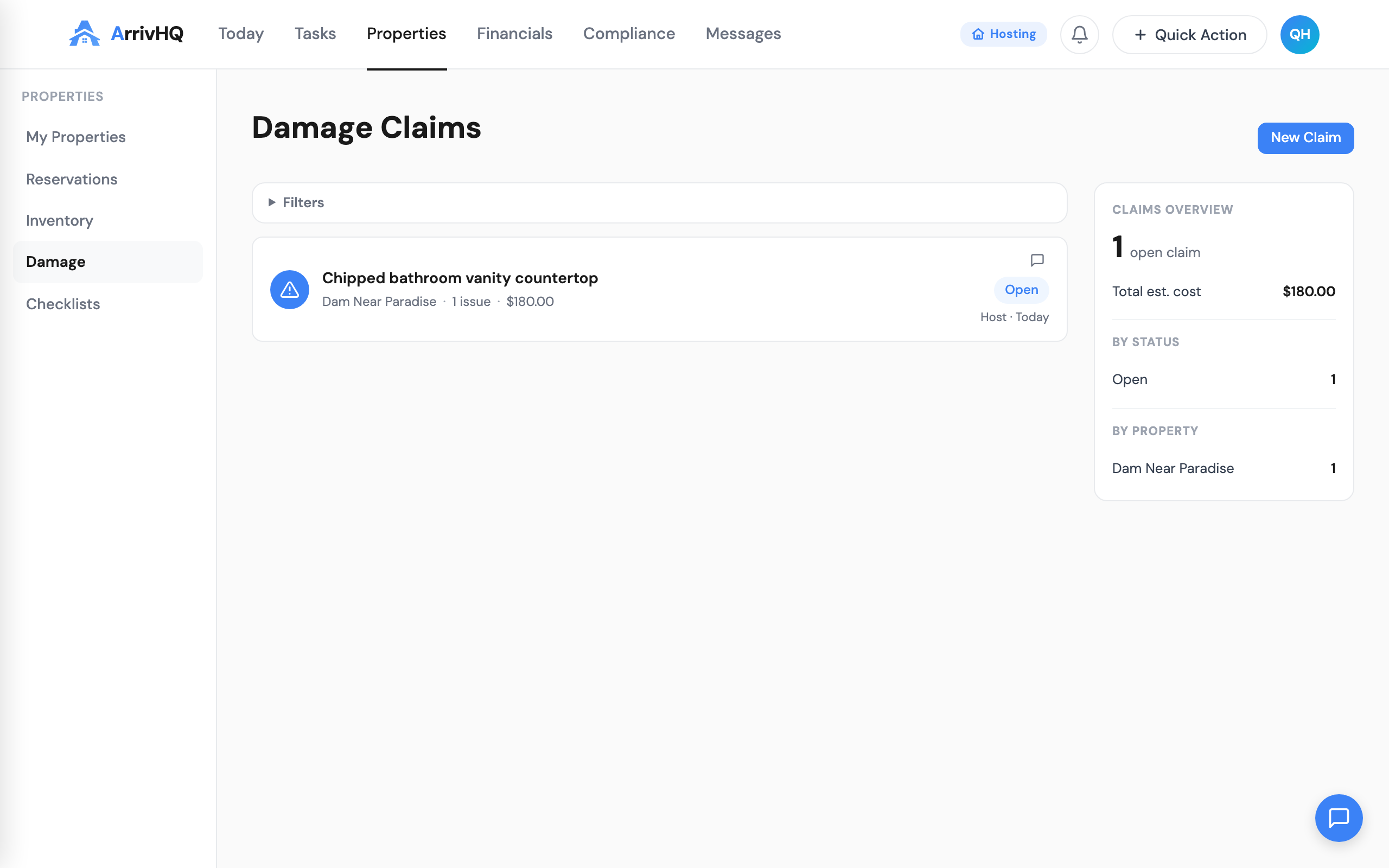
After creating a claim, you can update any field — title, description, linked reservation, or individual issue details. You can add new issues to an existing claim, upload additional photos, and update estimated costs as you get repair quotes.
You can also delete claims and individual issues when they are no longer needed. Deletion is permanent and removes associated photos from storage. If you want to preserve the documentation but stop actively tracking the claim, close it instead of deleting it.
All edits and deletions are recorded in the audit log with the user, timestamp, and action performed.
Plan requirements
An active paid subscription (Comply, Host, or Portfolio) is required to create damage claims. On the Comply plan, damage claim history is limited to a rolling window. On Host and Portfolio, history is unlimited.
For the complete reference, see the Damage documentation.