
ArrivHQ includes a built-in messaging system so you can communicate with guests directly from your dashboard. Messages are organized as per-property conversation threads — each guest has a dedicated thread tied to their stay at a specific property. If the same guest stays at two of your properties, there are two separate threads.
This is a direct channel between you and your guest inside ArrivHQ, with email notifications on both sides, AI-powered tools to help you write faster, and a permanent message history that supports your compliance records.
The inbox
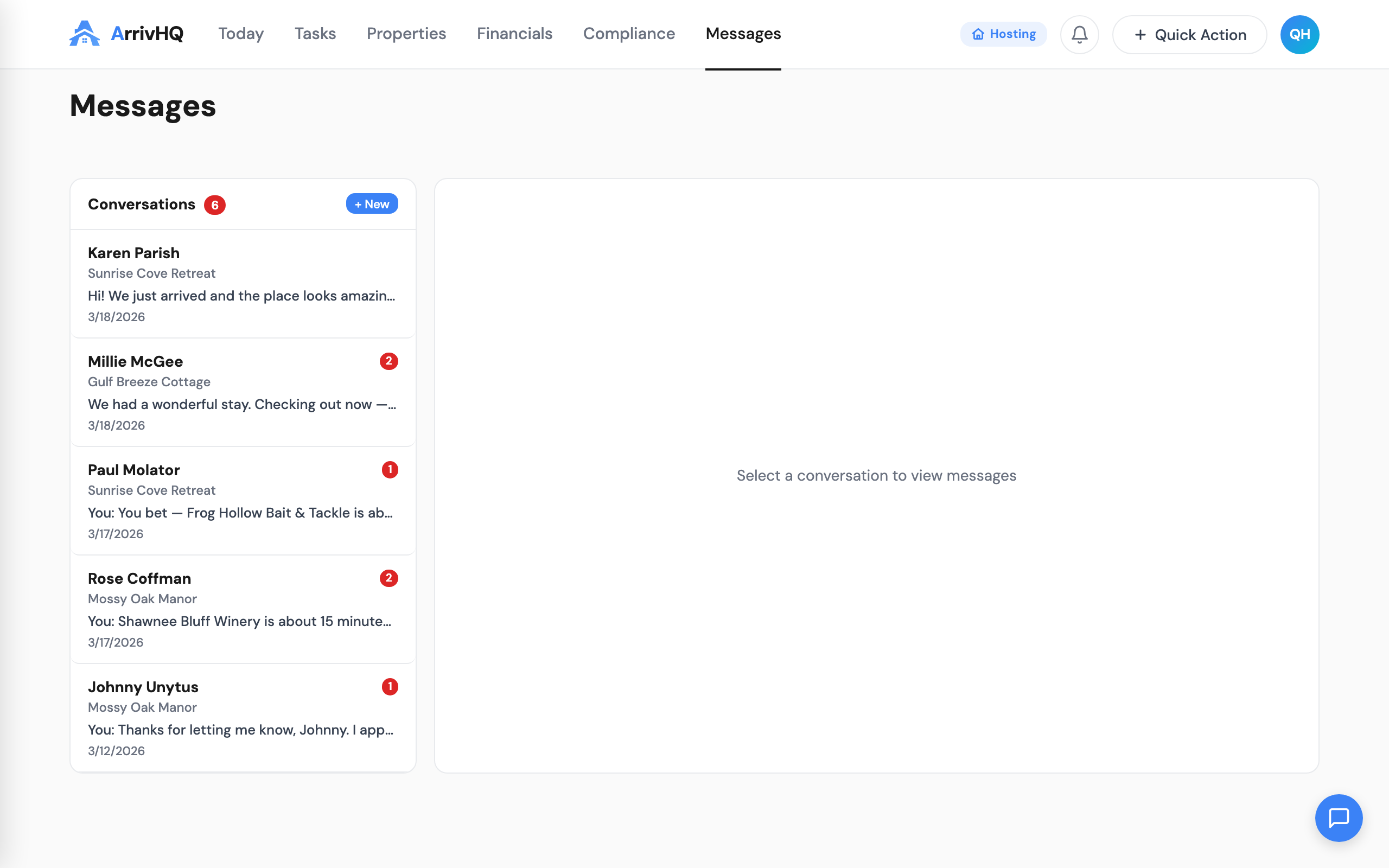
Navigate to Messages from the sidebar. You see a list of conversation threads — one per guest with an active or past stay. Click a thread to view the full message history and send new messages.
When you send a message, the guest receives an email notification with your message content. They can read it in their email or log in to ArrivHQ to view the full thread and reply. When a guest replies, you receive an email notification and the message appears in the thread.
Messages can be sent at any time during an active stay. Once a stay ends, the conversation becomes read-only — the history is preserved, but you cannot send new messages.
Starting a new conversation
You can initiate a conversation with any guest who has an active reservation.
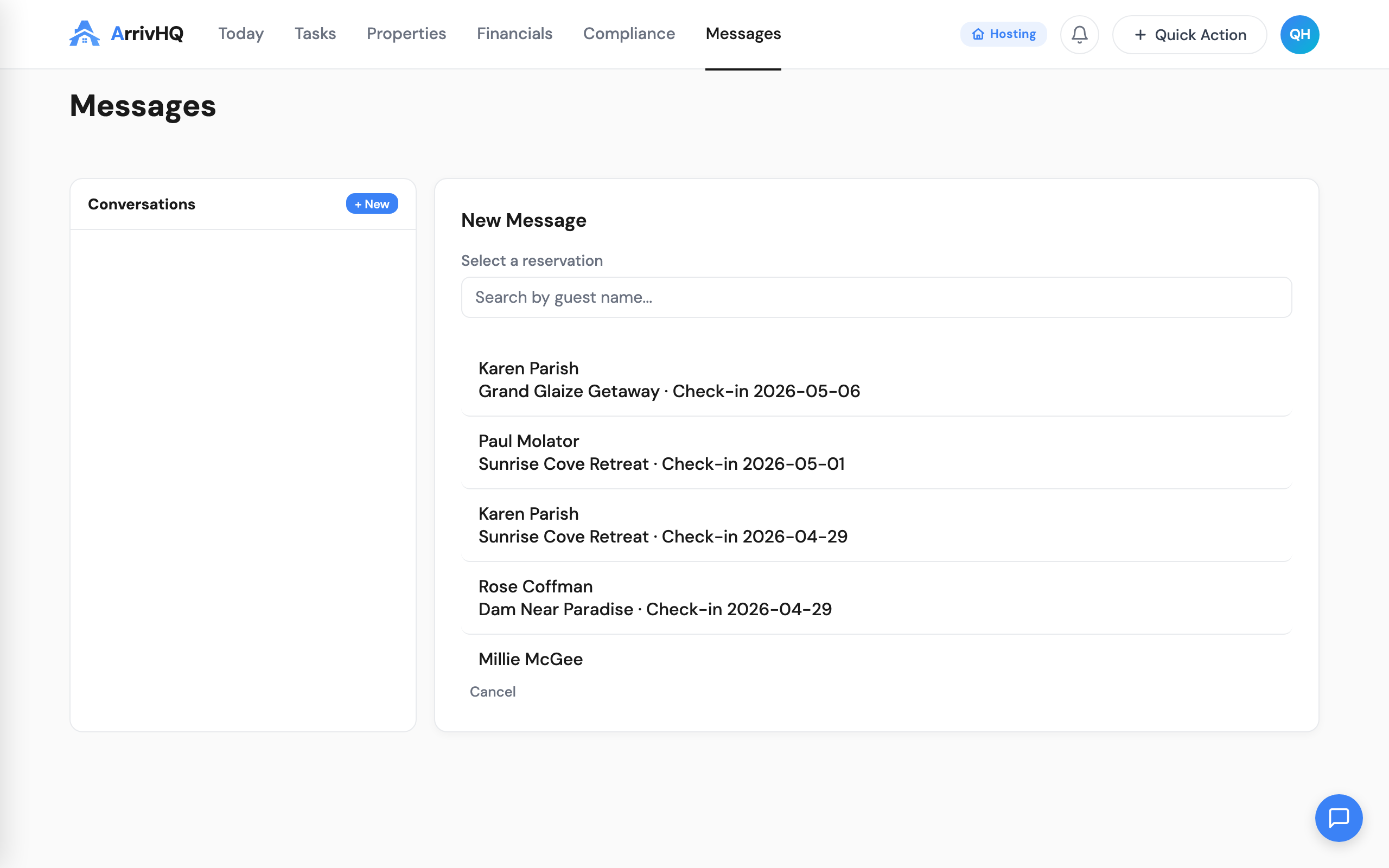
- Navigate to Messages from the sidebar.
- Click + New at the top of the conversation list.
- Search for the guest by name or browse the list of active reservations.
- Select a reservation to open a compose area.
- Type your message and click Send.
The guest receives an email notification, and the conversation thread appears in your sidebar alongside any existing threads.
AI Suggest Reply
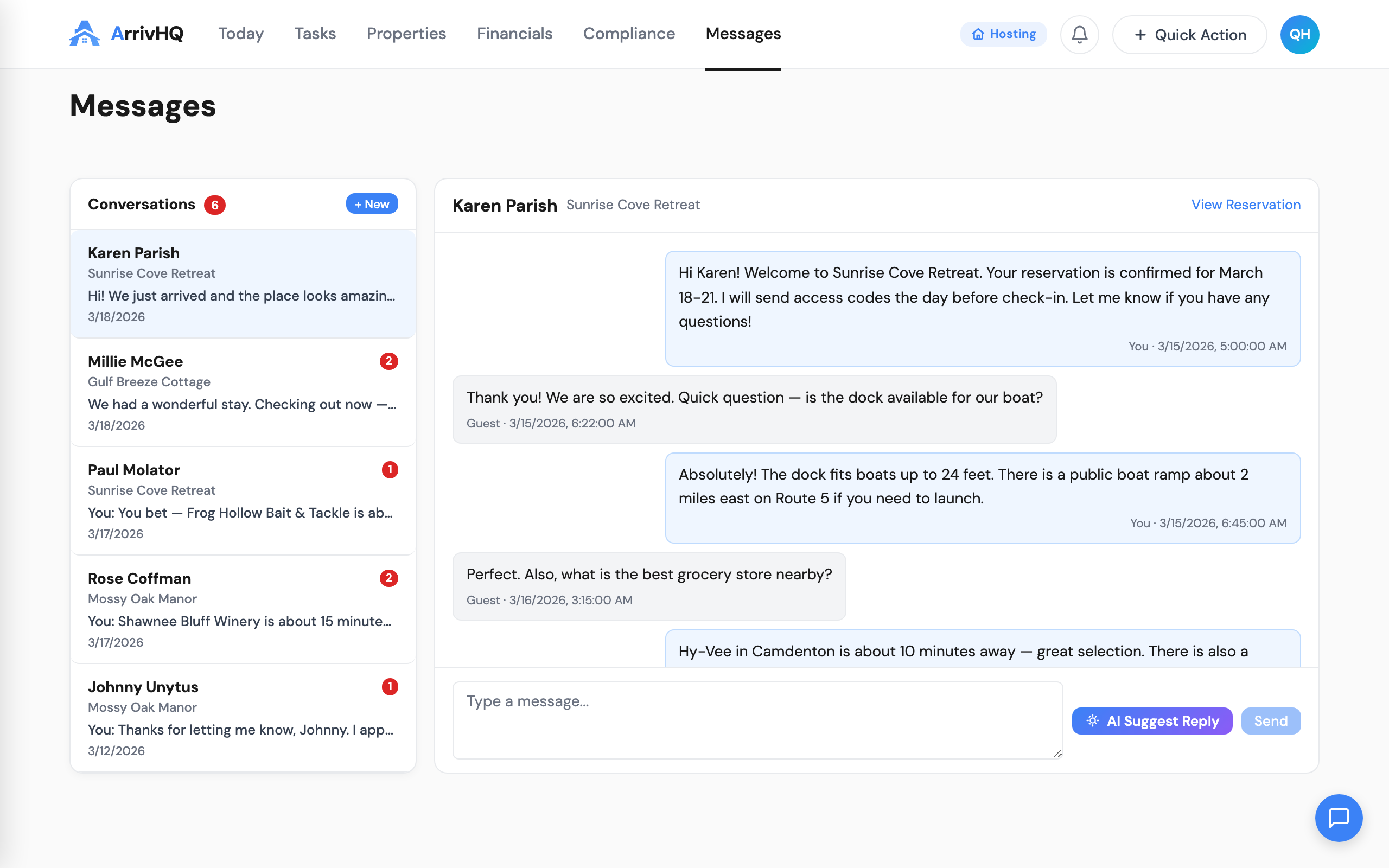
When the compose area is empty and you are not sure what to say, the AI can generate a full reply for you. Click the AI Suggest Reply button — the sparkle icon in the compose area. The AI reads the conversation history and generates a contextual reply based on the guest's most recent message, your property details, and any active checklists.
This is not a generic template generator. If a guest asks about check-in instructions, the AI references your property's actual arrival guide. If they ask about parking, it pulls from your published property guide. The suggested reply appears in the compose area for you to review and edit before sending.
Enhance with AI
When you have already typed a draft but want to polish it, the AI can improve your message without rewriting it from scratch. Type your reply, then click the Enhance with AI button — the same sparkle icon, which changes its label when text is present.
The AI takes your draft and improves the grammar, tone, and clarity while preserving your intent and specific details. The enhanced version replaces your draft in the compose area. Review it, edit if needed, and send when ready.
The button automatically switches between the two modes:
- Empty compose area — shows "AI Suggest Reply" and generates a reply from scratch.
- Text in compose area — shows "Enhance with AI" and polishes your existing draft.
Neither mode sends anything automatically. The AI output always lands in the compose area for your review first.
Messaging from damage claims
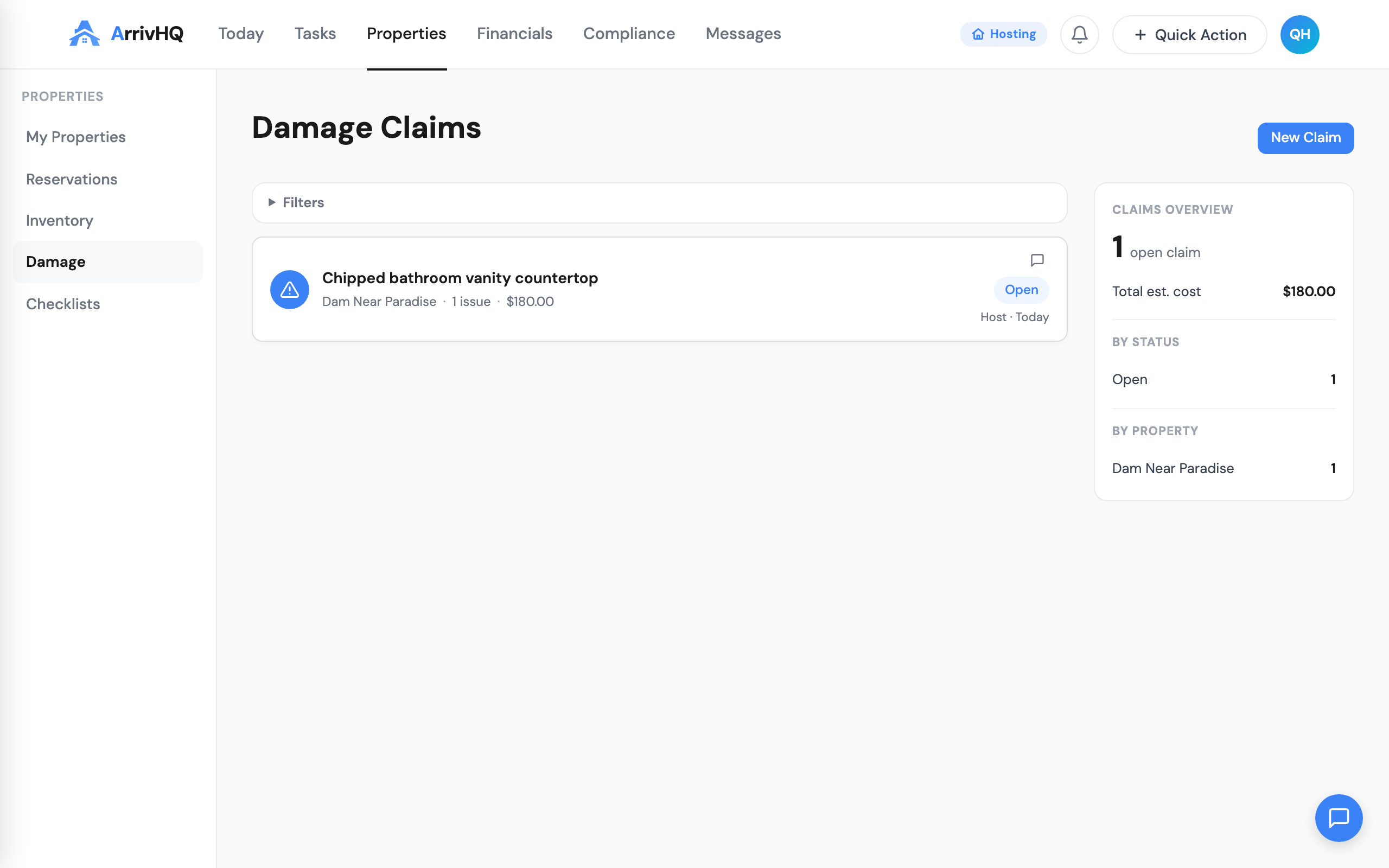
When a damage claim is linked to a reservation, you can message the guest directly from the claim without navigating away. Open a damage claim, and if it is linked to a reservation, a Message Guest button appears in the claim header. Click it to jump directly to the messaging thread for that reservation.
This shortcut is also available from the damage claims list view — each claim card with a linked reservation shows a message icon. It is useful for notifying guests about damage discovered during their stay, requesting information about an incident, or following up on a resolution.
Notifications
Email notifications are sent for every new message in a thread. When a guest sends you a message, you receive an email with the guest's name, the property name, and the message content. When you reply, the guest receives an email with a link to view the full conversation.
Notifications are delivered by Resend, typically within a few seconds. You can manage notification preferences from your account settings. Team members with access to the property also receive notifications for messages in that property's threads, depending on their preferences.
Message history as compliance documentation
Every message exchanged between you and a guest is permanently stored. Messages cannot be deleted, which ensures the integrity of the record. This creates a timestamped trail that supports several needs:
- Guest communication log — demonstrates active management of your properties, supporting material participation claims.
- Damage claim evidence — messages about damage, repair timelines, and guest acknowledgments are preserved alongside your damage records.
- Dispute resolution — if a guest disputes a charge, your message history provides a clear record of what was communicated and when.
Message history from past stays is read-only but always accessible, retained for the lifetime of your account.
Who can see what
Only you and team members with access to the property can view a property's message threads. The specific guest can only see their own thread. Team members see threads based on their role and property assignments, and messages show the sender's name so the guest knows who is writing.
Plan requirements
Messaging is available on the Host and Portfolio plans. AI Suggest Reply and Enhance with AI are included with messaging on both plans. Messaging is not available on the Comply plan.
For the complete reference, see the Messaging documentation.