
ArrivHQ gives you a direct messaging thread with your host for the duration of your stay. No email chains to dig through, no text messages to lose — just one conversation in one place. Here is how it works.
Finding the Messages tab
Sign in to your dashboard and open your stay. The Messages tab shows your conversation thread with your host. If your host has sent you a message, an unread count appears on the tab so you know something new is waiting.
You can start messaging as soon as you accept your invitation, even before your check-in date. This is a good time to ask about early check-in, parking, or anything else you want to sort out ahead of arrival.
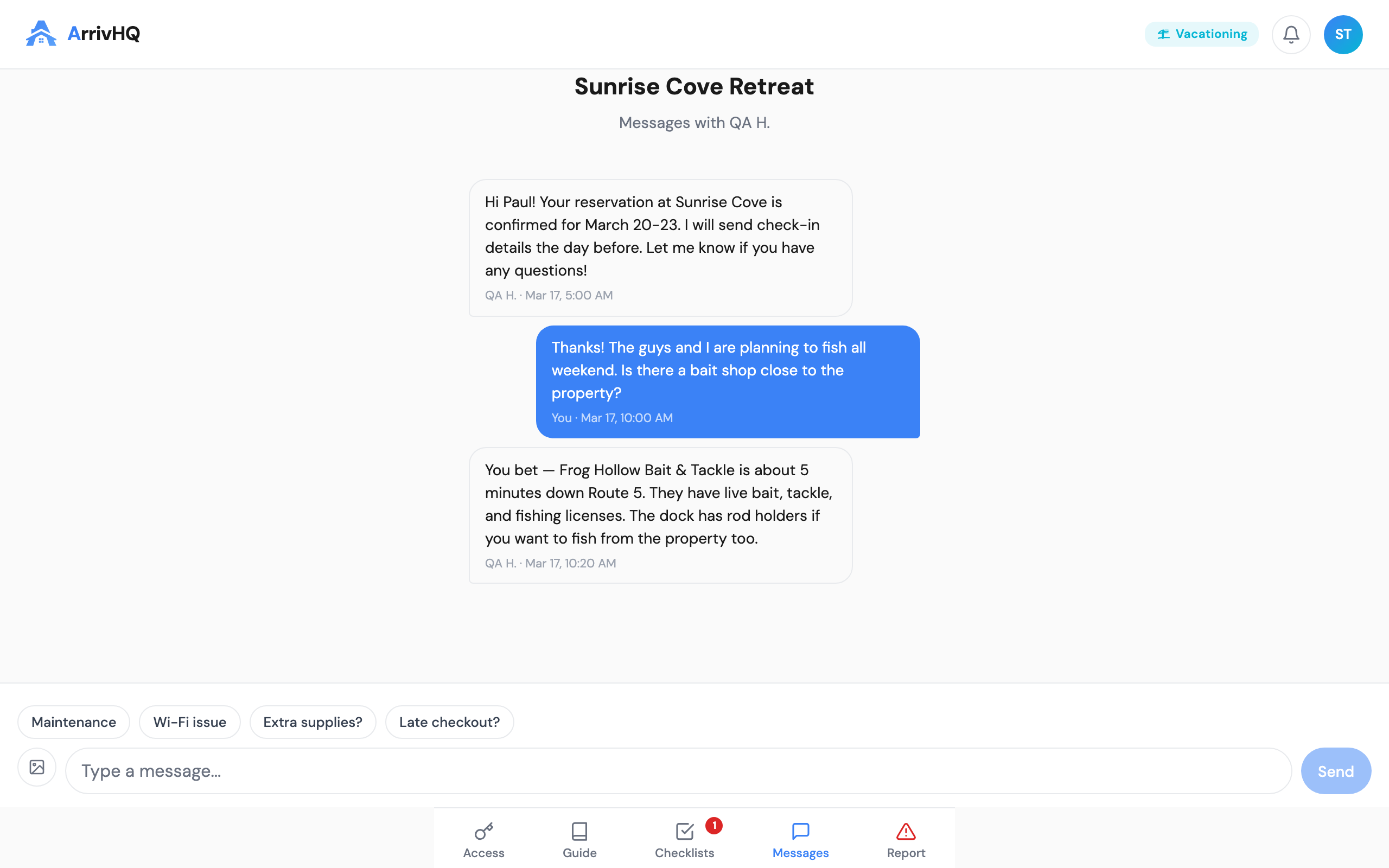
Sending a message
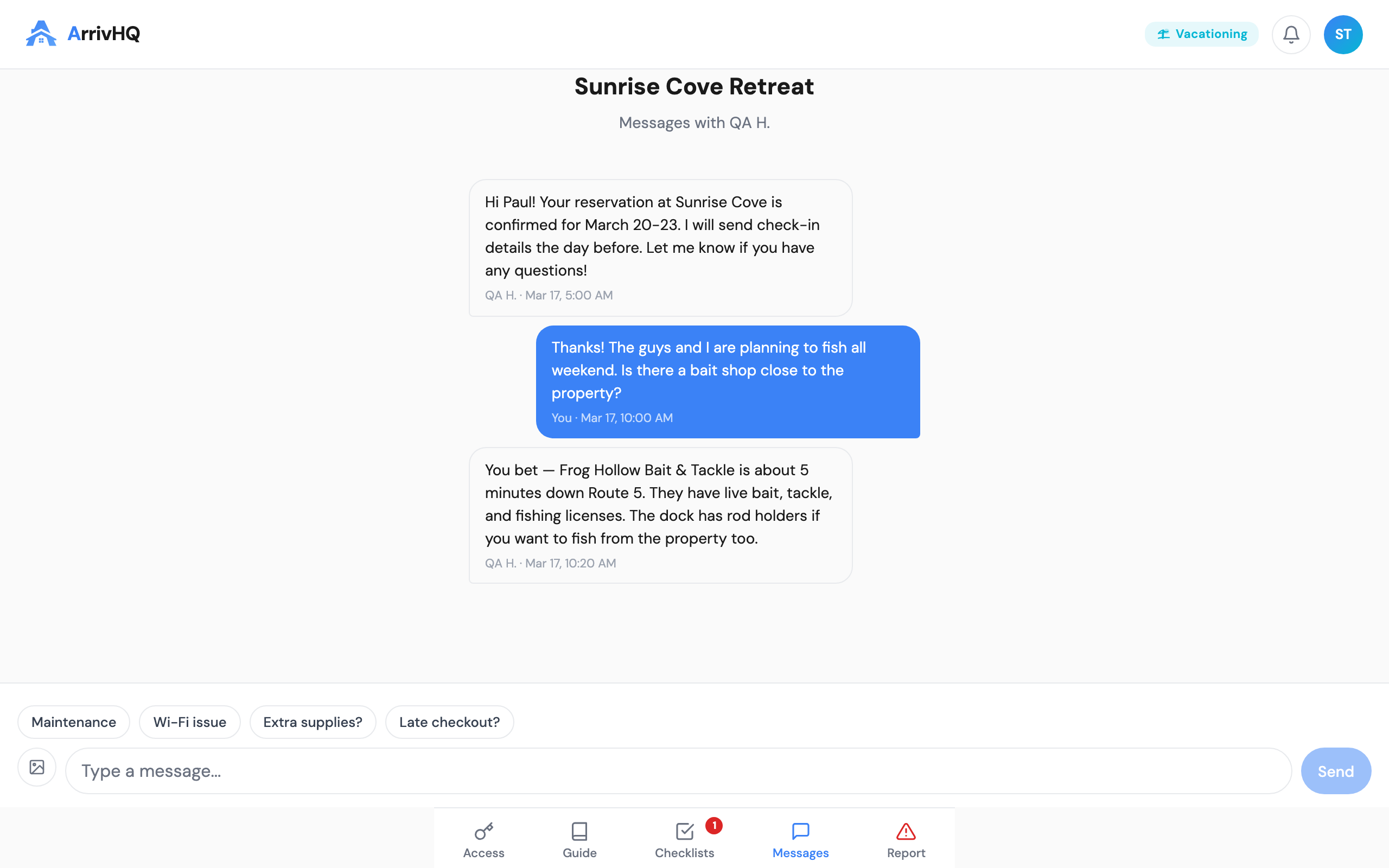
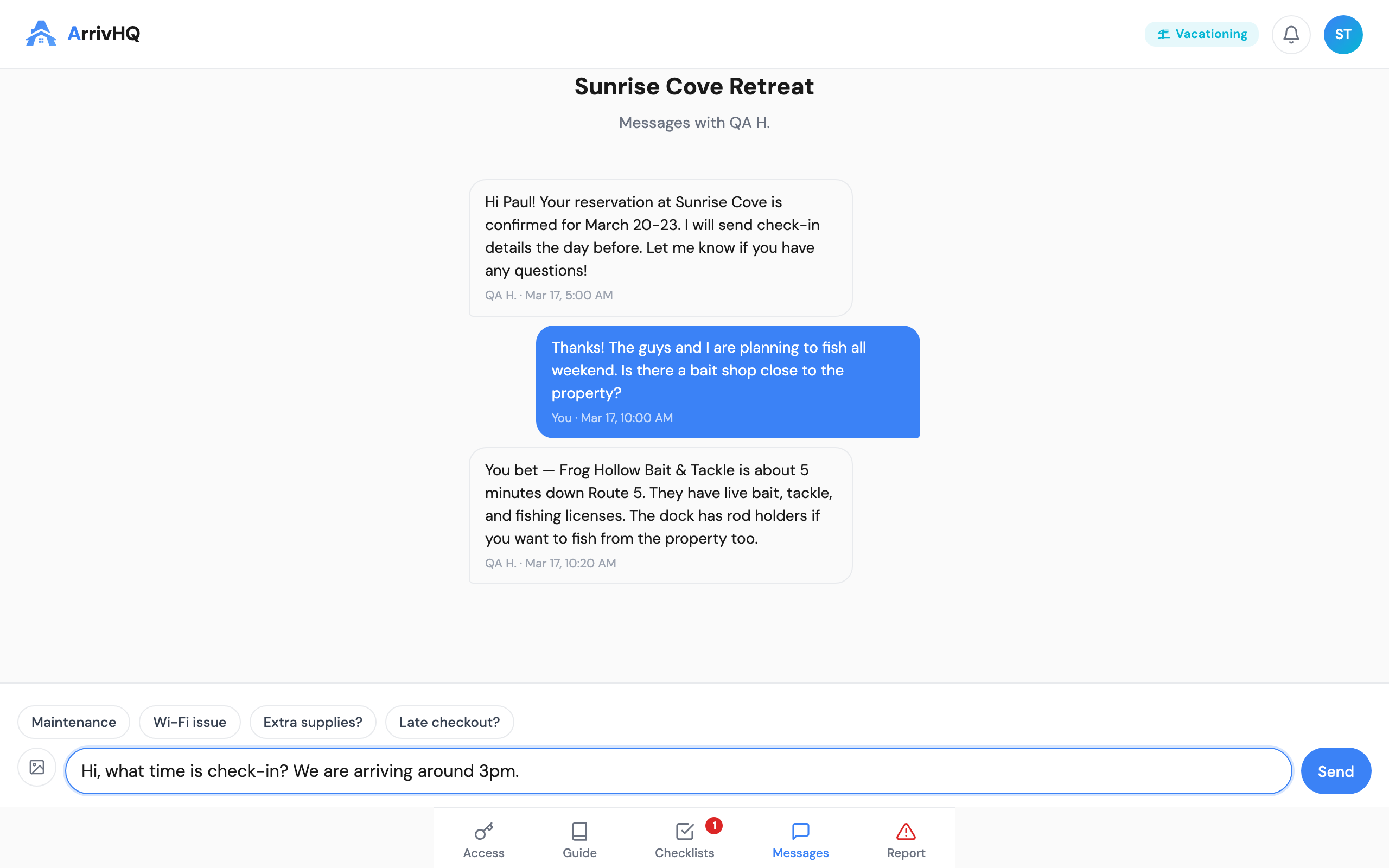
Type your message in the compose area at the bottom of the thread and click Send. Your message appears in the conversation immediately, and your host receives an email notification so they know you have written.
A few tips for getting a quick, helpful response:
- Be specific. Instead of "something is broken," try "the kitchen faucet is dripping when turned off." Include the room or area if it matters.
- Mention what you have tried. If you already reset a breaker or checked a switch, say so — it saves your host from suggesting the same thing.
- One topic per message. If you have two unrelated questions, sending them separately makes it easier for your host to address each one.
Quick action buttons
Depending on where you are in your stay, you may see quick action buttons that suggest common messages — things like pre-arrival questions, check-in confirmations, or checkout notes. These are shortcuts that help you send a relevant message without having to compose it from scratch. Tap one to use it or write your own message instead.
Sharing photos
If you are reporting an issue, a photo often says more than a paragraph of text. Use the attachment option in the compose area to upload a photo from your device. It appears directly in the conversation thread, and your host can see it right away.
Good uses for photo messages:
- A stain or damage you want to document
- An appliance panel you are unsure about
- An error message on a smart device
- The condition of something at check-in (protecting yourself from blame later)
Receiving messages from your host
When your host sends you a message, you receive an email notification at the address on your ArrivHQ account. The email includes the message content, so you can read it without signing in. To reply, though, you need to open the conversation in your dashboard.
Every new message from your host generates a separate notification. If notifications are not arriving, check your spam folder and make sure the email address in your account settings is correct.
AI Concierge
Look for the chat icon in the corner of your portal. The AI Concierge can answer questions about the property using information from the property guide — things like Wi-Fi passwords, trash schedules, parking instructions, and appliance tips. If it cannot answer your question, it suggests messaging your host directly.
Before sending a message to your host about something routine, it is worth checking the AI Concierge or the Property Info section first. Many common questions are already answered there.
After your stay ends
Once your check-out date passes, the conversation becomes read-only. You can still view past messages for reference, but you cannot send new ones. If you need to reach your host after checkout, use the contact information they provided during your stay.
Common questions
How quickly will my host respond? Response times vary. Most hosts reply within a few hours during the day. For urgent issues like no water or being locked out, check the property guide for an emergency phone number.
Can I edit or delete a message after sending it? No. Messages cannot be changed after they are sent. Double-check before you tap Send.
Can other guests see my messages? No. Your conversation is private between you and your host (and their team members who have access to the property).
Is there a limit on how many messages I can send? No. Send as many as you need during your stay.
For more details, see the Guest Help Center.