
If you list on Airbnb and VRBO, take some direct bookings, and occasionally charge a pet fee, your rental income arrives from multiple directions. At tax time, you need a clear picture of how much each property earned, from which channels, and in what categories. ArrivHQ gives you a structured way to log all of it so the numbers are ready when your CPA asks.
What revenue tracking does
Revenue tracking is the income side of your property financials. It is not a full accounting system — it is a structured log of the money your properties generate. Each entry records the payout date, amount, source channel, revenue type, property, and any notes. Over time, your revenue log builds a per-property income record that feeds into your compliance documentation and Schedule E preparation.
Revenue tracking is available on Host and Portfolio plans. It works alongside expense tracking, work logs, and mileage to give you a complete financial picture of each property.
Logging a payout
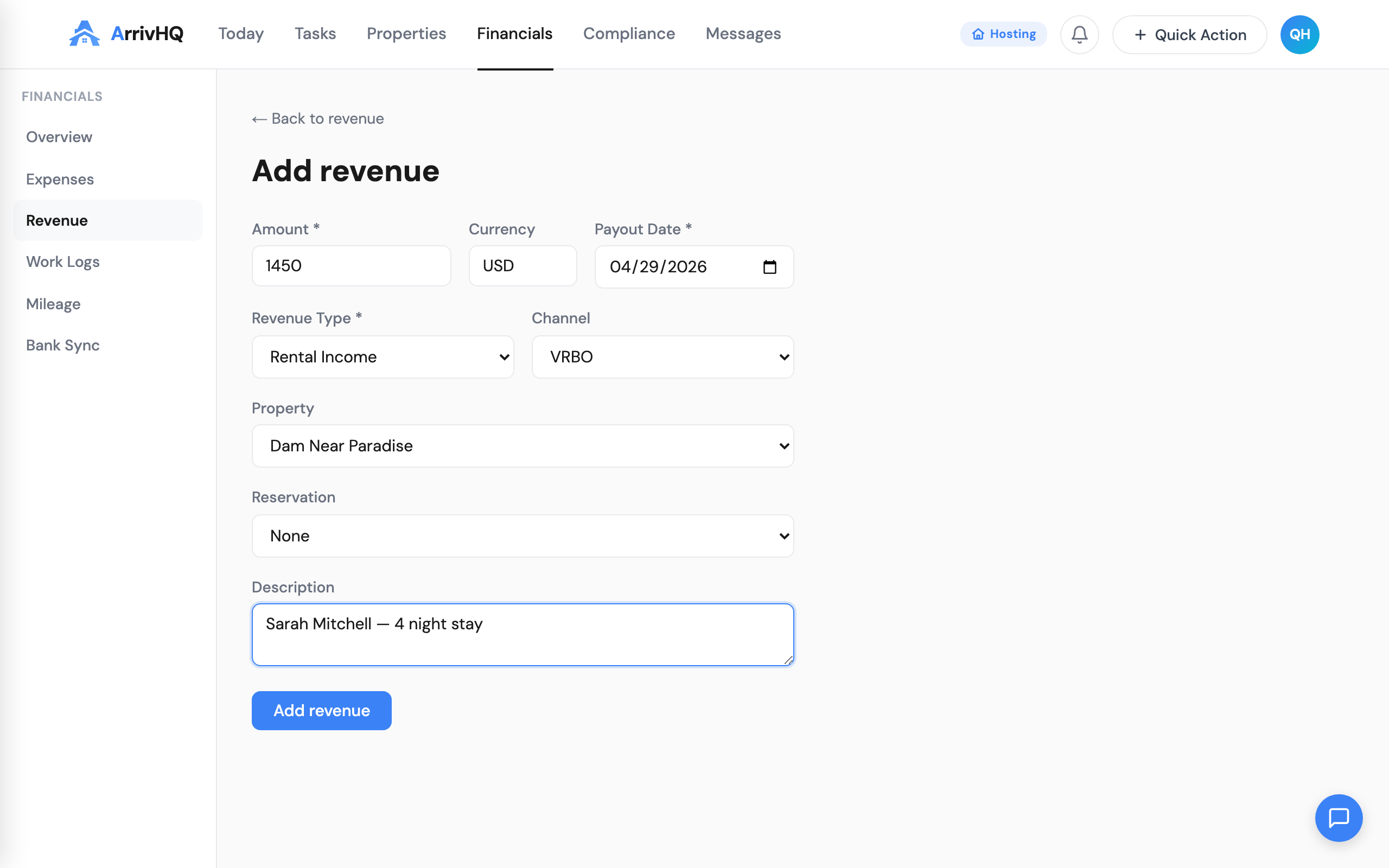
When you receive a payout from a booking platform or a payment from a direct guest, go to Revenue in the sidebar and click Add Entry. Two fields are required: payout date and amount. The optional fields — channel source, revenue type, property, reservation, and description — add the context that makes the record useful.
Channel source identifies where the booking originated: Airbnb, VRBO, Direct, or Other. This lets you see how much income each platform generates over time and makes reconciliation straightforward when platform payouts land in your bank account.
Revenue type classifies what kind of income it is: Rental Income, Cleaning Fee, Pet Fee, Damage Deposit, or Other. Most entries will be Rental Income, but splitting out cleaning fees and pet fees gives you a more granular view and can matter for tax categorization.
Platform payouts vs. direct bookings
For platform payouts (Airbnb, VRBO), record the net payout — the amount that actually lands in your bank account after the platform deducts its service fees. The platform's cut is their charge, not your income. If you want to track the gross amount and the fee separately, log the net payout as revenue and the platform fee as an expense under the Commissions category.
For direct bookings, record the full amount collected from the guest. Select "Direct" as the channel source.
This distinction matters because Schedule E asks for gross rents received, and your CPA will need to reconcile what you report with what the platforms reported on your 1099-K. Consistent, well-labeled entries make that reconciliation painless.
Splitting income types
If a single payout includes multiple income types — say, rental income plus a cleaning fee — you have two options.
You can log it as one entry with the total amount and "Rental Income" as the type. This is faster and works fine if you do not need to see cleaning fee revenue separately.
Or you can split it into two entries: one for rental income and one for the cleaning fee, both with the same payout date. This gives you more granular reporting and makes it easier to see how much of your income comes from cleaning fees across your portfolio.
Choose the approach that matches how you want to analyze the data. If your CPA asks for cleaning fee totals separately, splitting is worth the extra 30 seconds per entry.
Linking revenue to reservations
Each revenue entry can optionally be linked to an existing reservation. This creates a direct connection between the income and the guest stay that generated it. When you open a reservation, you can see its associated revenue entries alongside expenses, giving you a per-stay profit picture.
Multiple revenue entries can be linked to the same reservation. This is the natural result of splitting a payout into separate revenue types (rental income and cleaning fee for the same stay).
Filtering by property and channel
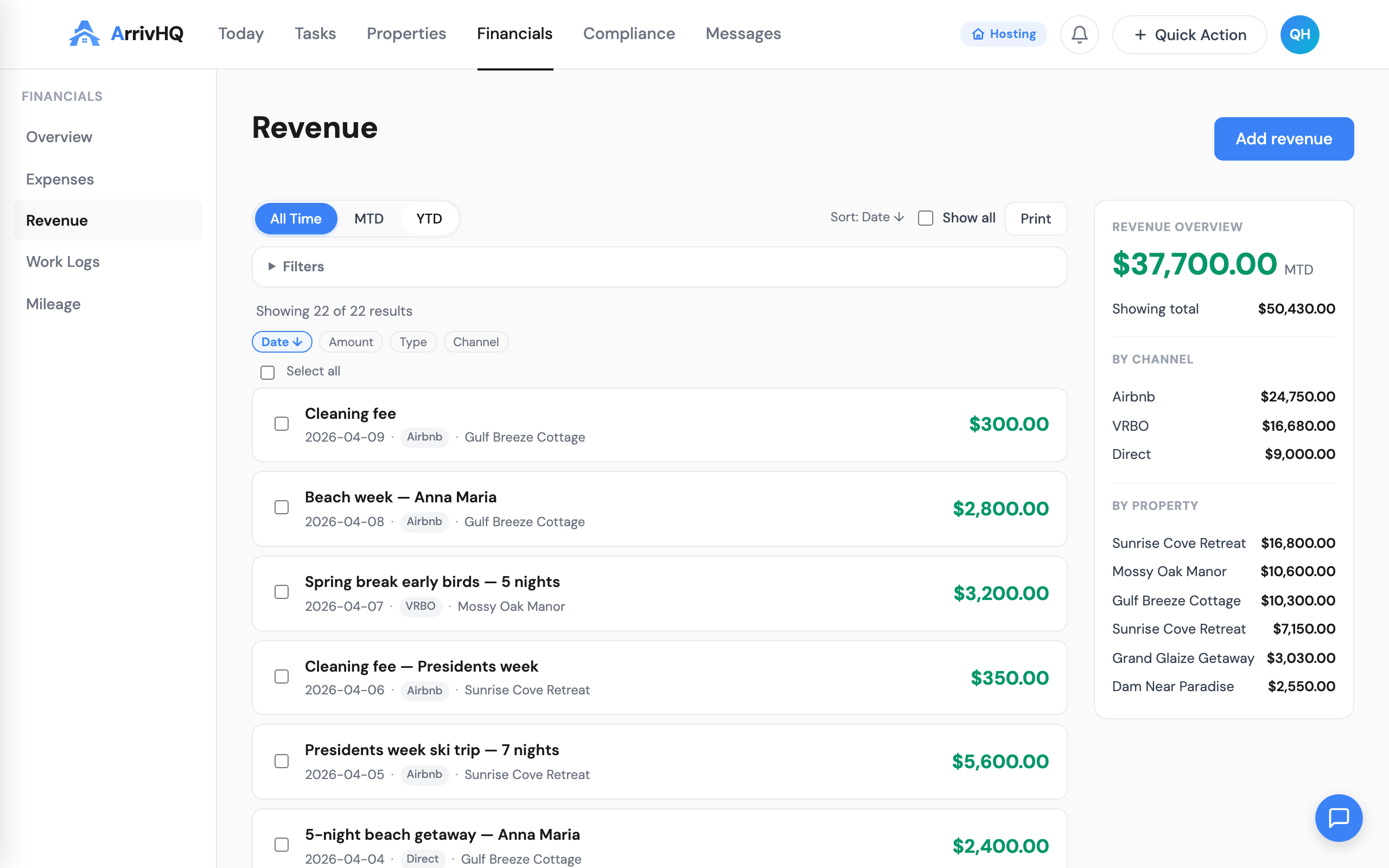
The revenue list view gives you date presets (MTD, YTD, All Time), custom date ranges, property filtering, channel source filtering, and revenue type filtering. These filters combine freely.
Common filter combinations include:
- Tax year income for one property — Select the property, set date range to Jan 1 through Dec 31. This is what goes on Schedule E for that property.
- All Airbnb payouts this month — Set channel source to Airbnb and date range to the current month. Useful for reconciling with your Airbnb payout statement.
- Cleaning fee income across all properties — Set revenue type to Cleaning Fee with no property filter. Gives you a portfolio-wide view of cleaning fee revenue.
Search works across the description field. If you include booking numbers or guest names in your descriptions, you can find specific payouts quickly.
Revenue and Schedule E
Each rental property gets its own section on Schedule E, and you report gross rents received for each one. Your ArrivHQ revenue log, filtered by property and tax year, gives you that number directly. Combined with your expense records (also filterable by property and year), you have the income and deduction data your CPA needs to complete the form.
Revenue entries also contribute to the broader compliance picture. If you are demonstrating material participation in a rental activity, showing that the activity generates real income strengthens the case that it is a genuine business, not a hobby.
Batch operations
You can select multiple revenue entries and update their property assignment, channel source, or revenue type in one step. This is useful if you imported entries without assigning a property or realized you used the wrong channel source on a batch of entries.
Batch delete handles up to 100 entries at once. Deletions are permanent and cannot be undone, so use this carefully.
For the complete reference, see the Revenue documentation.