
Every trip you make for your rental property — driving to the property for a turnover, picking up supplies at the hardware store, meeting a contractor on site — represents deductible miles. The IRS standard mileage rate makes this one of the simplest deductions to claim, but only if you have a log. No log, no deduction. ArrivHQ gives you that log.
The IRS standard mileage rate
The IRS offers two methods for deducting vehicle expenses. Most hosts use the standard mileage rate, which lets you multiply your total business miles by a fixed per-mile rate set each year. You do not need to track gas receipts, oil changes, or tire purchases — the rate covers all of it.
The alternative is the actual expense method, where you track every vehicle cost and deduct the business-use percentage. This requires more record-keeping and is generally only worthwhile if your vehicle expenses are unusually high relative to your mileage.
You choose one method per vehicle per year. ArrivHQ records the miles driven regardless of which method you use, but the mileage log is most directly useful for the standard rate approach. At tax time, filter your log to the calendar year, total the miles, and apply the rate.
What counts as deductible mileage
The IRS allows deductions for trips driven for rental property management purposes. This includes:
- Driving to the property for turnovers, inspections, or maintenance
- Supply runs for guest amenities, cleaning products, or repair materials
- Trips to meet contractors, cleaners, or handypeople at the property
- Driving to meet guests for key handoff or check-in
- Visiting a CPA or attorney for rental-related business
- Picking up furniture, appliances, or decor for the property
What does not count: commuting to a regular job, personal errands combined with a property stop (unless the primary purpose is property business), and trips with no clear business purpose.
If a single trip covers multiple properties, log it as one entry and assign it to the primary property. Note the additional stops in the purpose or notes field.
Logging a trip
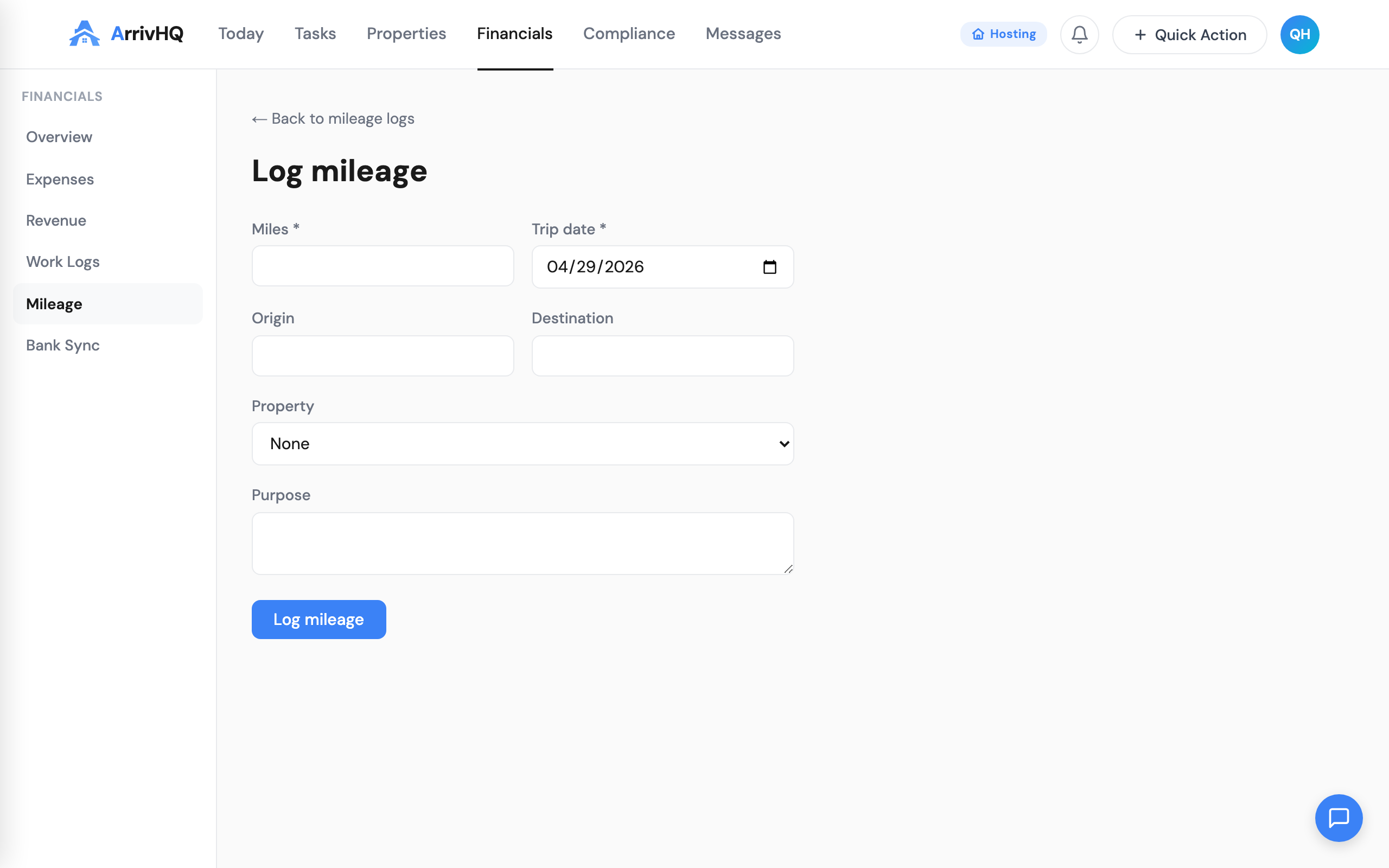
Open Mileage in the sidebar and click Log Trip. Two fields are required: trip date and miles driven. Everything else — origin, destination, purpose, and property — is optional but strongly recommended for compliance.
A good mileage entry looks like this: Trip date March 12, 14 miles, origin "Home," destination "456 Lakefront Dr," purpose "Post-checkout inspection and restocked bathroom supplies," property "Sunrise Cove Retreat."
A weak entry looks like this: March 12, 14 miles. No origin, no destination, no purpose.
The IRS expects enough detail to verify that the trip was genuinely for business. If you are ever asked to substantiate your mileage deduction, "14 miles" tells them nothing. "Home to 456 Lakefront Dr, post-checkout inspection" tells them everything.
Round trips can be logged as a single entry — just enter the total miles for both directions and note "round trip" in the purpose field.
Tips for strong records
Log trips the same day they happen. ArrivHQ timestamps each entry when you create it. A log built in real time is a contemporaneous record, which the IRS values far more than a year-end reconstruction.
Always assign a property. This links the mileage to that property's financial picture and lets you see per-property totals in the summary view. Unassigned trips still appear in your overall total but are excluded from property-filtered views.
Be specific with purpose. "Property visit" is vague. "Inspected HVAC unit after guest complaint about heating" is clear. Your purpose field should explain why the trip was necessary for your rental business.
Include origin and destination. This makes each entry self-contained. If you are ever audited, each log entry should tell the complete story without needing additional context.
The summary view
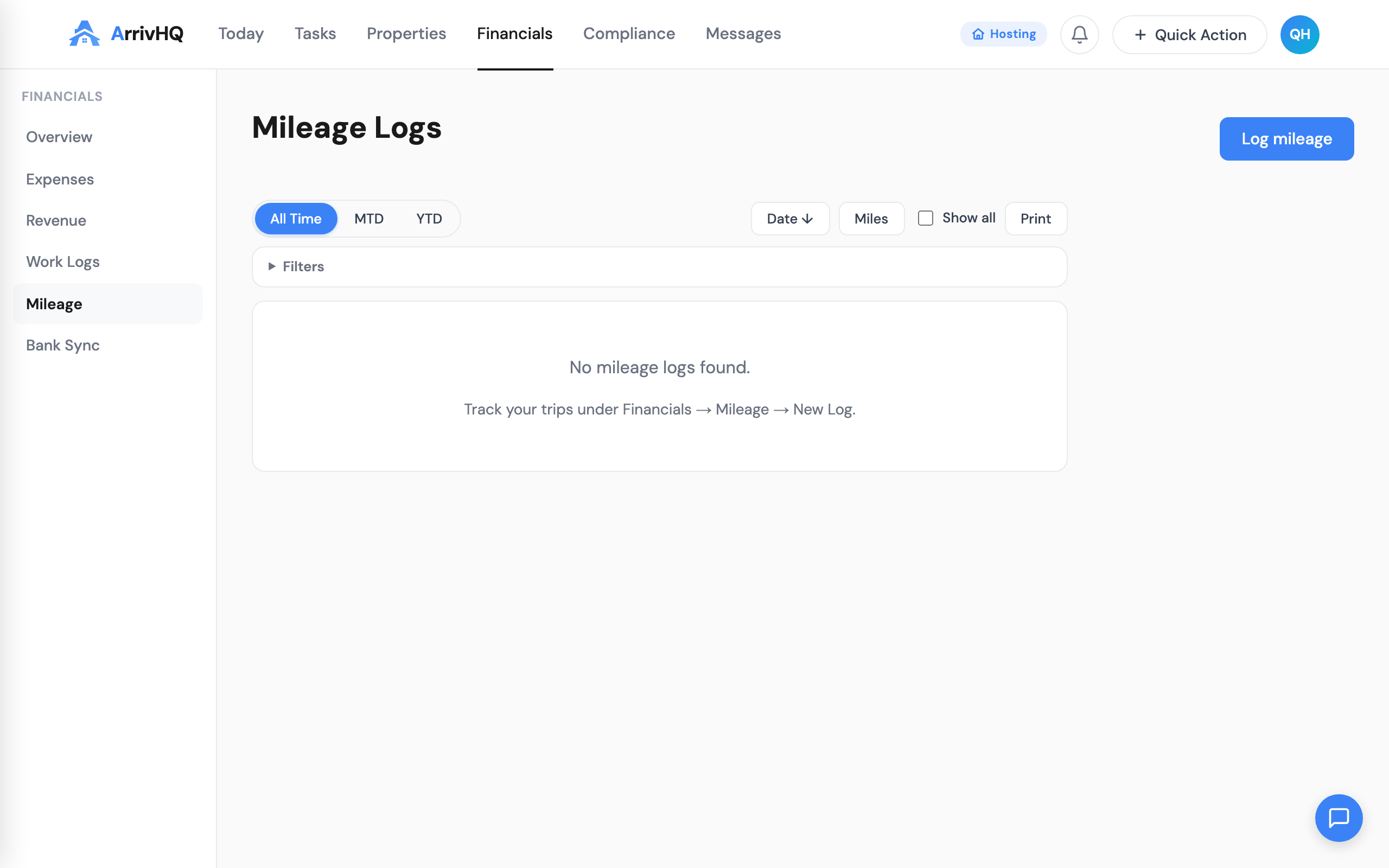
Your mileage summary gives you a running view of total business miles. Filter by property to see per-property totals, or leave it on "All" for a portfolio-wide number. Date presets (MTD, YTD) and custom date ranges let you view any period.
At tax time, set the date range to the full calendar year, confirm your total miles, and multiply by the IRS standard rate. If you manage multiple properties, use the property filter to get per-property totals for Schedule E — each property gets its own line on the form.
You can also print the filtered list for your records or share it with your CPA. Toggle "Show all" to load every matching entry on a single page, then click Print for a clean output.
Editing and correcting entries
If you catch a mistake — wrong mileage, wrong date, forgot to assign a property — you can edit any entry from the detail view. All fields are editable: trip date, miles, origin, destination, purpose, and property.
Batch operations let you update the property assignment on multiple entries at once, which is useful if you logged several trips without assigning a property and want to fix them all in one step.
Deletions are permanent. If you are unsure about an entry, edit it rather than deleting it.
Mileage and material participation
Trips logged in the mileage tracker also support your material participation documentation. If the purpose of a trip is property management — inspecting the property, meeting a contractor, handling a guest issue — it represents active involvement in your rental business. While mileage entries are not the same as work log entries, they corroborate the story your work log tells. A work log entry for "inspected HVAC unit" paired with a mileage entry for "drove to property for HVAC inspection" creates a stronger record than either one alone.
For the complete reference, see the Mileage documentation.