
Guests in ArrivHQ are the people staying at your properties. You invite them by email, they create a free account, and during their stay dates they can view property details, complete checklists, and exchange messages with you. Guest accounts are always free, never count against your plan's team member limit, and a single guest account works across multiple hosts and properties.
Here is how the whole flow works, from invitation to checkout.
Sending an invitation
Navigate to the Guests section of the property you want to invite someone to and click Invite Guest. Enter the guest's email address, select the property (if not already selected), and set the check-in and check-out dates.
Click Send Invitation. The guest receives an email with your property name, the stay dates, and a link to accept. The email does not include your address or other private details until they accept. If they already have an ArrivHQ account, they sign in and the stay is added to their dashboard. If they are new, the link walks them through creating a free account.
A few things to know about invitations:
- Stay dates are required. ArrivHQ uses them to know when to grant and revoke property access automatically.
- You can invite the same guest to multiple stays at the same or different properties.
- There is no limit on the number of guests you can invite, regardless of your plan.
- If the guest does not accept, the invitation stays pending. You can resend it or cancel it and create a new one.
- You can change the dates after sending, whether or not the guest has accepted yet.
Travel companions
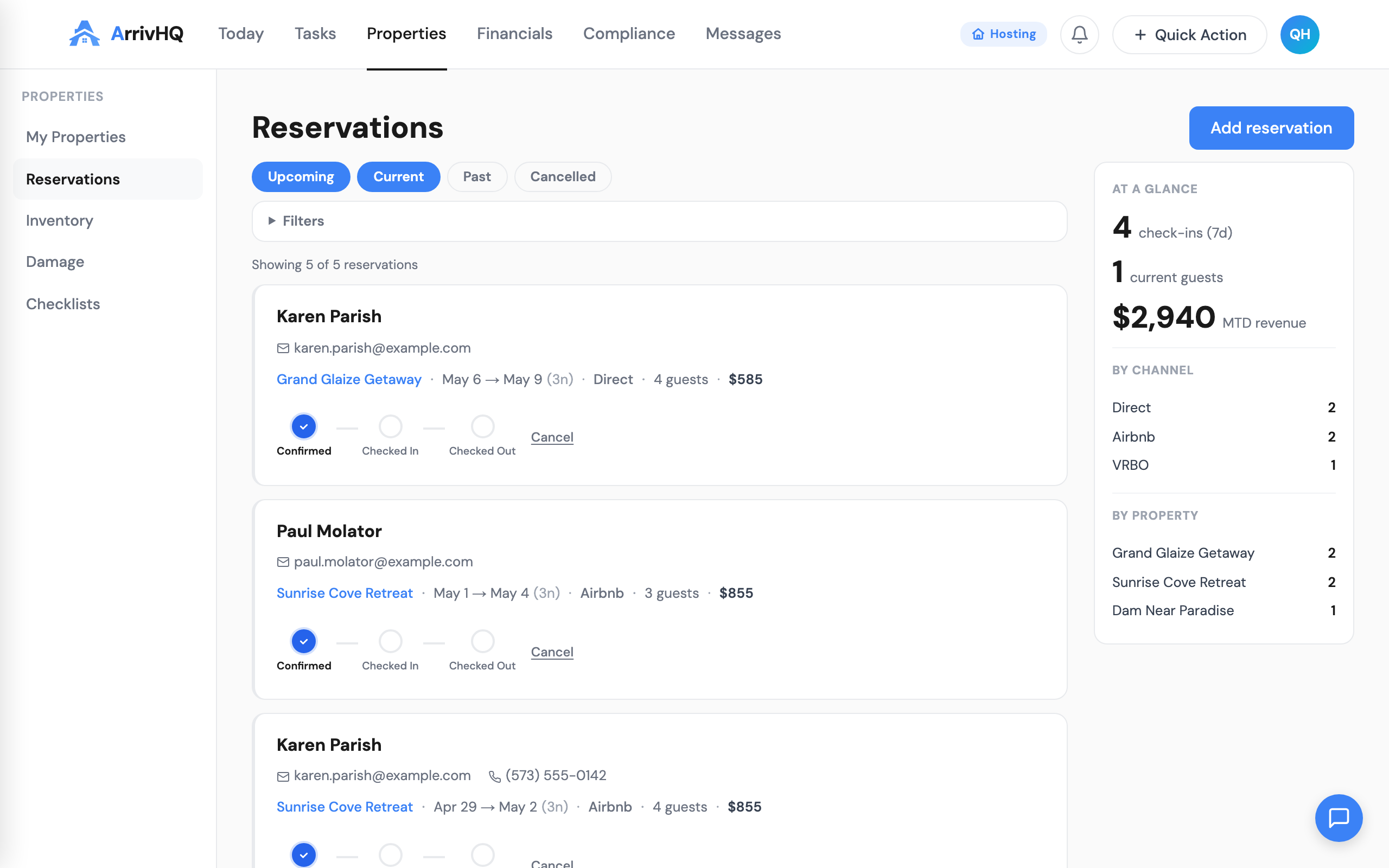
A single reservation can include multiple guests. The primary guest — the person who made the booking — receives the invitation and manages their companion list. Adult companions can be added with their own email addresses, and each one gets access to the property through the guest portal.
Minors do not get their own accounts. They are listed under the primary guest or an adult companion for record-keeping purposes, particularly for checklist acknowledgments and waiver signatures where a parent or guardian signs on their behalf.
What guests see
Once a guest accepts the invitation, they land in their own ArrivHQ dashboard. From there they can:
- View property details — the property name, address, description, and cover photo.
- Read the property guide — check-in instructions, house rules, Wi-Fi and access codes, parking information, and local tips, all generated from your onboarding wizard.
- Complete checklists — any guest checklists you have assigned, including acknowledgments and e-signature agreements.
- Exchange messages — a private conversation thread with you (and your team) for the duration of the stay.
Each guest sees only their own stays and their own conversation threads. They cannot see other guests' data.
If a guest visits multiple properties — yours or another host's — they use the same account and see all their stays in one place. The roles are completely separate: a single ArrivHQ account can be both a host (with a paid plan) and a guest at another host's property.
Managing active and upcoming stays
The Guests section of each property shows all stays organized by status: Active (guest is currently staying), Upcoming (future check-in date), and Past (check-out date has passed).
Each stay shows the guest's name, email, check-in and check-out dates, and current status. Click a stay to view details, where you can:
- Edit dates — change the check-in or check-out date if plans change. Access is adjusted automatically.
- End a stay early — immediately revoke the guest's access. The stay moves to the Past section with the current date as the effective check-out.
- View messages — jump directly to the conversation thread with that guest.
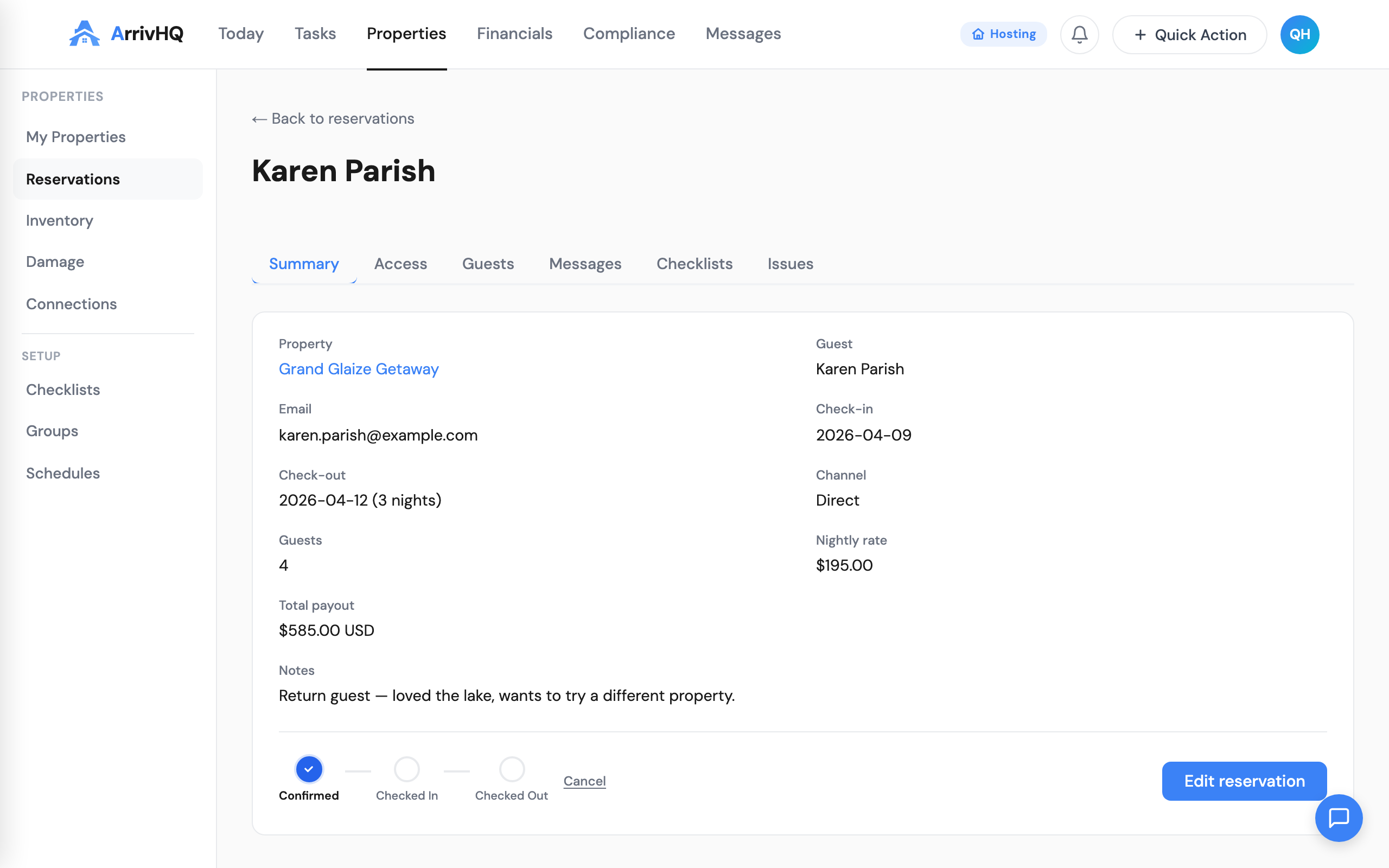
Stay status updates are based on the dates you set. If today falls between the check-in and check-out dates and the guest has accepted the invitation, the stay shows as Active.
Guest profiles
Each guest who accepts an invitation has a profile visible to you. It includes their name, email address, and a history of all stays at your properties. You can add internal notes or tags to a guest's profile for your own reference — these are visible only to you and your team, not to the guest.
Guest profile data is isolated. You can only see stays at properties you own. You cannot see a guest's stays with other hosts.
When stays end
After the check-out date passes, the guest's access to your property is automatically removed. They can no longer view property details, checklists, or the conversation thread. Their account and stay history remain intact on their end, and you can still view their past stay information, message history, and checklist completions from your dashboard.
If you need to revoke access immediately — before the scheduled check-out — use the End Stay option from the stay detail view. The guest loses access right away, and the stay moves to Past.
Removing and re-inviting
You can revoke a guest's access at any time. All stay data — dates, messages, checklist completions — is preserved in your records. The guest does not receive a removal notification email, but if they try to access the property, they see a message that the stay has ended.
If you need to bring someone back, just send a new invitation to the same email address. The guest goes through the standard accept flow again.
For the complete reference, see the Guests documentation.