
A turnover between guests is a series of steps that has to happen in order, on time, every time. Beds stripped and remade, bathrooms scrubbed, supplies restocked, lockbox code changed, inspection walkthrough completed. Miss one step and the next guest notices. ArrivHQ checklists let you define those steps once, assign them to properties, and have them fire automatically when a reservation event triggers them.
Creating a checklist
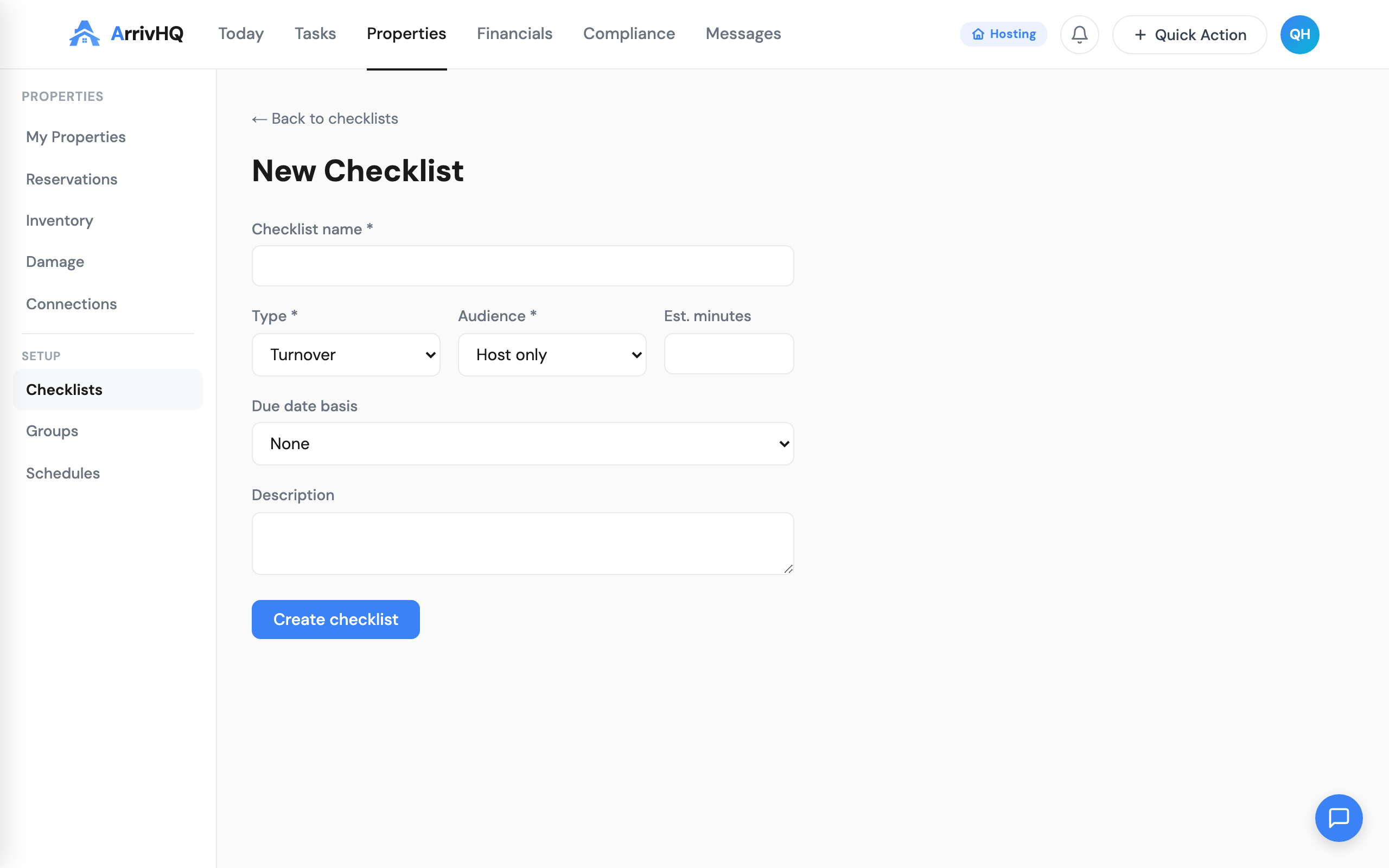
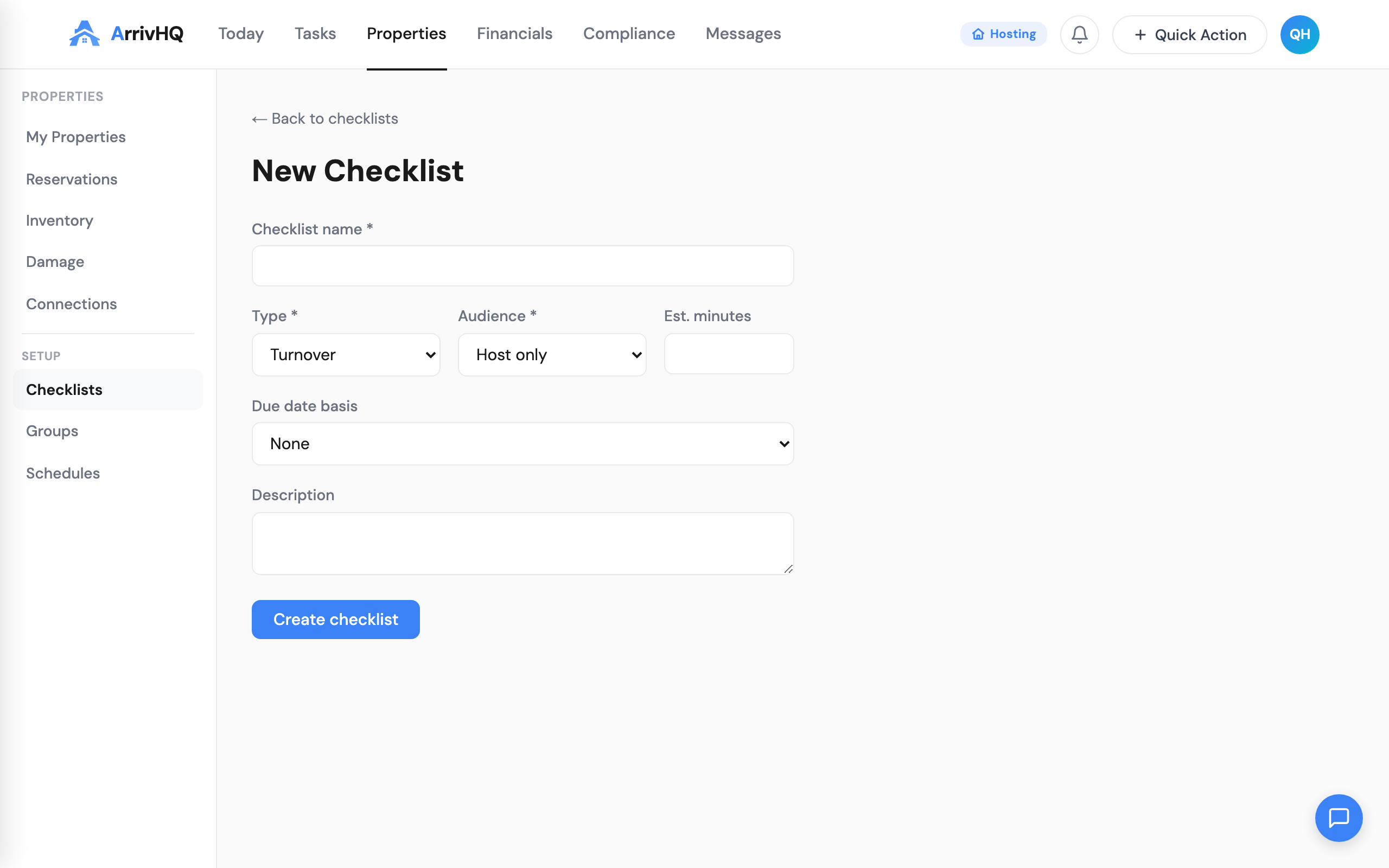
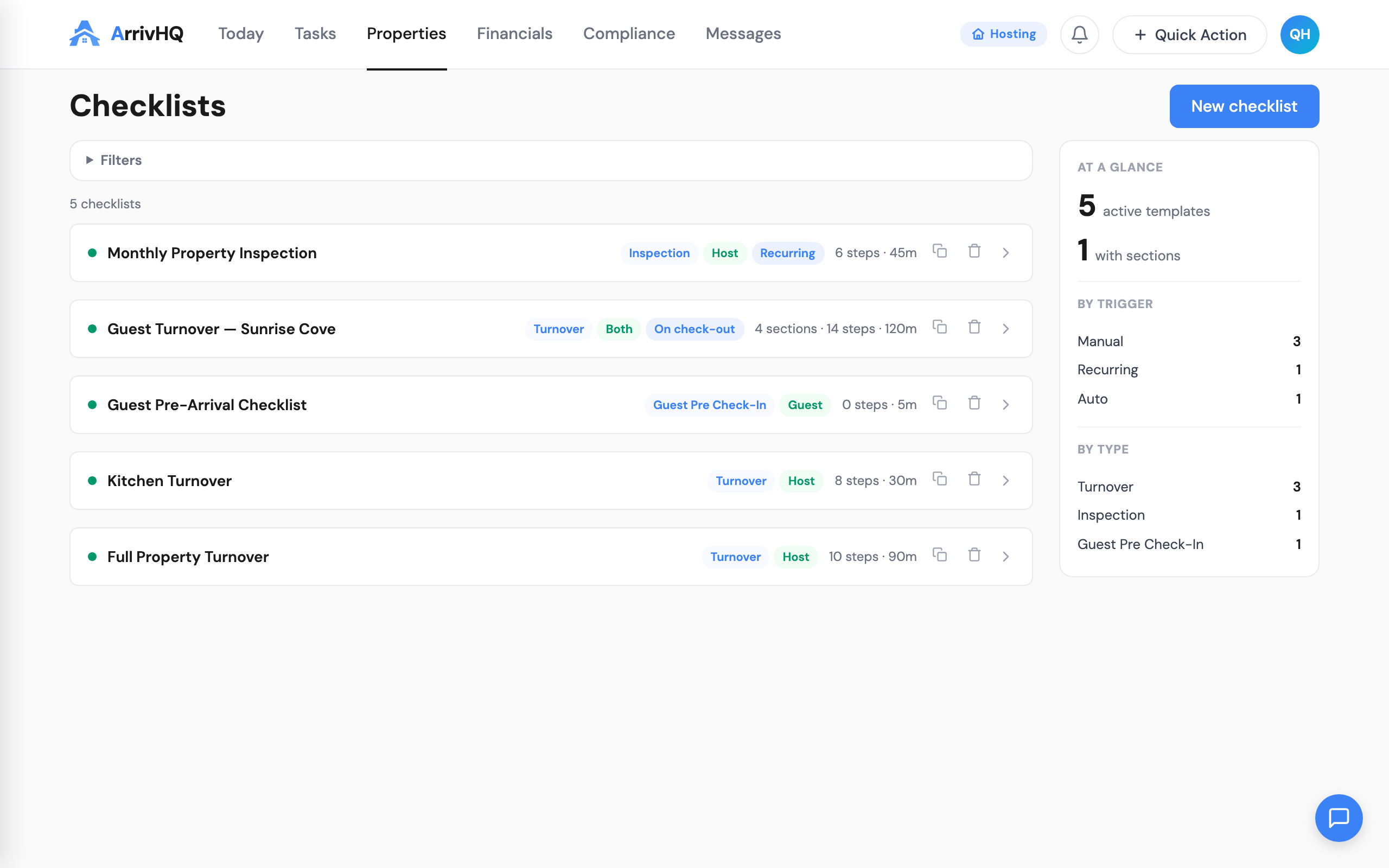
Navigate to Checklists from the Properties sidebar and click New Checklist. You fill in a single form: name, type, audience, and the system handles the rest.
Type determines when the checklist triggers. Reservation-linked types — Check-In, Check-Out, Pre Check-In, Pre Check-Out, Turnover, Reservation Created — auto-set their trigger event. You just pick the type and ArrivHQ knows when to fire it. For example, choosing "Check-Out" means the checklist auto-creates when a guest checks out.
Audience controls who sees the checklist: Host only, Guest only, or Both. A turnover checklist is typically host-only. A check-in checklist with a rental agreement might be guest-facing.
For types that are not tied to reservations — Maintenance, Inspection, Inventory, Safety, Seasonal, General — you choose between Manual (create as needed) or Recurring (auto-create on a weekly or monthly schedule).
Timing offset
Reservation-linked checklists can have a timing offset. A turnover checklist with a 0-hour offset fires immediately at check-out. A pre-check-in checklist with a -24 hour offset creates the day before the guest arrives, giving your team time to prepare.
The offset is configured with a simple "Before / After" dropdown and hours input — no negative numbers to think about.
Sections and steps
After creating a checklist, you land on the detail page where sections and steps are managed together on the same page. Start by adding sections — these organize your steps into logical groups like "Bedrooms," "Kitchen," "Bathrooms."
Each section appears as a card with a [+ Add step] button. Click it to add a step directly into that section. No tab switching — everything is in one scroll.
Step types
Not every checklist item is a simple checkbox. ArrivHQ supports several step types:
- Checkbox — Done or not done. "Vacuum all floors."
- Note — Requires a text note. "Note any damage found during inspection."
- Photo Required — Not complete until a photo is attached. "Photo of freshly made master bed."
- Numeric — Requires a number with an expected range. "Thermostat set to 68-72."
- Text Input — Free-form text. "New lockbox code."
- Photo Upload — Optional photo attachment.
- File Upload — Attach a document, receipt, or work order.
- Info — Read-only instruction. No action needed.
- Agreement — Legal agreement with e-signature. Configurable as a simple acknowledgment or a full ESIGN Act-compliant e-signature with typed name, IP address, and timestamp.
Each step can be required or optional. Only relevant fields show for each type — a checkbox step does not ask for an "expected value," while a numeric step does.
Assigning to properties
A single checklist can be assigned to multiple properties. On the checklist detail page, go to the Overview tab and add property assignments. Each assignment can have a default assignee — by team member or by role (owner, manager, cleaner).
When a reservation event fires on an assigned property, ArrivHQ auto-creates a checklist run assigned to the right person.
Guest checklists and e-signatures
Guest-facing checklists appear in the guest portal automatically. A check-in checklist might include:
- Confirm arrival (checkbox)
- Upload a photo of the property (photo upload)
- Sign the rental agreement (e-signature)
- Review house rules (checkbox)
The e-signature step supports two tiers. Tier 1 is a simple acknowledgment — the guest checks a box. Tier 2 is a full ESIGN Act-compliant signature with typed name, IP logging, timestamp, and optional initialing sections. Signed agreements are stored as tamper-proof records.
Completion tracking
Each checklist run tracks progress as a percentage of required steps completed. When all required steps are finished, the run auto-completes. Runs that pass their due date are marked overdue.
Every completed step records who did it and when, creating a timestamped log of property management activity. Multiple team members can work on the same run — one handles cleaning, another handles restocking.
What comes next
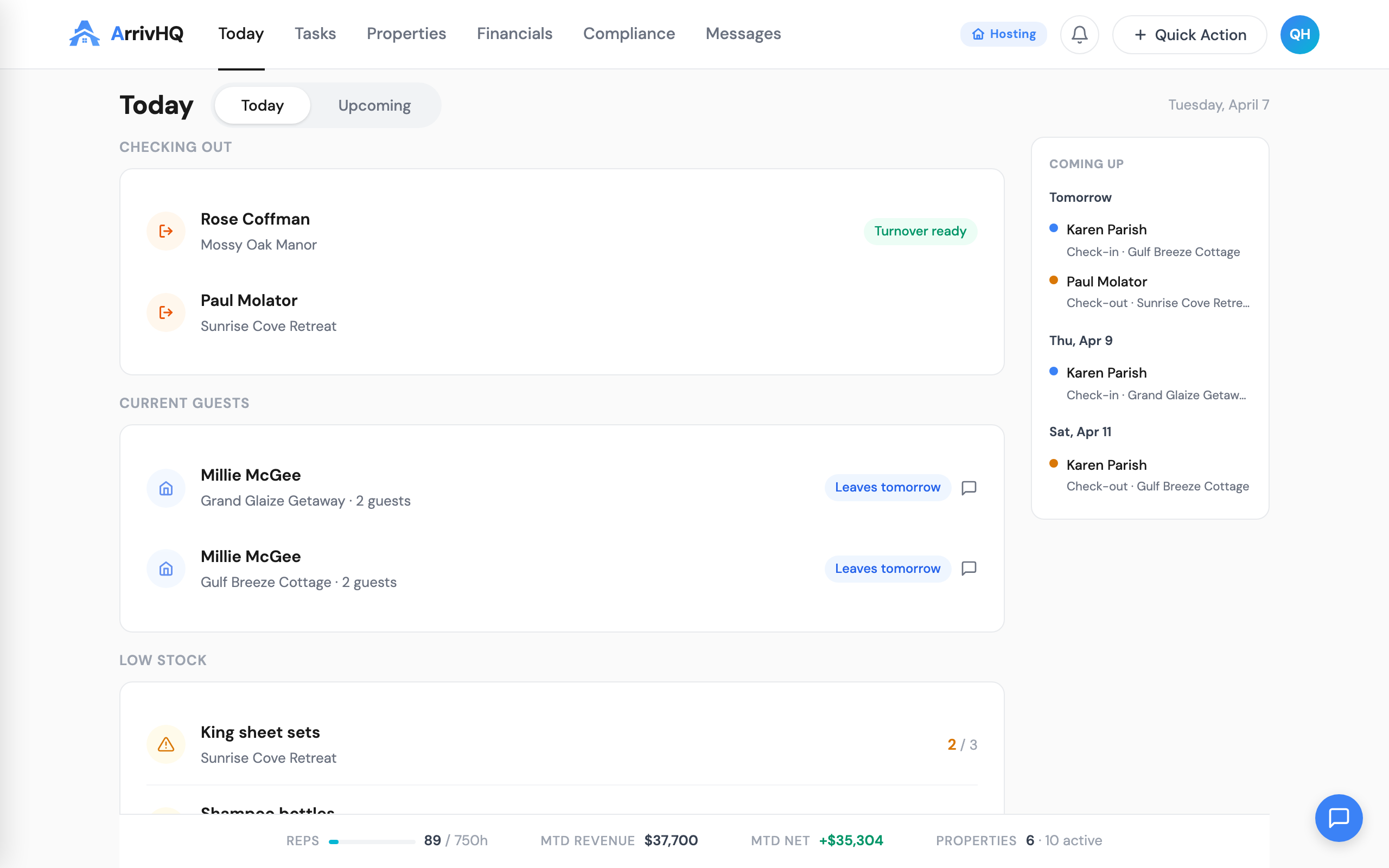
Checklists integrate with the rest of ArrivHQ. Completed runs feed into compliance records. Guest checklist responses (photos, signatures) are stored alongside the reservation. The Today page shows pending and overdue runs so nothing falls through the cracks.
For the full walkthrough of guest-facing checklists, see Guest Checklists & Waivers. For setting up your first reservation, see Managing Reservations.
Related documentation: