
Tasks in ArrivHQ help you track one-off and recurring property work — repairs, purchases, inspections, supply runs, and anything else that needs to get done. Every task is a container with one or more checkable sub-tasks, so you can break a job into individual steps and track progress as each one is completed.
Tasks are separate from checklists. Checklists are reusable templates tied to reservations and turnovers. Tasks are standalone items for property maintenance, improvements, and ad-hoc work. If the job is "replace the HVAC filter," that is a task. If the job is "clean the property between every guest," that is a checklist.
Creating a task
You can create tasks from the Tasks overview page or from the Tasks panel on a property detail page. Every task belongs to a single property.
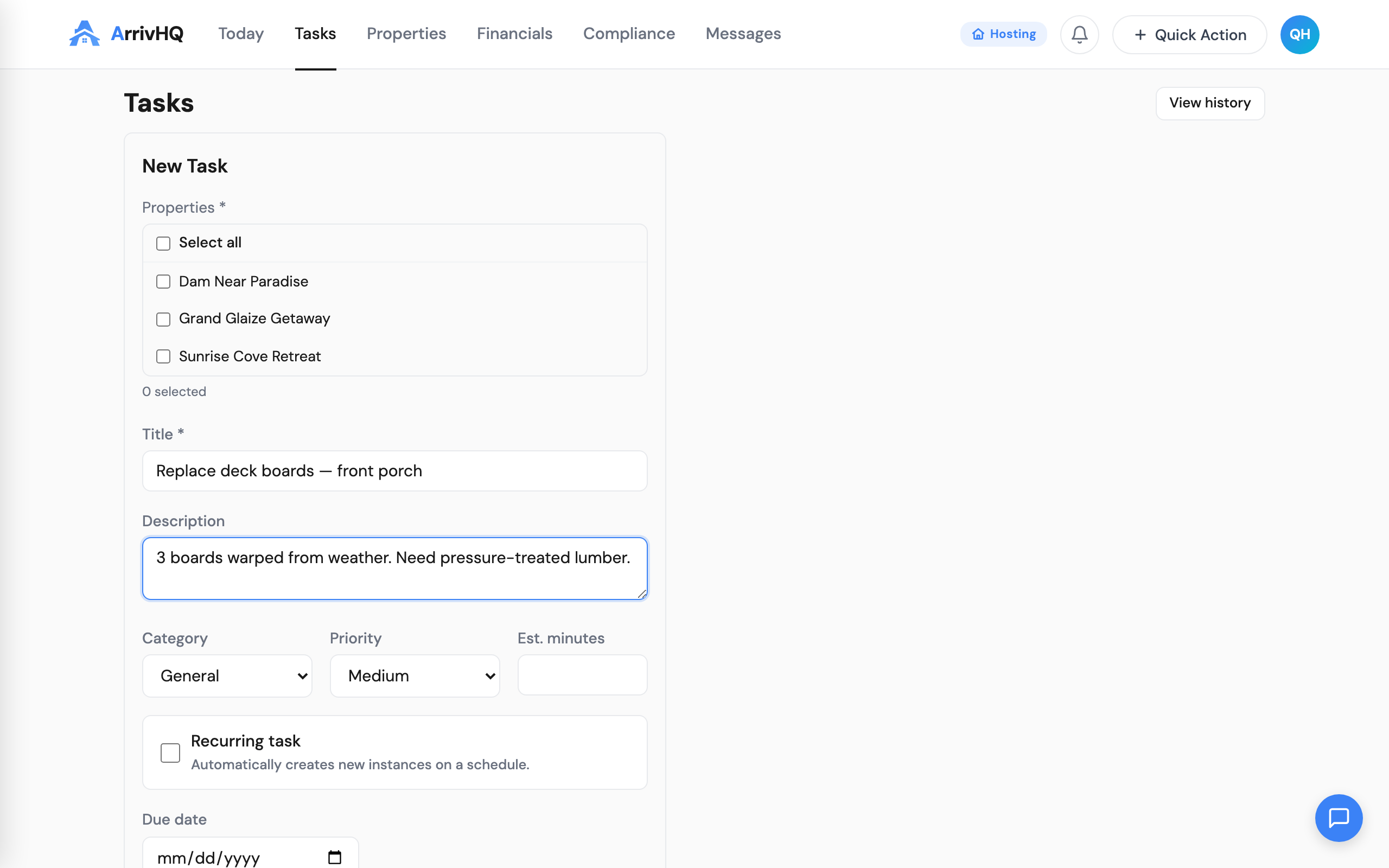
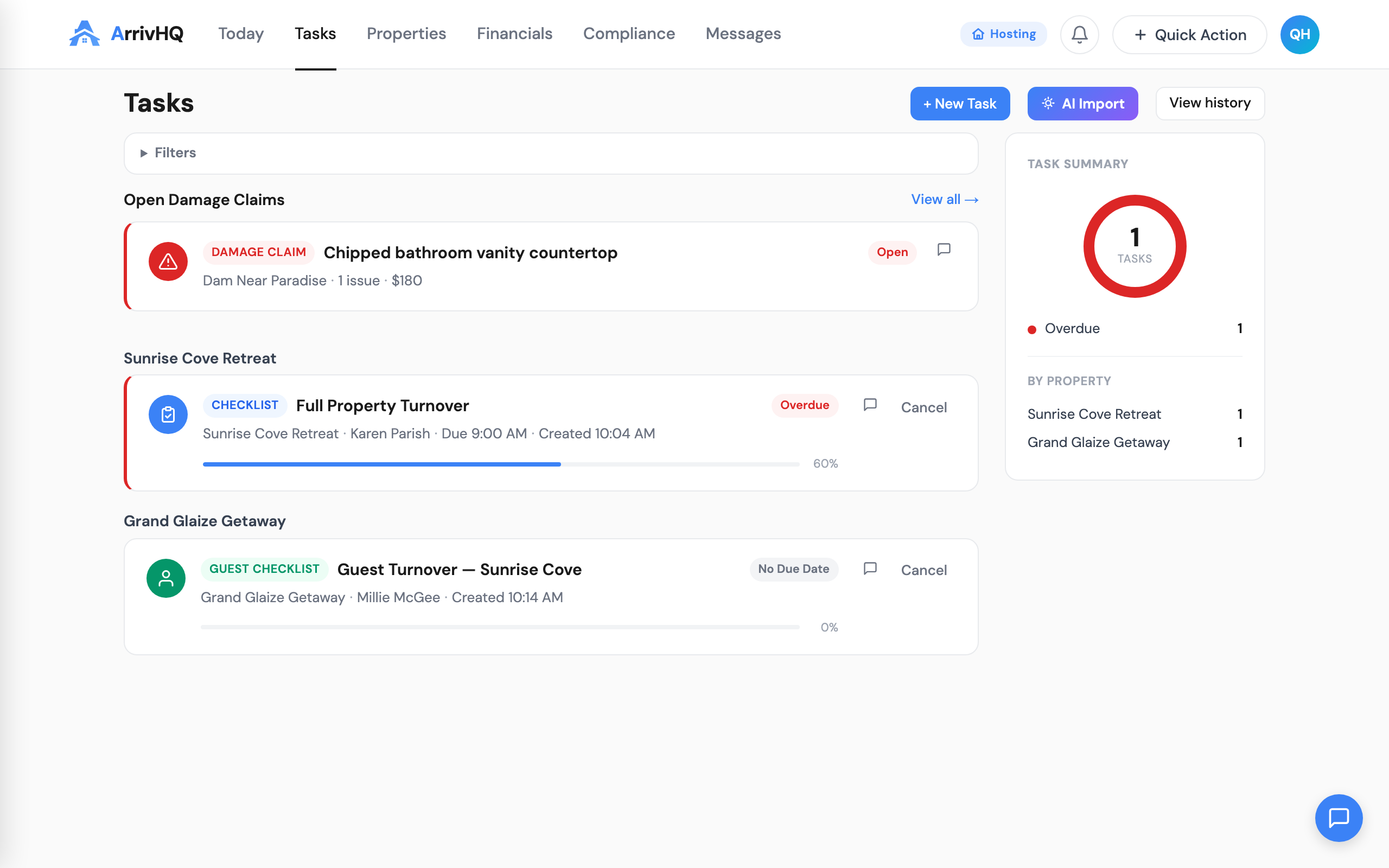
Click New Task and fill in the fields:
- Title — a short name for the task (e.g., "Replace HVAC filter" or "Order new patio furniture").
- Description — optional details or notes about the work.
- Category — choose from Maintenance, Landscaping, Cleaning, Inspection, Safety, Supplies, or General.
- Priority — Low, Medium, High, or Urgent.
- Due date — optional target completion date.
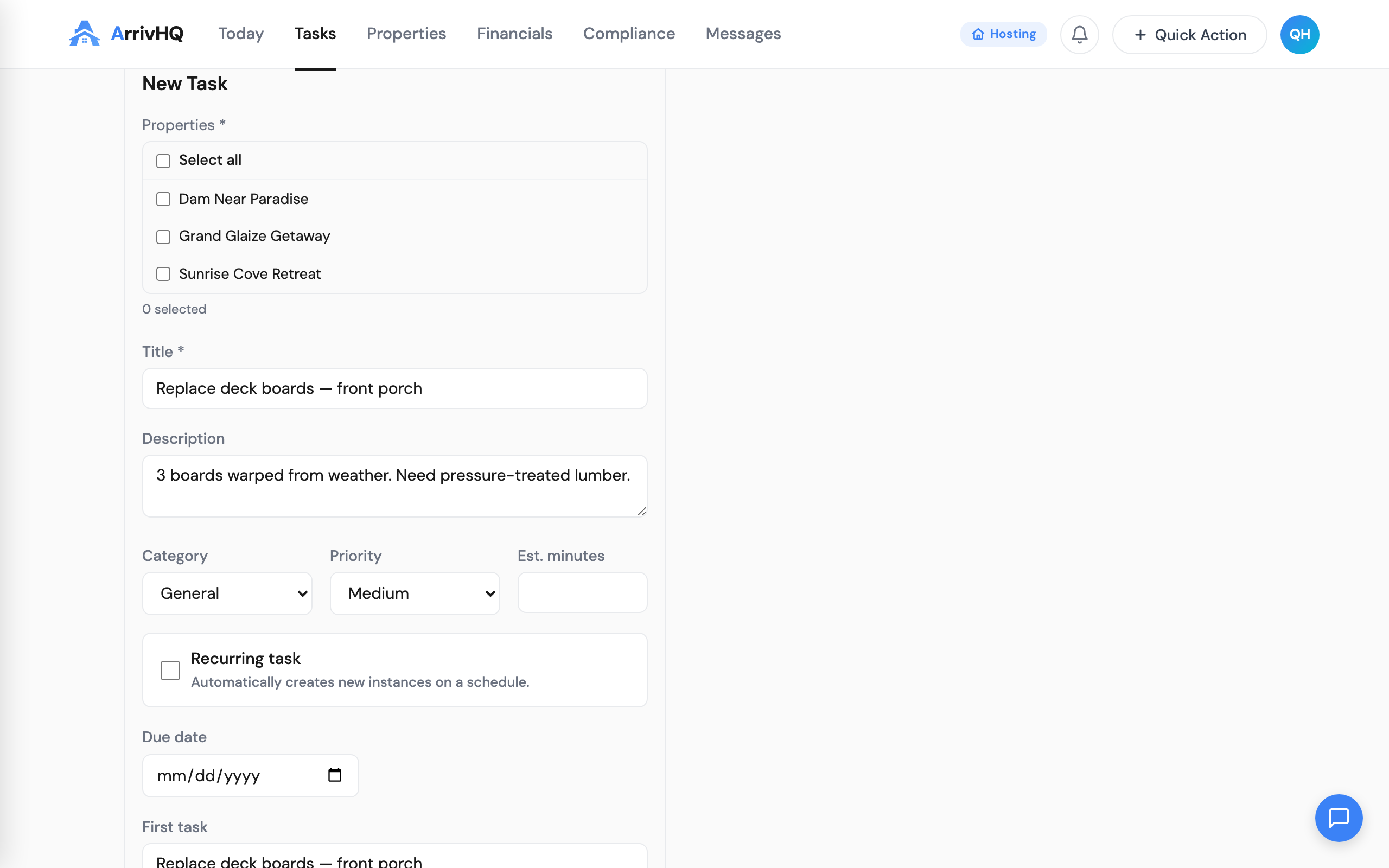
- First task — this field is pre-filled from the title and becomes the first checkable sub-task. You can edit it to be more specific (e.g., if the title is "HVAC Maintenance," the first sub-task might be "Replace filter in upstairs unit").
Click Create. The system automatically creates the first sub-task, so every task always has at least one step.
If you are already looking at a specific property, creating from the property detail page is faster — the property is pre-selected for you.
Sub-tasks
Sub-tasks are the individual steps that make up the work. There is no "Mark Complete" button on the parent task. Completion is always derived from sub-task state:
- Not Started — no sub-tasks are checked.
- In Progress — some sub-tasks are checked, others are not. The progress indicator shows the count (e.g., "3/7 complete").
- Completed — all sub-tasks are checked off. The parent task is automatically marked as completed.
Each task card has an expand arrow. Click it to reveal the sub-tasks inside. The card shows a progress indicator so you can see progress at a glance without expanding.
To add more sub-tasks, use the inline text input at the bottom of the sub-task list. Type a title and press Enter. You can add sub-tasks to existing tasks at any time, even ones that are already in progress. Adding a new unchecked sub-task to a completed task moves it back to In Progress.
Sub-tasks can be edited inline by clicking the title, and deleted individually. Sub-tasks cannot be nested — the maximum depth is one level.
If you check off all sub-tasks accidentally, uncheck any sub-task to move the parent task back to In Progress. There is no lock on completed tasks.
Recurring tasks
Tasks can be set to recur on a schedule. When creating a task, toggle the recurring option and choose an interval: weekly, every 2 weeks, monthly, every 3 months, every 6 months, yearly, or a custom interval in days.
Recurring tasks generate new instances on their schedule. Each instance is independent — its own sub-tasks, its own completion tracking, its own due date. The recurring schedule is managed separately from one-off tasks.
This is useful for preventive maintenance. Set a quarterly task to inspect smoke detectors, a monthly task to check the hot tub chemicals, or a weekly task to water the landscaping. The tasks appear automatically on schedule.
AI Import
If you have a list of things to do in your head — or, more realistically, in a voice memo on your phone — AI Import can save you from creating each task one at a time.
Open the Tasks panel on a property detail page and click the AI Import button. Paste or type your freeform text — something like "Need to fix the leaky faucet in the master bath, order two new deck chairs from Amazon, and check the smoke detectors before Friday."
Click Import. The AI parses your text and extracts individual tasks, each with a suggested title, category, priority, and due date. Compound items are split into separate tasks. Relative dates are converted to actual calendar dates. Quantities and details are preserved.
Review the extracted tasks, edit any fields that need adjusting, and click Create to create all tasks at once. Each one is created on the current property with its own sub-task.
The raw text you pasted is saved alongside each task for reference, so you can always see what you originally described.
AI Import requires the Host or Portfolio plan.
Editing and filtering
From the property detail Tasks panel, click the edit button on a task card to update the title, description, due date, category, or priority. Changes to the parent task do not affect sub-tasks.
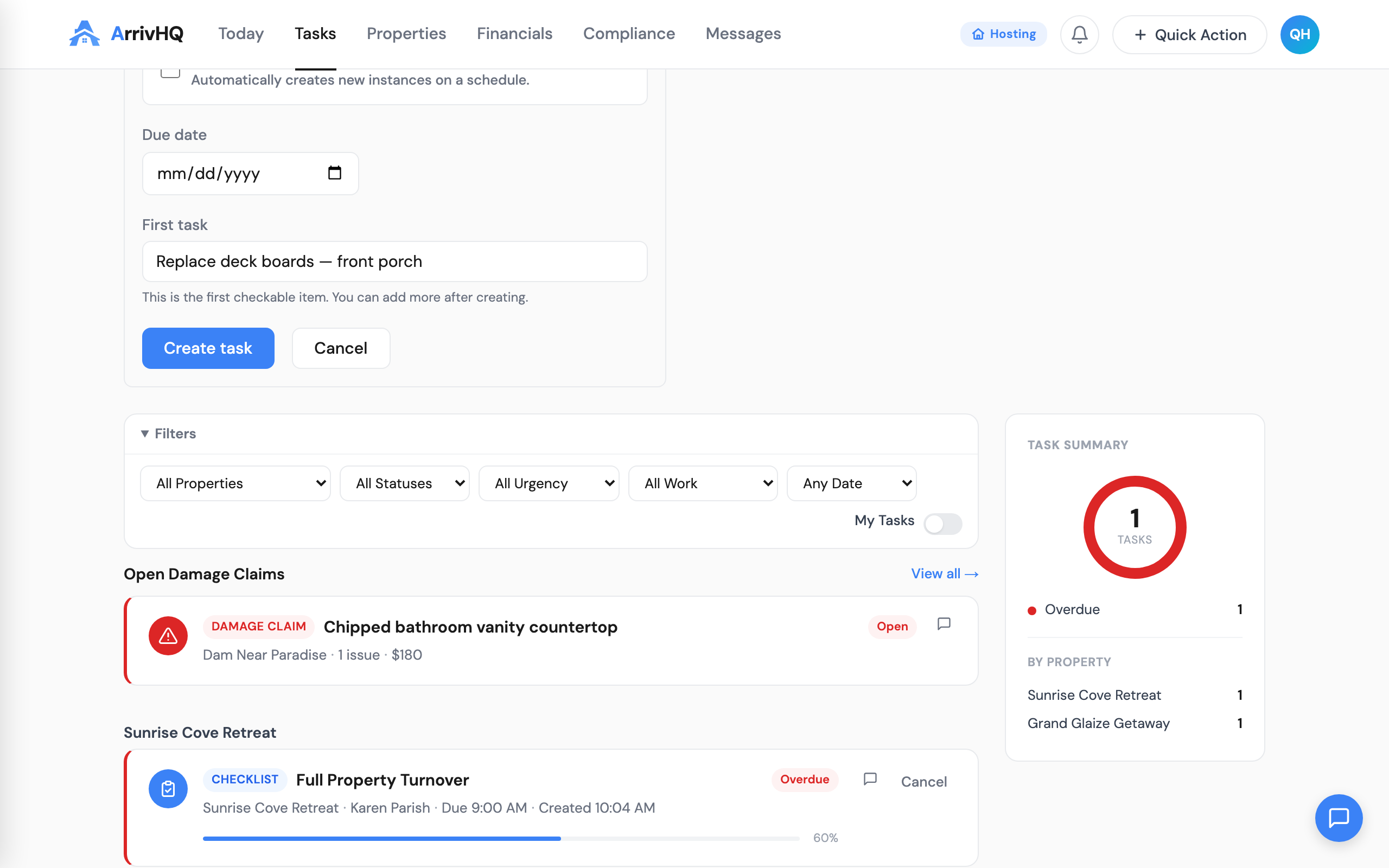
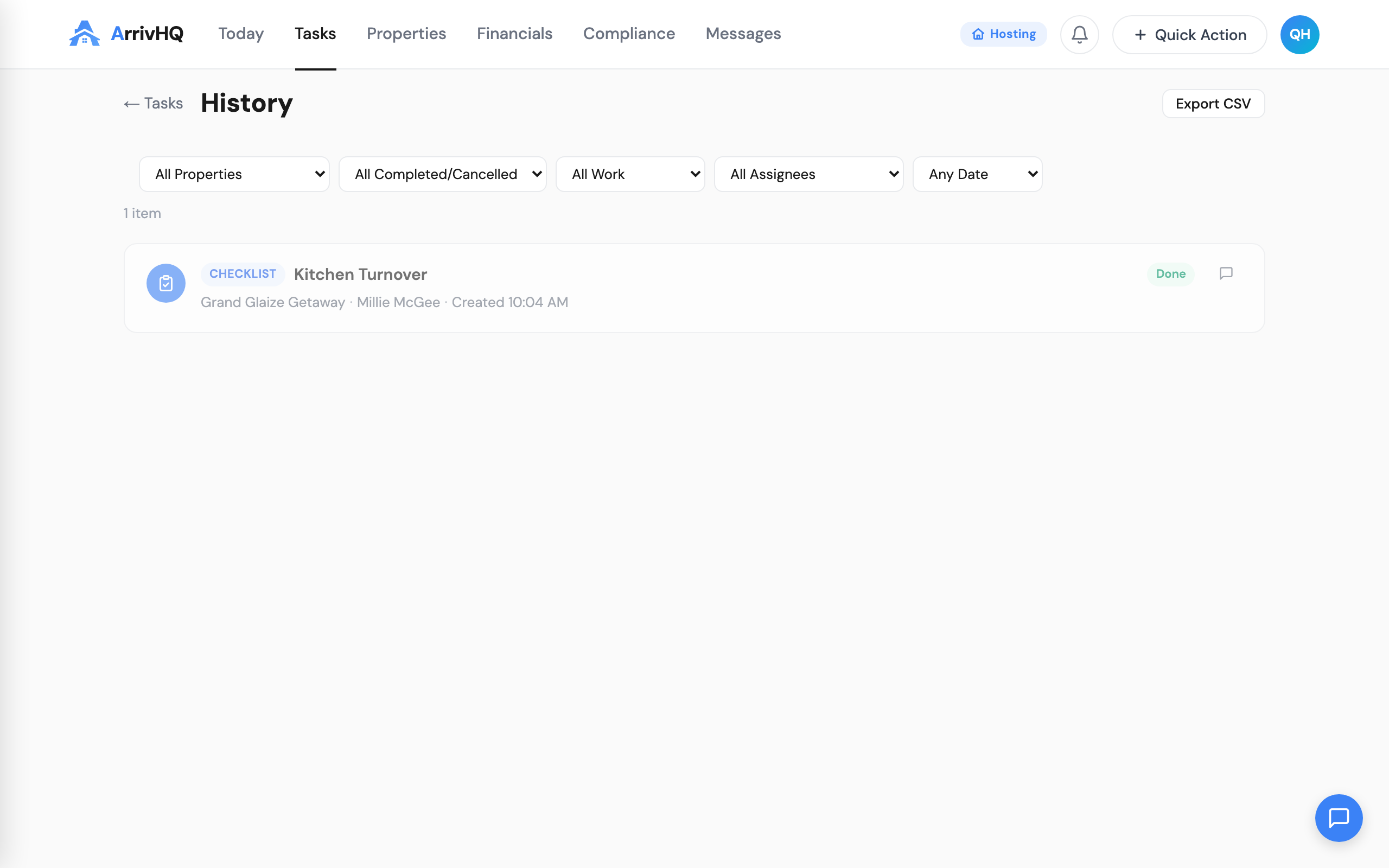
The Tasks overview page shows tasks across all your properties with filters for status, urgency, category, property, and date range. Clicking a task title navigates you to the property detail page with that task expanded.
If work is no longer needed but you want to keep a record, cancel the task instead of deleting it. Deleting is permanent and removes all sub-tasks.
Who can do what
Owners, admins, and team members with a manager property role can create, edit, and delete tasks. Cleaners and maintenance team members can view tasks assigned to them and check off sub-tasks, but cannot create, edit, or delete tasks.
Tasks are available on all paid plans. AI Import requires the Host or Portfolio plan.
For the complete reference, see the Tasks documentation.