
If something goes wrong during a guest's stay -- a slip by the pool, a damaged piece of furniture, a noise complaint -- you want documentation that the guest was informed of the rules and agreed to the terms. A verbal reminder does not hold up. A checkbox on a booking platform may or may not. A signed waiver with a content hash, timestamped metadata, and a locked PDF? That is a different conversation entirely.
ArrivHQ gives you two tiers of agreement steps you can embed directly in your guest checklists. This post covers when to use each one, how to set them up, and what makes the e-signature tier legally defensible.
Acknowledgment vs. E-Signature: when to use which
Tier 1 -- Acknowledgment is the right choice for house rules, parking instructions, checkout procedures, pet policies, and other informational documents. The guest scrolls through the text, checks a consent box, types their name, and clicks Accept and Sign. A locked HTML copy is stored. It is simple, fast, and available on all plans.
Tier 2 -- E-Signature is for documents with real legal weight: rental agreements, liability waivers, damage responsibility clauses, fee authorizations. Tier 2 adds three things that Tier 1 does not have:
- ESIGN Act disclosure -- a formal consent step citing the federal Electronic Signatures in Global and National Commerce Act and UETA. This is the legal foundation that makes your electronic signature enforceable.
- Section-by-section initials -- the guest reads each section individually and initials it, proving they reviewed the entire document rather than scrolling past it.
- Locked PDF -- the signed copy is a PDF with a "SIGNED COPY -- DO NOT ALTER" watermark, a SHA-256 content hash, the signature block, and all section initials.
Use Tier 1 when you need proof the guest saw the information. Use Tier 2 when you need a legally defensible signature on a binding document.
ESIGN Act compliance: what it means for you
The ESIGN Act (15 U.S.C. 7001 et seq.) gives electronic signatures the same legal standing as ink signatures, provided certain conditions are met. The key requirement is that the signer must consent to conduct the transaction electronically before signing. They must also be informed of their right to receive paper copies and their right to withdraw consent.
ArrivHQ handles this automatically. Before the guest sees the agreement, they are shown an Electronic Signature Disclosure that covers all of these points. They must scroll through it and affirmatively check a consent box before proceeding. This disclosure step is not optional and cannot be skipped -- it is built into the Tier 2 flow.
The result is that your signed waivers meet the same standard used by banks, insurance companies, and real estate transactions. For a vacation rental, that is more than sufficient.
PDF import and AI section extraction
Most hosts already have waivers drafted by their attorney or property management company. You do not need to retype them. Click AI Import from PDF when adding agreement content. ArrivHQ extracts the text from your PDF -- even scanned or image-based documents -- and places it in the editor.
For Tier 2 agreements, you can take it a step further. Click AI Extract Sections and ArrivHQ breaks the document into logical sections for initialing. It reads the structure of your agreement and suggests boundaries (e.g., "Liability Limitations," "Pool and Hot Tub Rules," "Cancellation Policy"). You can review, edit, reorder, add, or remove sections before saving. If you upload a PDF for a Tier 2 step, text extraction and section creation happen in one step.
This means you can go from a PDF you received from your lawyer to a fully configured, section-by-section e-signature waiver in about two minutes.
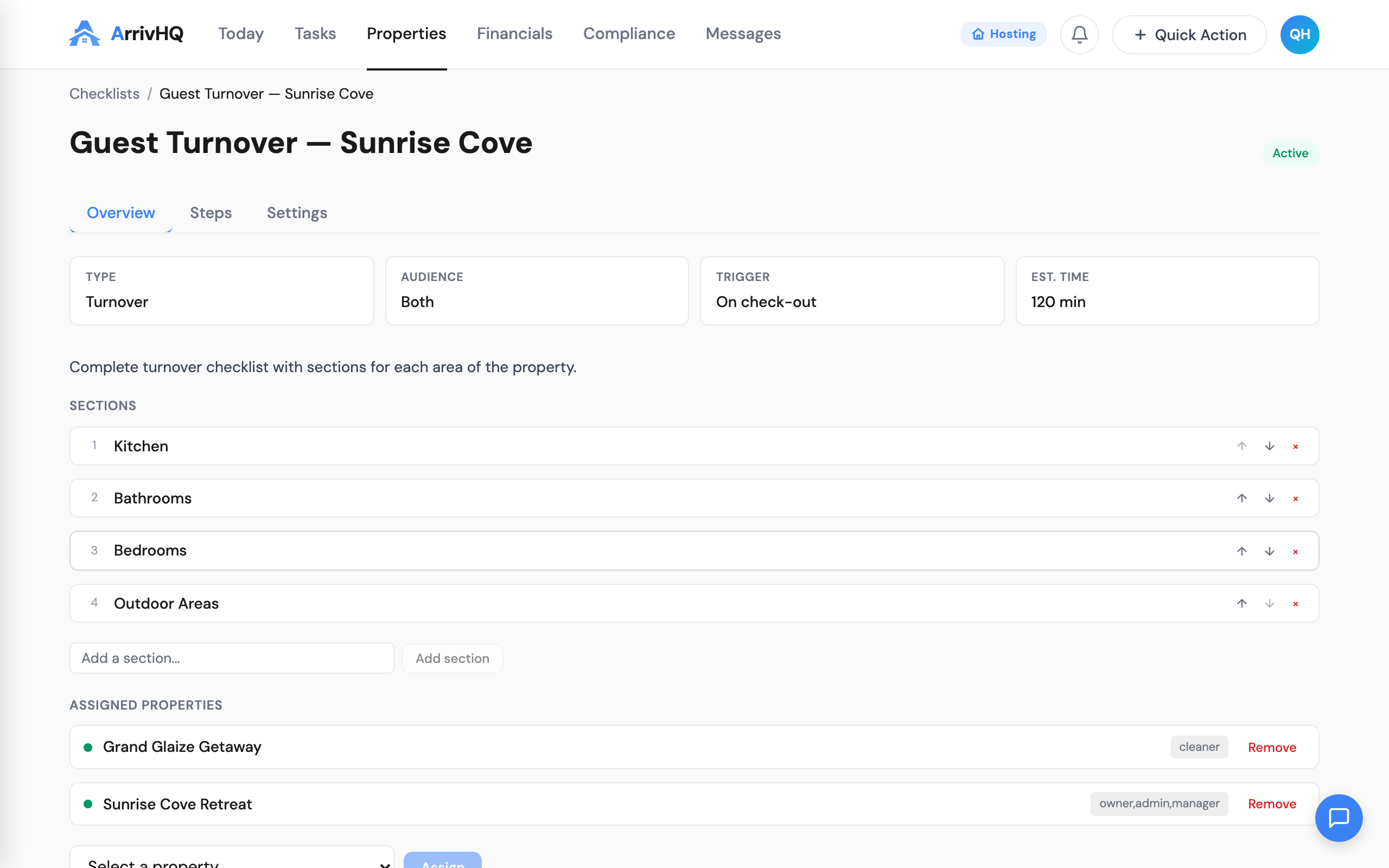
Scroll down to see the individual steps — each agreement step shows its tier, document text, and section configuration:
Per-guest signing
Every adult staying at the property signs individually. This is not a household-level acknowledgment -- each person gets their own agreement step, their own signing metadata, and their own locked copy. If four adults are staying at your property, you get four separately signed records.
For minors, a parent or guardian signs on their behalf. The flow includes a relationship selector (parent, legal guardian, or authorized representative) and the signed copy records both names and the stated relationship. This matters if you ever need to demonstrate that a responsible adult accepted liability for a child.
What the locked PDF contains
When a guest completes a Tier 2 signature, the locked PDF includes:
- The full agreement text as it appeared at signing time
- Initials for each section, attributed to the signer
- A signature block with the guest's full legal name, timestamp, and IP address
- A SHA-256 content hash that proves the document has not been altered
- On-behalf-of details, if the signer signed for a minor
This PDF is stored in ArrivHQ's encrypted storage, accessible from the reservation detail page. You can download it at any time. The guest also receives a copy via email immediately after signing.
The content hash is the critical detail. If the integrity of the document is ever questioned, the hash provides cryptographic proof that the PDF matches exactly what the guest signed. No edits, no modifications, no ambiguity.
The mobile experience
Many guests will sign on their phones. The mobile flow is designed for this. Instead of typing initials and a name, the guest draws them on a signature pad using their finger or a stylus. Full agreements open in a full-screen overlay for easier reading. The drawn signature carries the same legal weight as a typed one under the ESIGN Act.
Hosts do not need to do anything special to enable the mobile experience. It works automatically for every agreement step.
Getting started
If you are already using guest checklists, adding agreement steps takes a few minutes. If you have existing PDFs, the AI import makes it even faster. Start with your most important document -- usually a liability waiver or rental agreement -- and add it as a Tier 2 step. Once you see how the flow works, add Tier 1 acknowledgments for your house rules and other informational documents.
For the full setup guide, see the E-Signatures documentation. For details on importing your existing PDFs, see PDF Import for Agreements.