
Your host may ask you to sign a waiver or agreement as part of your stay. This could be house rules, a rental agreement, a liability waiver, or a pool safety document. Everything happens in your ArrivHQ dashboard -- there is nothing to print, scan, or bring with you. Here is what to expect.
Finding the waiver in your checklist
When your host assigns a checklist that includes a waiver or agreement, it appears in the Checklists section of your dashboard. You can access it as soon as you accept your invitation, even before your check-in date. The agreement step looks different from regular checklist items -- it has its own section with the document title and a signing prompt.
If you received an email notification about the checklist, the link in the email takes you directly to it.
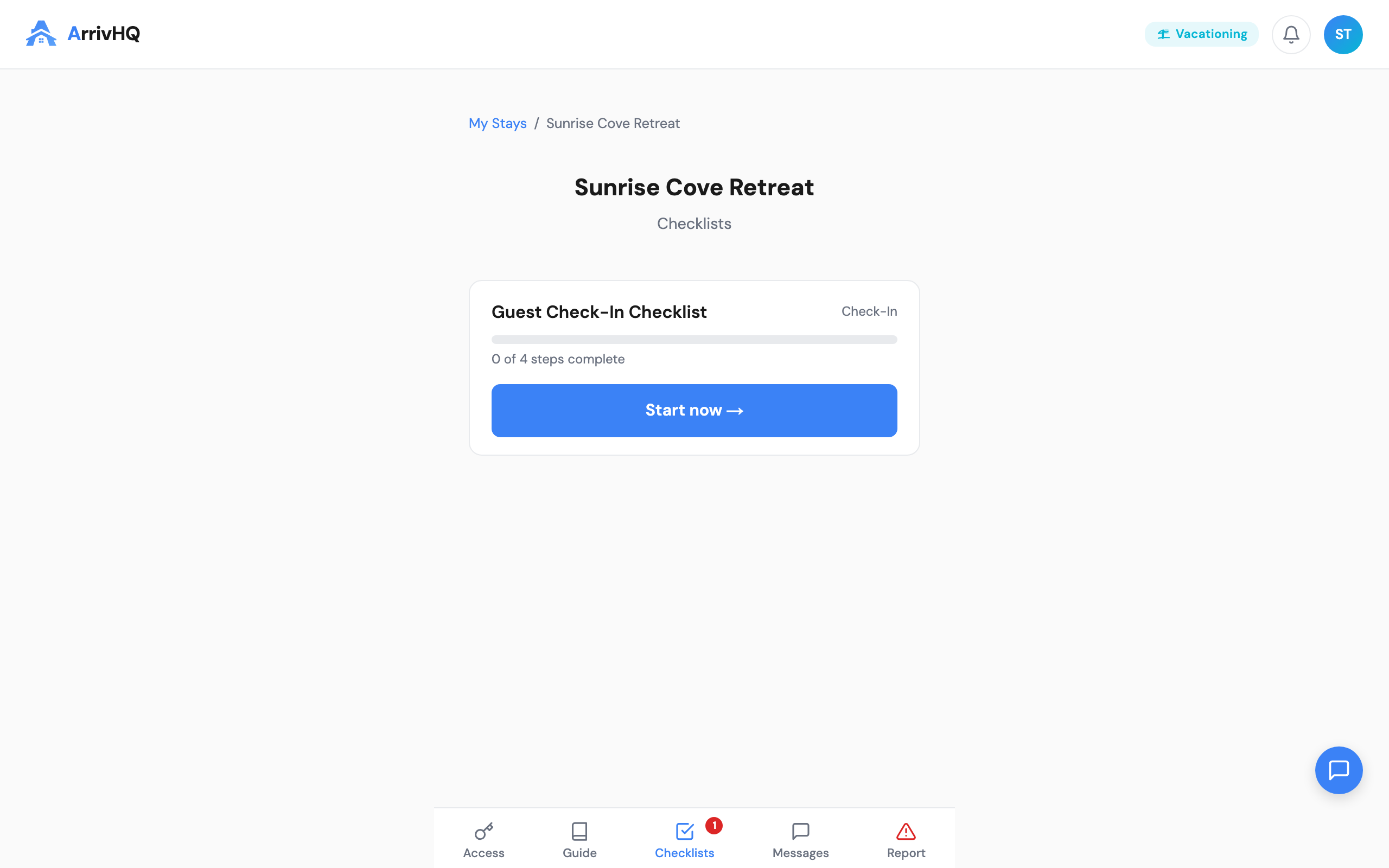
When you open the agreement, you see the checklist steps — acknowledgments, text responses, and the waiver itself:
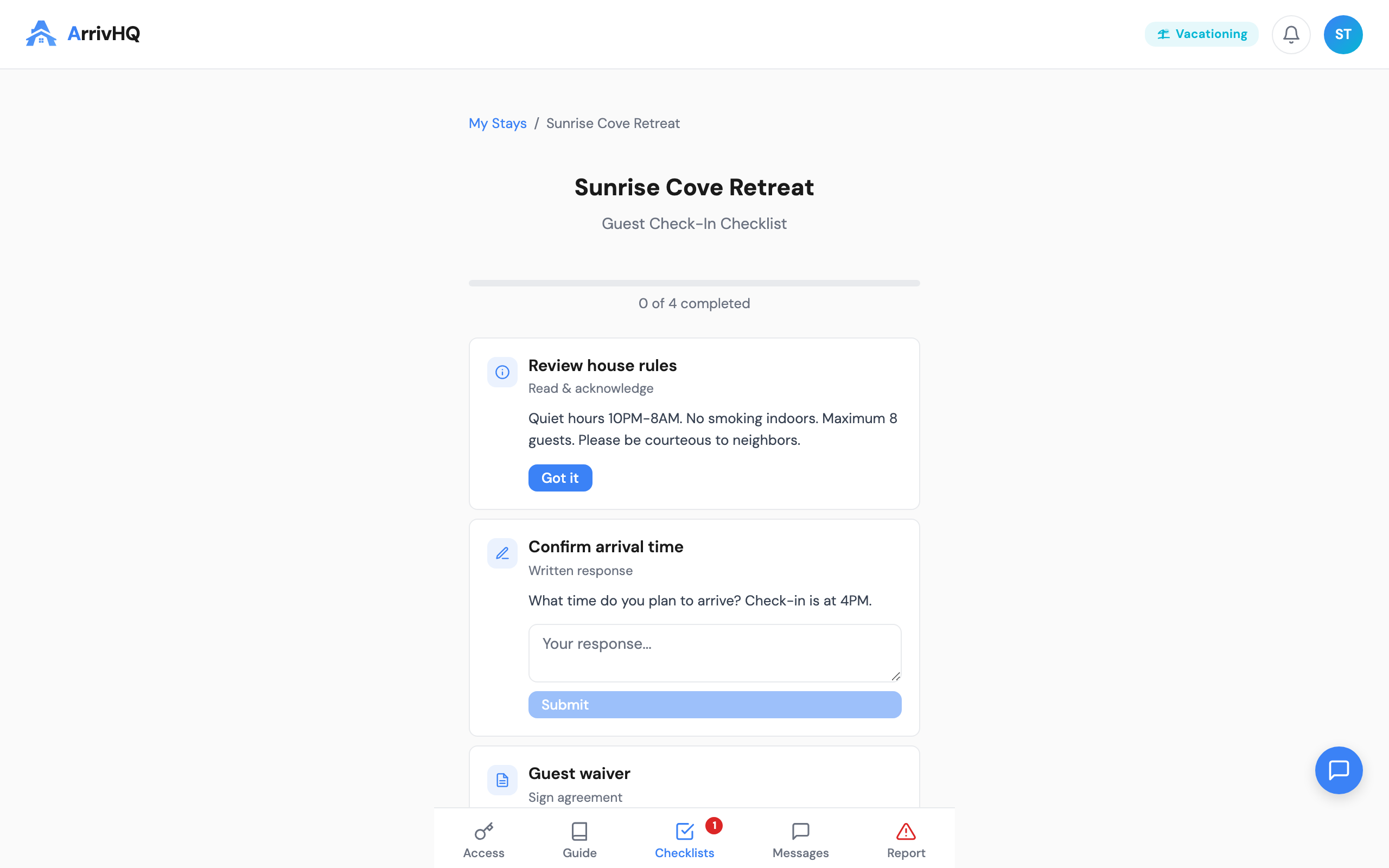
Signing on desktop
On a computer, the process is straightforward:
- Open the agreement step in your checklist.
- Read through the full agreement text. Take your time -- the consent checkbox at the bottom stays disabled until you scroll all the way through the document.
- Once you reach the bottom, check the box labeled "I have read and understand the above."
- Type your full legal name in the name field.
- Click Accept and Sign.
That is it for a standard acknowledgment. The signed copy is generated and stored immediately.
Signing on mobile
On your phone or tablet, the experience is optimized for a smaller screen:
- Tap the agreement step in your checklist.
- Tap Read Agreement to Sign. The agreement opens in a full-screen overlay so you can read it comfortably without the rest of the page getting in the way.
- Scroll through the entire document. When you are done, close the overlay.
- Check the consent box.
- Draw your signature on the signature pad using your finger or a stylus. You do not need to type it -- the drawn signature is your legal signature.
- Print your name in the name field below the signature pad.
- Tap Accept and Sign.
Drawing your signature on a phone screen might feel unusual if you have not done it before, but it is standard practice. Banks, insurance companies, and delivery services use the same approach. Your drawn signature carries the same legal weight as a handwritten one.
The ESIGN disclosure: what it means
For more formal documents like rental agreements or liability waivers, you may see an extra step before the agreement itself. This is the ESIGN Disclosure -- a notice explaining your rights when signing electronically.
It tells you three things:
- You are agreeing to conduct this transaction electronically instead of on paper.
- You have the right to request a paper copy of the document.
- You can withdraw your consent to sign electronically.
You must scroll through the disclosure and check the consent box before you can proceed to the agreement. This step is required by federal law (the ESIGN Act) and protects both you and your host. Once you consent, you move to the agreement itself, where you read each section, provide your initials, and then sign at the end.
Signing for minors
If you are traveling with children and your host requires each guest to sign a waiver, you sign on behalf of your minors. Their waivers appear in your portal alongside your own.
When you open a minor's agreement, you see a prompt indicating you are signing on behalf of someone else. Select your relationship to the child -- parent, legal guardian, or authorized representative -- and then complete the signing process as you normally would. The signed copy records both your name and the child's name, along with the relationship you selected.
Your confirmation email
After you sign a formal agreement (the kind with ESIGN disclosure and section initials), you receive a confirmation email with a locked PDF attached. This is your copy of what you signed. The PDF includes:
- The full agreement text
- Your initials for each section
- Your signature, name, and the date and time you signed
- A content hash that proves the document has not been changed since you signed it
Keep this email for your records. You can also access the signed document from your ArrivHQ dashboard at any time during your stay.
For standard acknowledgments (house rules, parking policies, and similar documents), a signed record is stored in your dashboard but no email is sent automatically.
What happens after signing
Once you sign, the agreement step is marked as complete in your checklist. Your host is notified that you finished. The signed record is permanent -- it cannot be edited or undone by either you or your host.
If you realize you have a question about something you signed, use the messaging feature in your ArrivHQ dashboard to reach your host directly. They can clarify any part of the agreement.
For the full guide to checklists and signing, visit the ArrivHQ Guest Help Center.