
Some hosts assign checklists to their guests before or during a stay. These might cover check-in instructions, house rules, safety information, liability waivers, or check-out tasks. Here is how to find your checklists, work through the different step types, and handle waivers.
Finding your checklists
Sign in to your ArrivHQ dashboard and navigate to the Checklists section. You see a list of all checklists assigned to you for your current stay. Each one shows a title and a progress indicator so you can tell at a glance how many items remain.
You can view checklists as soon as you accept your invitation, even before the check-in date. Not every host uses checklists — if the section is empty, your host simply has not assigned any.
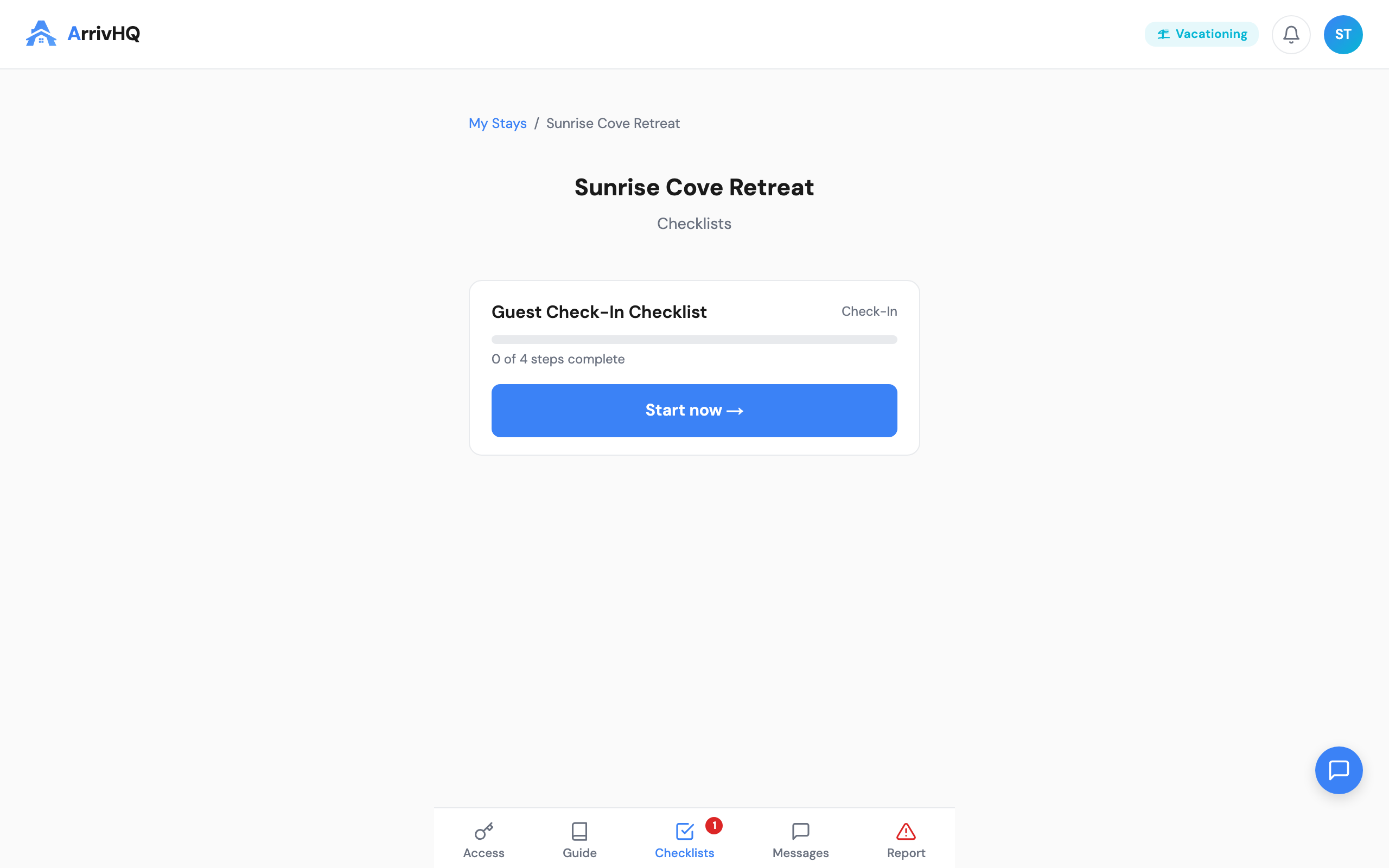
Each checklist card shows the number of steps completed and a Start now link.
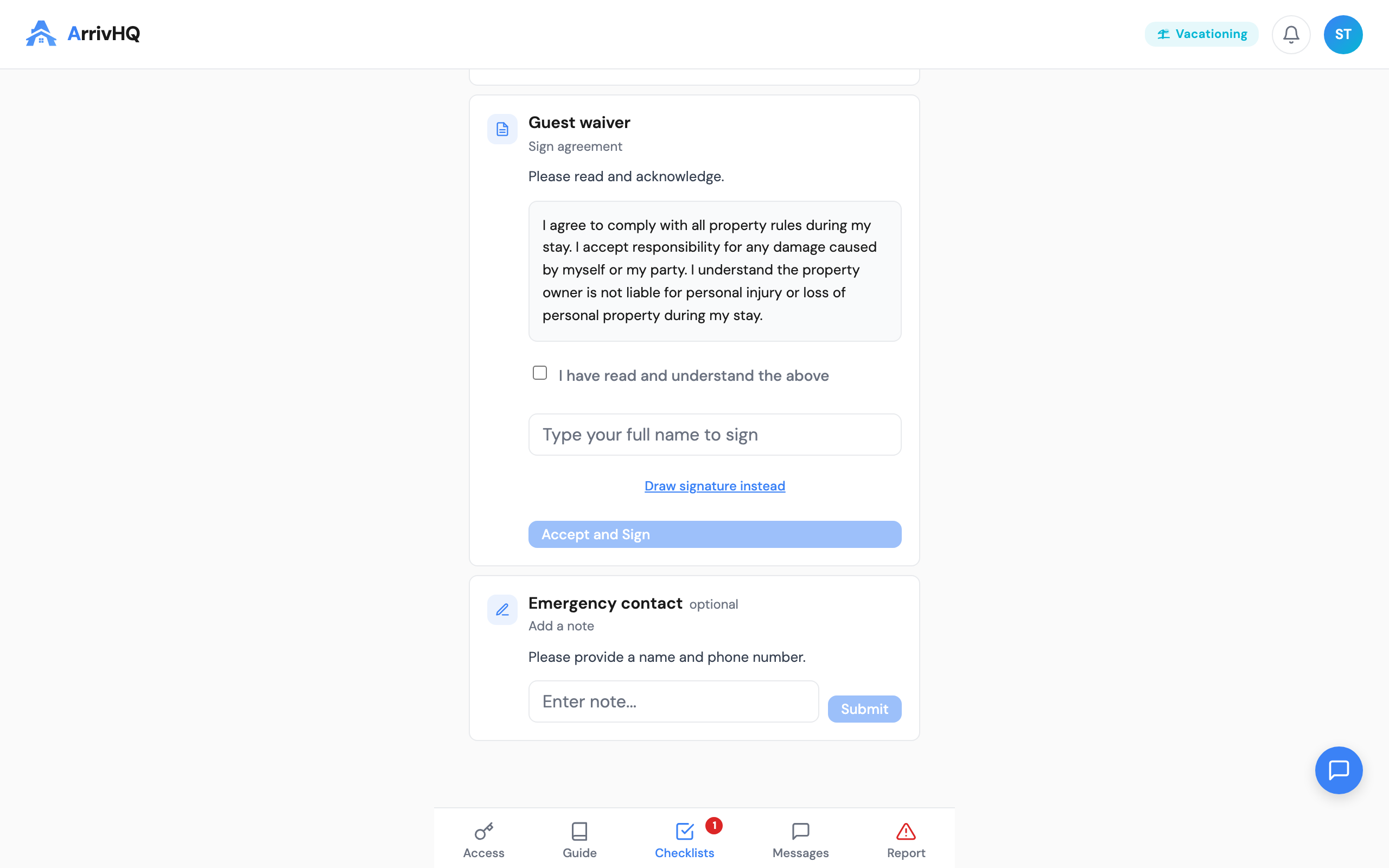
The agreement step includes the full waiver text with a checkbox and signature field.
When your host assigns a new checklist, you receive an email notification with the checklist name and a link to open it directly in your portal. If you miss the email, the checklist still appears on your dashboard.
Step types
Checklists contain different kinds of steps. Here is what you might encounter:
Informational items
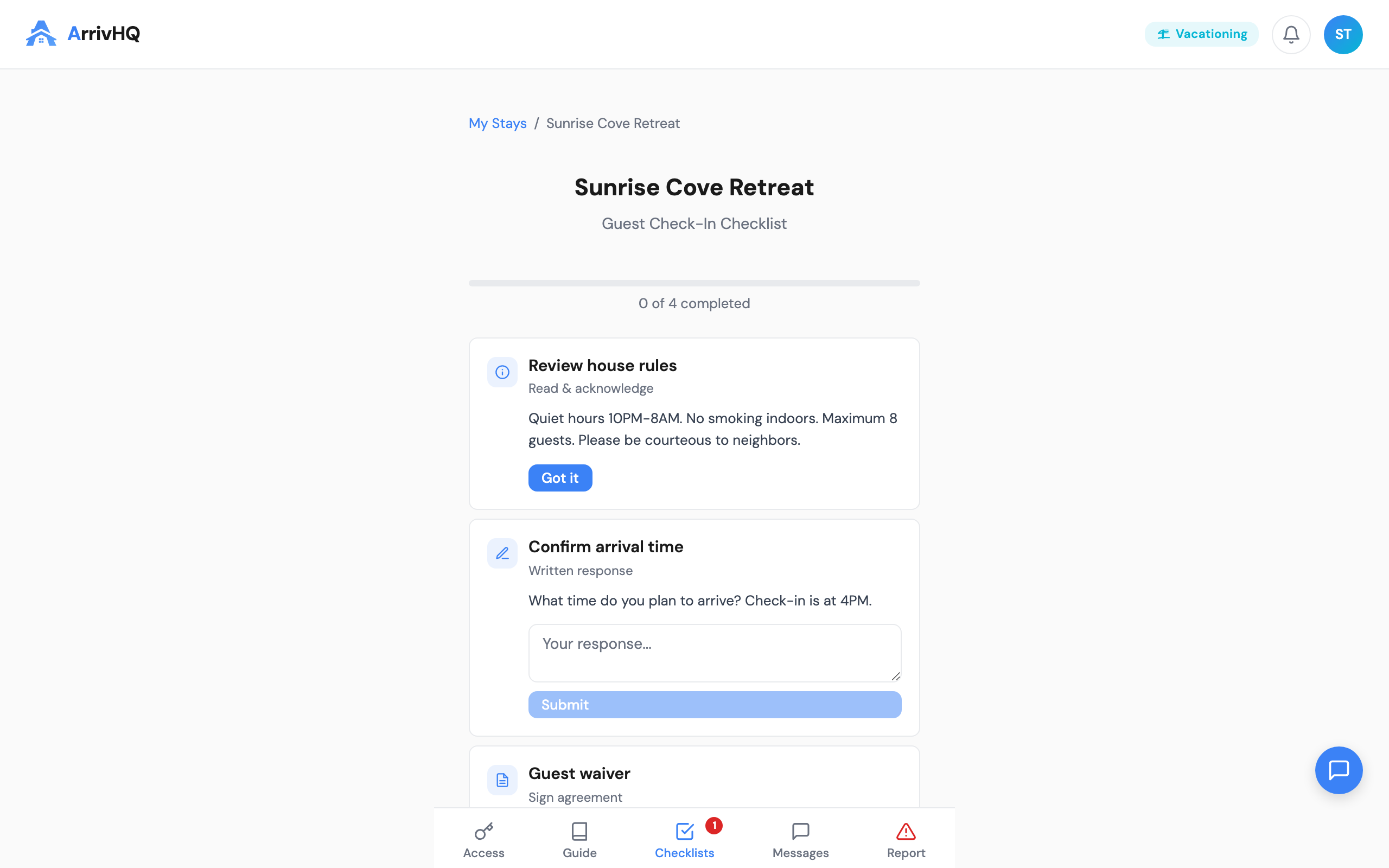
These are items your host wants you to read — no action required on your part. They might describe how to use a thermostat, where to find extra towels, or what time quiet hours begin. Read through them and move on to the next step.
Acknowledgment checkboxes
These require you to confirm that you have read and understood something. Tap or click the checkbox to mark the item as complete. Once acknowledged, the checkbox is locked — you cannot un-check it. If you marked something by mistake, message your host and they can help.
Photo uploads
Some steps ask you to upload a photo as evidence that you completed a task. This might be verifying the condition of something at the property or confirming a safety feature. Use the upload button next to the item to attach a photo from your device. The photo is stored securely and visible to your host.
Signing waivers and agreements
Some checklists include agreement steps — documents your host needs you to review and sign. ArrivHQ supports two levels of formality.
Acknowledgment agreements
For straightforward documents like house rules or parking policies, the process is simple:
- Scroll through the full agreement text. The consent checkbox stays disabled until you reach the bottom, so you need to read the entire document.
- Check the box that says "I have read and understand the above."
- Type your full legal name.
- Click Accept and Sign.
A record of your acknowledgment is stored securely.
Formal e-signatures
For more important documents — rental agreements, liability waivers, damage responsibility forms — the process includes additional steps:
- ESIGN Disclosure — You first read a disclosure about electronic signatures and check a consent box to proceed.
- Review and initial — You read each section of the document one at a time. After scrolling through a section, you type your initials before moving to the next one. A progress indicator shows which section you are on.
- Sign — You review a summary of the full document and all sections you initialed, type your full legal name, and click Sign and Agree.
After signing, a locked PDF copy is generated and emailed to you. This is your record of what you signed, and it cannot be altered by anyone.
Signing for minors
If your travel party includes minors, you may be asked to sign agreements on their behalf. The process is the same — you scroll through the document, provide consent, and sign with your name. The agreement notes that you are signing as the responsible adult for the minor.
Progress and completion
Your progress is saved automatically. You do not have to finish a checklist in one sitting — close it, come back later, and items you already completed stay checked off.
Once all acknowledgment items are complete, the checklist is marked as done. Your host can see your progress and completion timestamps, so completing checklists promptly — especially before arrival — helps your stay go smoothly.
Common questions
Can I view a completed checklist again? Yes. Completed checklists remain in your Checklists section for the duration of your stay.
What if I have a question about a checklist item? Use the Messages feature to ask your host. They can clarify anything on the checklist.
Do I get the same checklists as every other guest? It depends on what your host configured. Some checklists are standard for all guests at a property, while others may be specific to your reservation.
For more details, see the Guest Help Center.