
You signed up, added your first property, maybe logged an expense or two. Now you open ArrivHQ and wonder — where do I go from here? This post walks through every section of the host dashboard so you always know where to find what you need.
Today is your home base
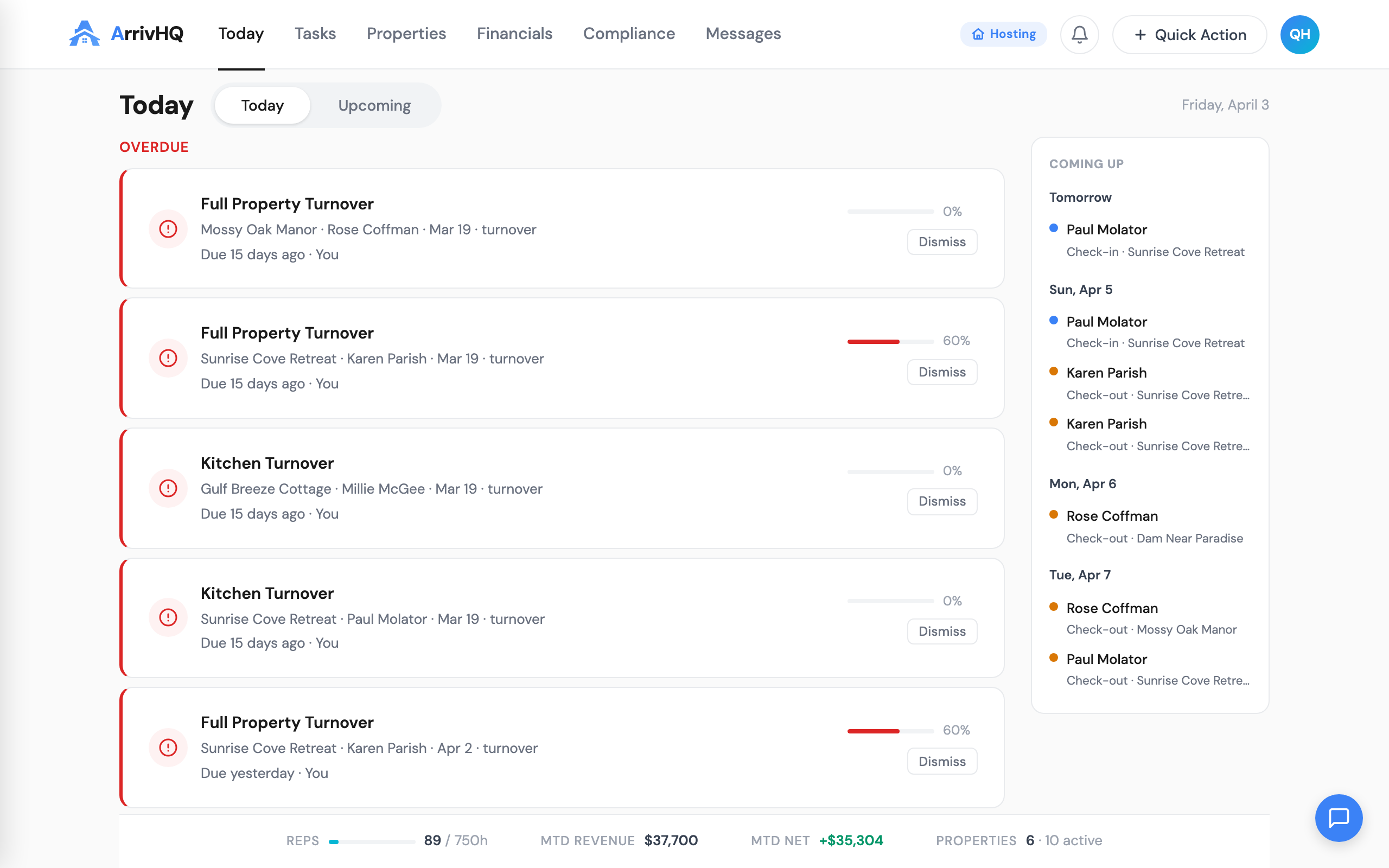
When you sign in, you land on the Today page. This is your daily operational snapshot — the one page you check every morning.
It shows:
- Upcoming check-ins and check-outs for the next few days
- Active checklists that need to be completed (turnovers, inspections)
- Overdue tasks that slipped past their due date
- Recent guest messages waiting for replies
If something needs your attention, it shows up here. If Today is quiet, your properties are running smoothly.
The sidebar
On desktop, the left sidebar is your primary navigation. Here is what each section does:
Today — Your daily dashboard. Start here.
Tasks — All tasks across properties. Filter by property, status, or assignee. This is where you manage the work that needs to happen between guest stays.
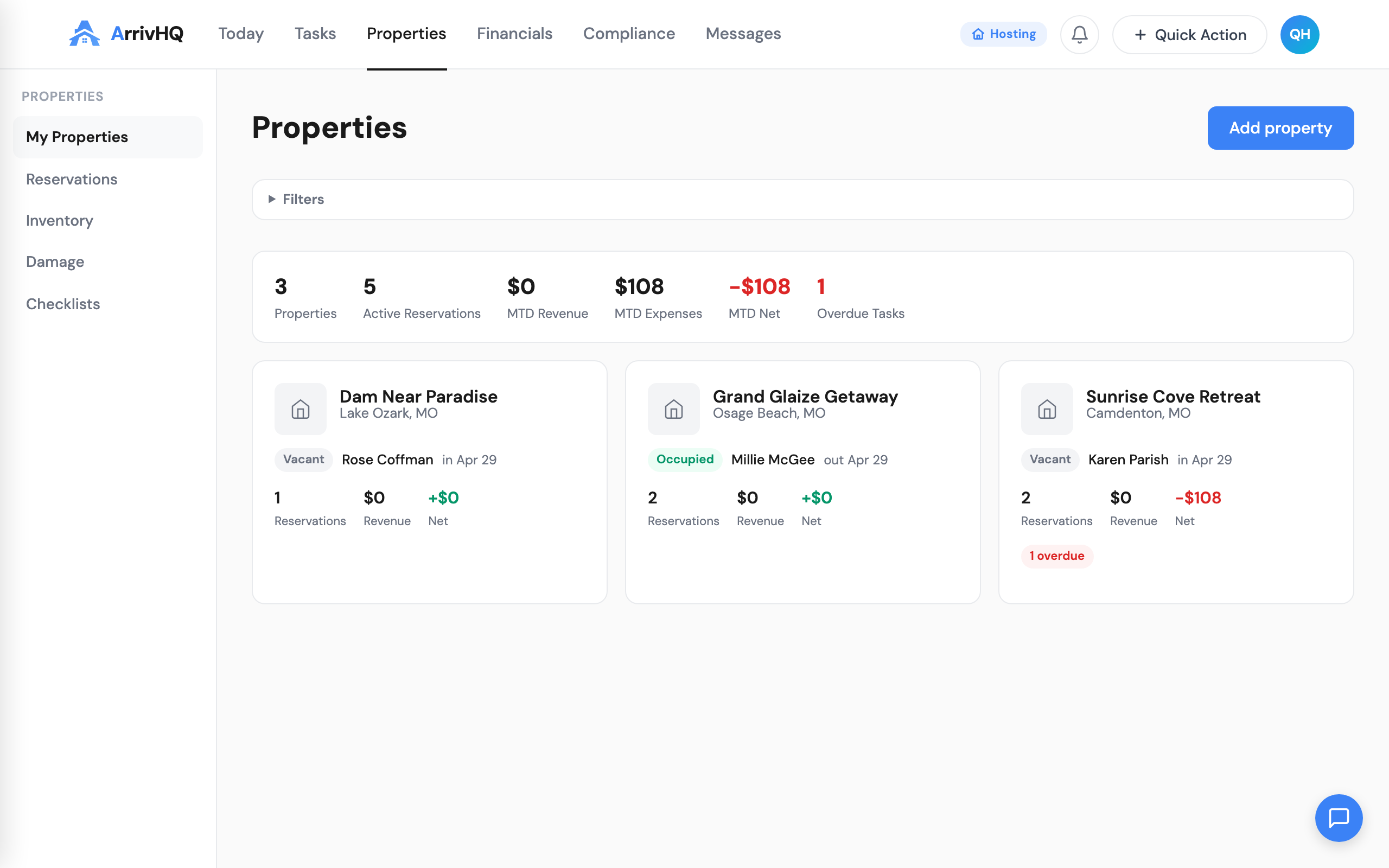
Properties — Your portfolio at a glance. Each property card shows occupancy status, revenue, reservations, and alerts (overdue checklists, unread messages, low inventory). Click into any property for its full detail view.
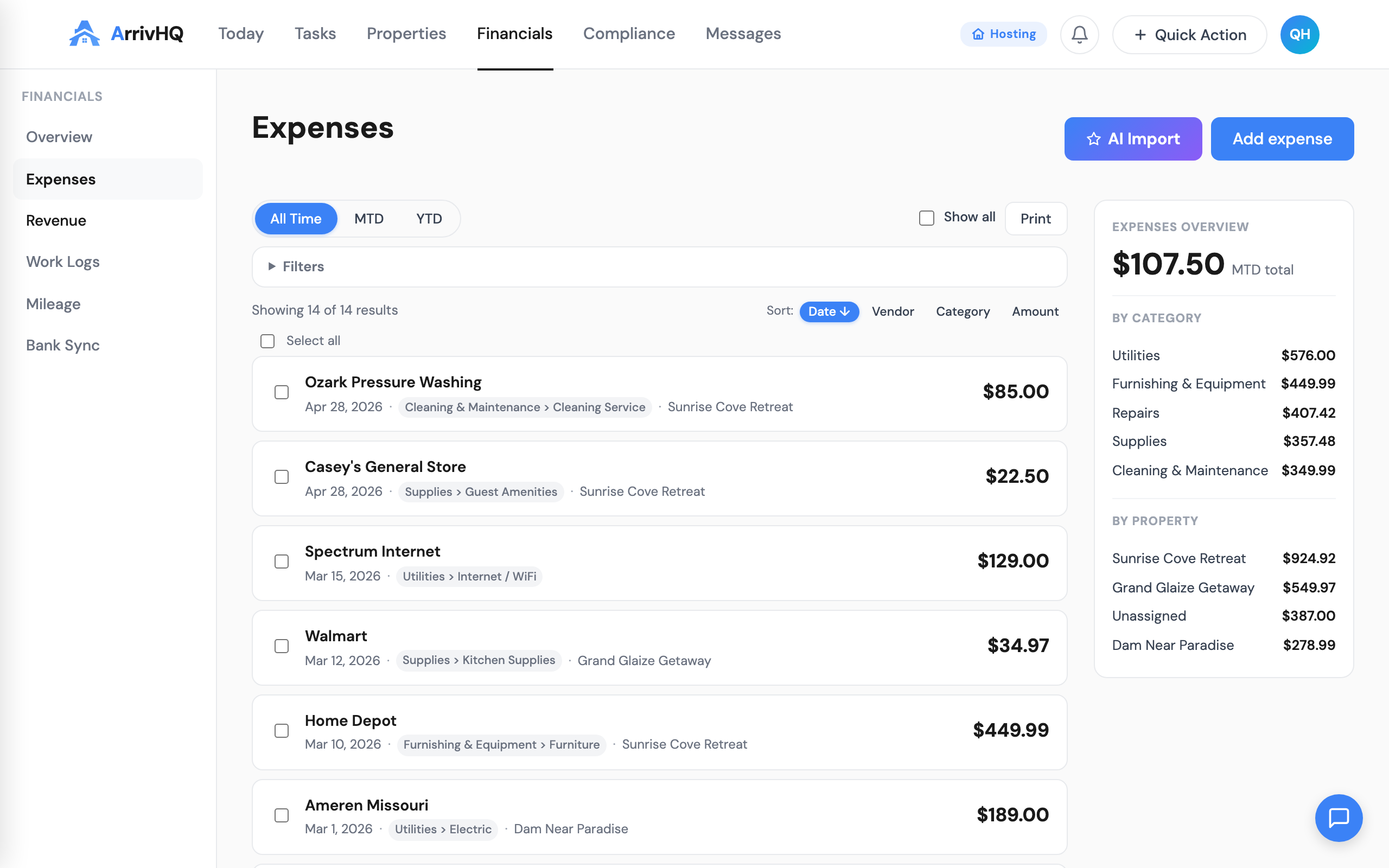
Financials — This is your tax documentation hub. It contains four sub-sections:
- Expenses — Every receipt and vendor payment, categorized to IRS Schedule E line items
- Revenue — Booking payouts from Airbnb, VRBO, and direct bookings
- Work Logs — Hours spent on property work (critical for REPS and material participation)
- Mileage — Business trips to properties, supply runs, vendor meetings
Compliance — Pulls data from Financials into a single view showing your REPS progress, material participation status, and Schedule E readiness. This is where the record-keeping pays off.
Messages — All guest conversations across all properties. Reply to messages, use AI to draft responses, and see conversation history.
Property detail view
When you click into a property, you enter its dedicated view with its own set of tabs:
- Overview — Property info, address, thumbnail, and the AI-generated guest guide
- Reservations — Reservations for this specific property
- Checklists — Checklist templates assigned to this property, with host and guest audience filters
- Damage — Damage reports and incident history
- Tasks — Property-specific tasks and punch lists
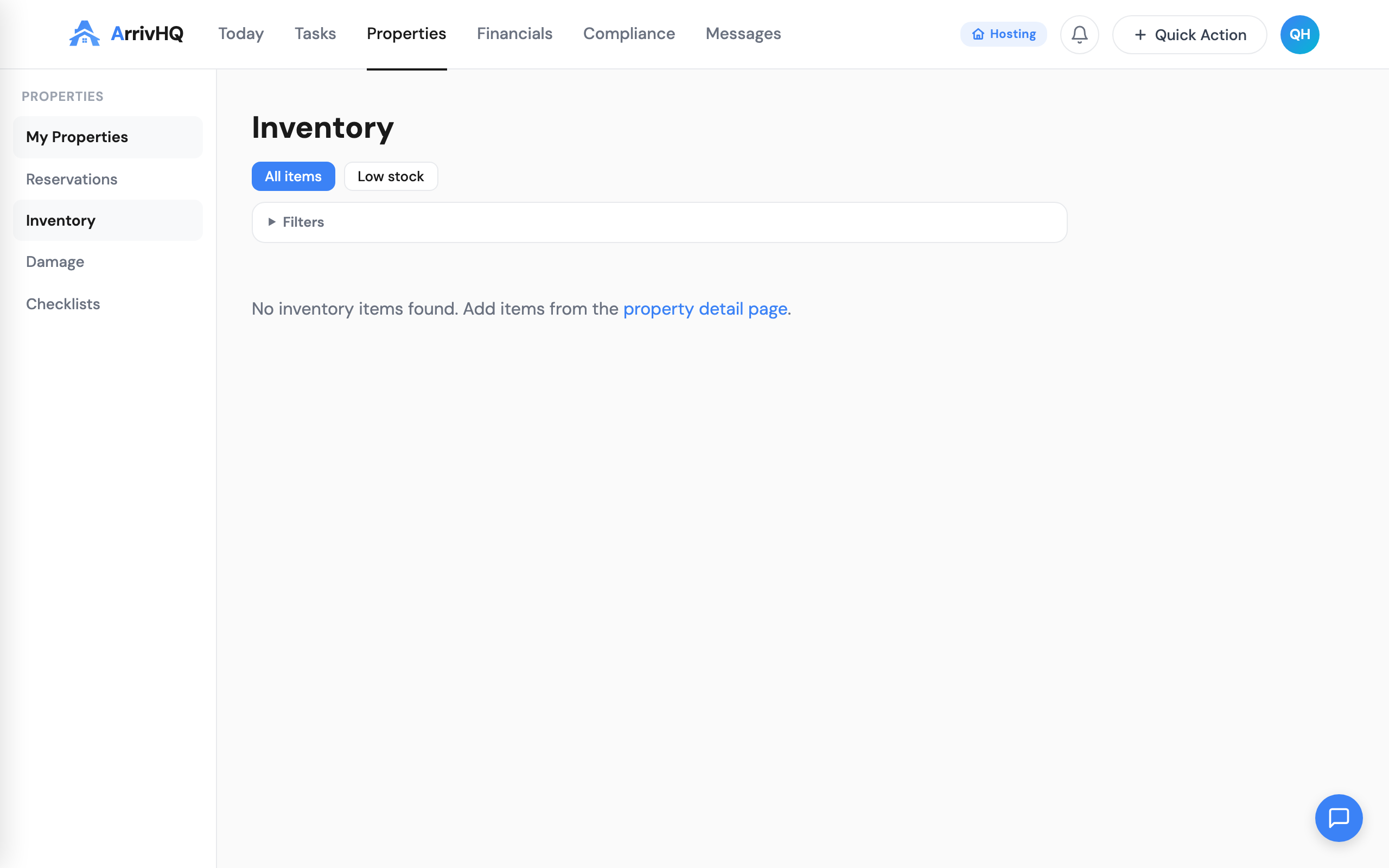
- Inventory — Items tracked at this property with stock levels and restock alerts
- Guide — The property guide your guests see, with section editing
- Settings — Listing connections, property-level configuration
This is where you manage the day-to-day of an individual property.
Settings
Access Settings from the sidebar or from your avatar dropdown in the top-right corner:
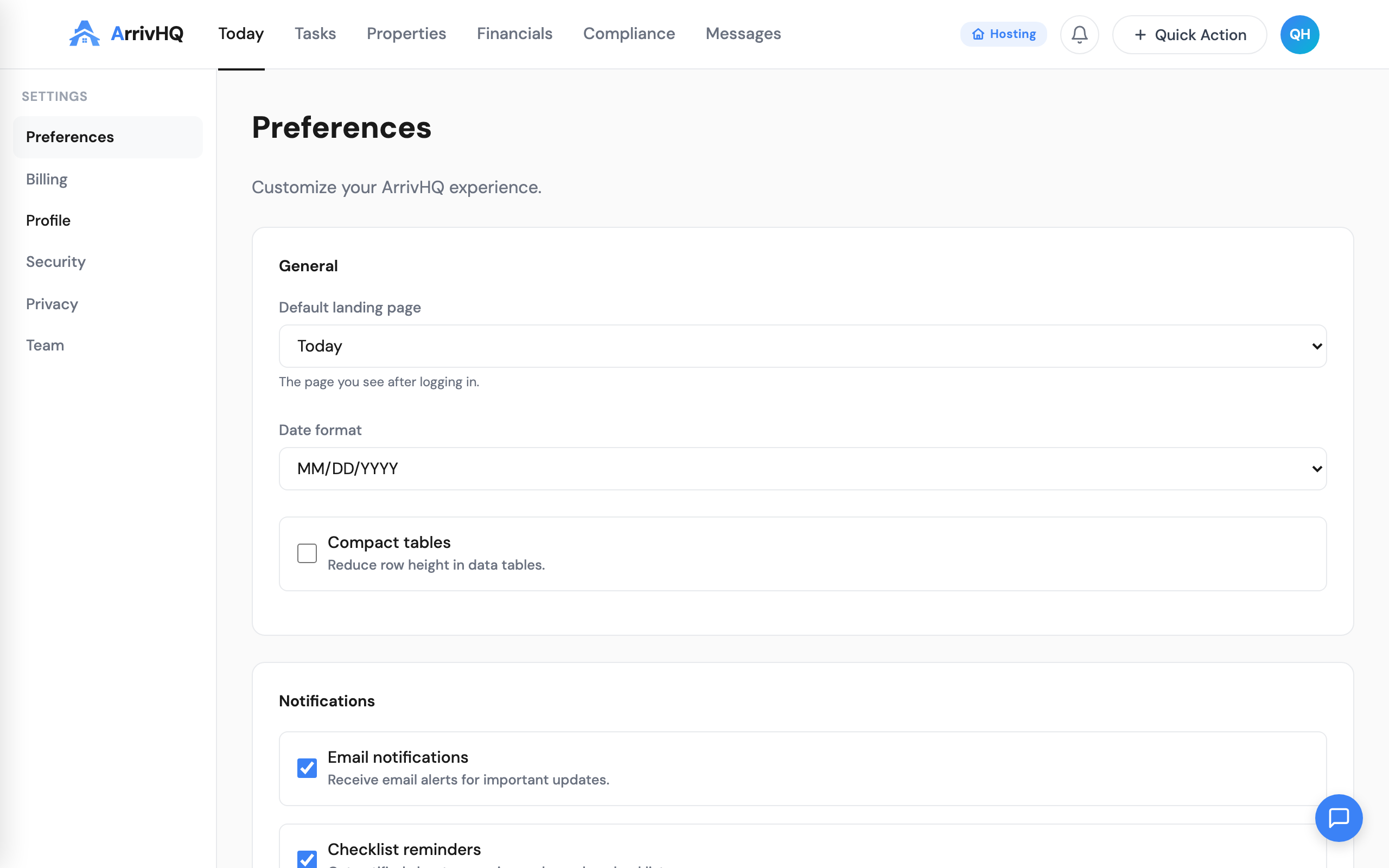
- Profile — Your name, email, and password
- Billing — Your plan, payment method, and Property Packs
- Team — Invite cleaners, co-hosts, or property managers with role-based access
- Security — Enroll in multi-factor authentication (MFA)
- Preferences — Timezone, default landing page, display options
Top bar
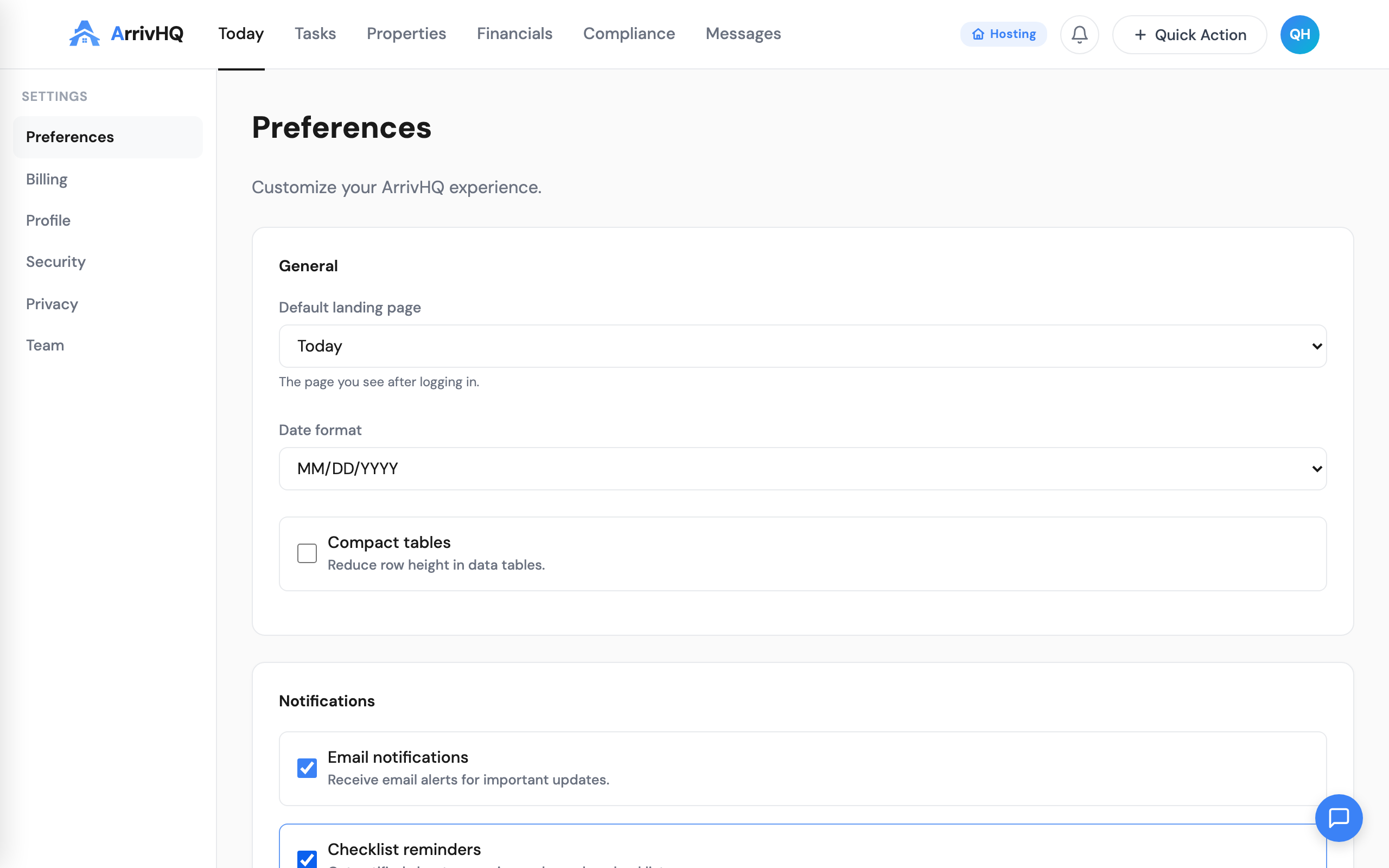
The top navigation bar gives you quick access to:
- Quick Action button — create a reservation, log an expense, or start a task from anywhere
- Notifications bell — alerts for guest messages, overdue checklists, and system events
- Hosting badge — shows you are in host mode (if you also have guest stays, you can switch to vacationing mode)
- Your avatar — profile, settings, help docs, tenant switcher (if you belong to multiple organizations), and sign out
Mobile
On phones and small tablets, the sidebar collapses into a bottom navigation bar with icons for Today, Tasks, Properties, Financials, and Messages. Tap the menu to access the full list. Every feature available on desktop is available on mobile — nothing is hidden or removed.
What's next
Now that you know where everything lives, the next step is to start building your financial records. See our deep-dive on expense tracking and AI receipt scanning (coming soon).
For the complete reference, see the Navigating ArrivHQ documentation.