Your host uses ArrivHQ to manage their rental property, and they have invited you to the guest portal for your stay. This is where you find everything you need — access codes, property guide, house rules, checklists, and a way to message your host directly.
Here is a quick tour of what you will find.
My Stays
When you sign in, you land on the My Stays page. This shows all your current, upcoming, and past stays across any properties you have been invited to. Each stay card shows the property name, dates, and your host's name.
If you have a pending invitation, it appears at the top. Tap to accept and unlock your stay details.
The stay tabs
Once you open a stay, you see five tabs at the bottom of the screen:
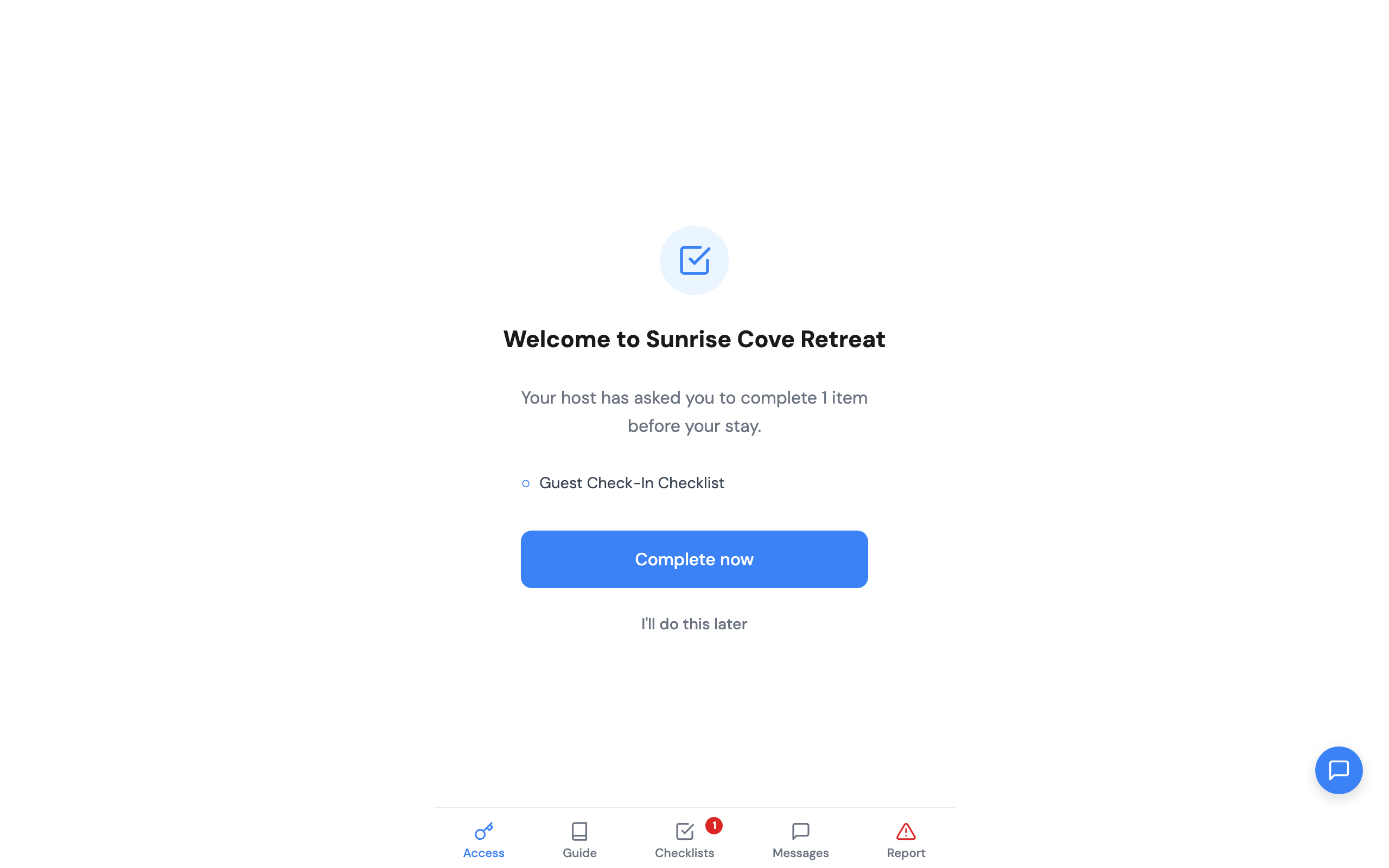
Access
This is the first tab you see. It shows everything you need to get into the property:
- Keypad code, lockbox code, gate code — displayed as large, easy-to-copy cards
- Wi-Fi network and password — tap to copy
- Entry instructions — step-by-step directions from your host
- Check-in and check-out dates — your stay timeline at a glance
- Guests & Minors — invite travel companions or add minors to your reservation
Access codes are only visible close to your check-in date. Your host controls when this information becomes available.
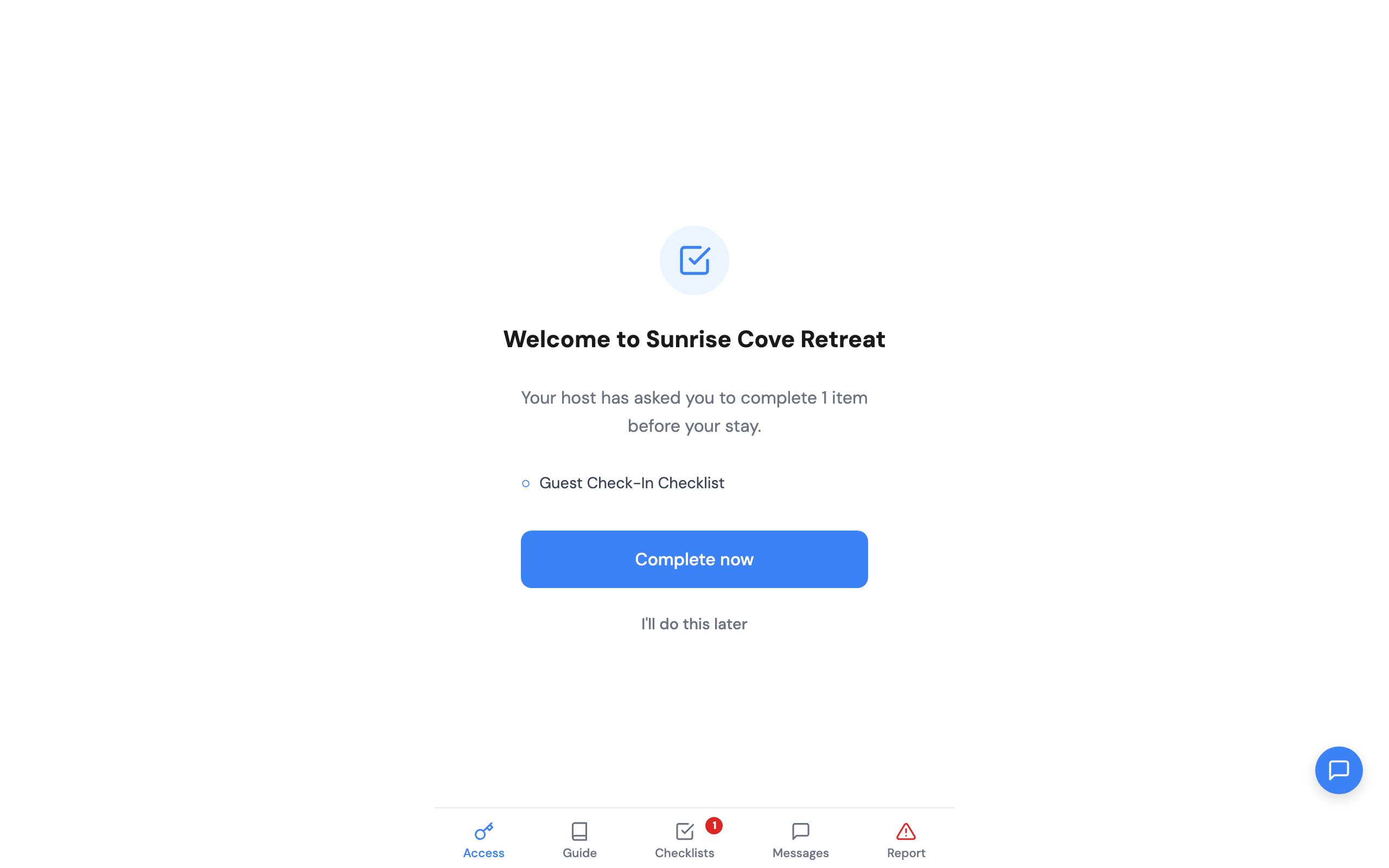
Guide
Your host's property guide — a structured document covering everything about the property:
- Check-in and check-out instructions
- House rules
- Parking information
- Local recommendations
- Safety and emergency information
Some hosts upload a PDF welcome guide instead of individual sections. Either way, the information you need is here.
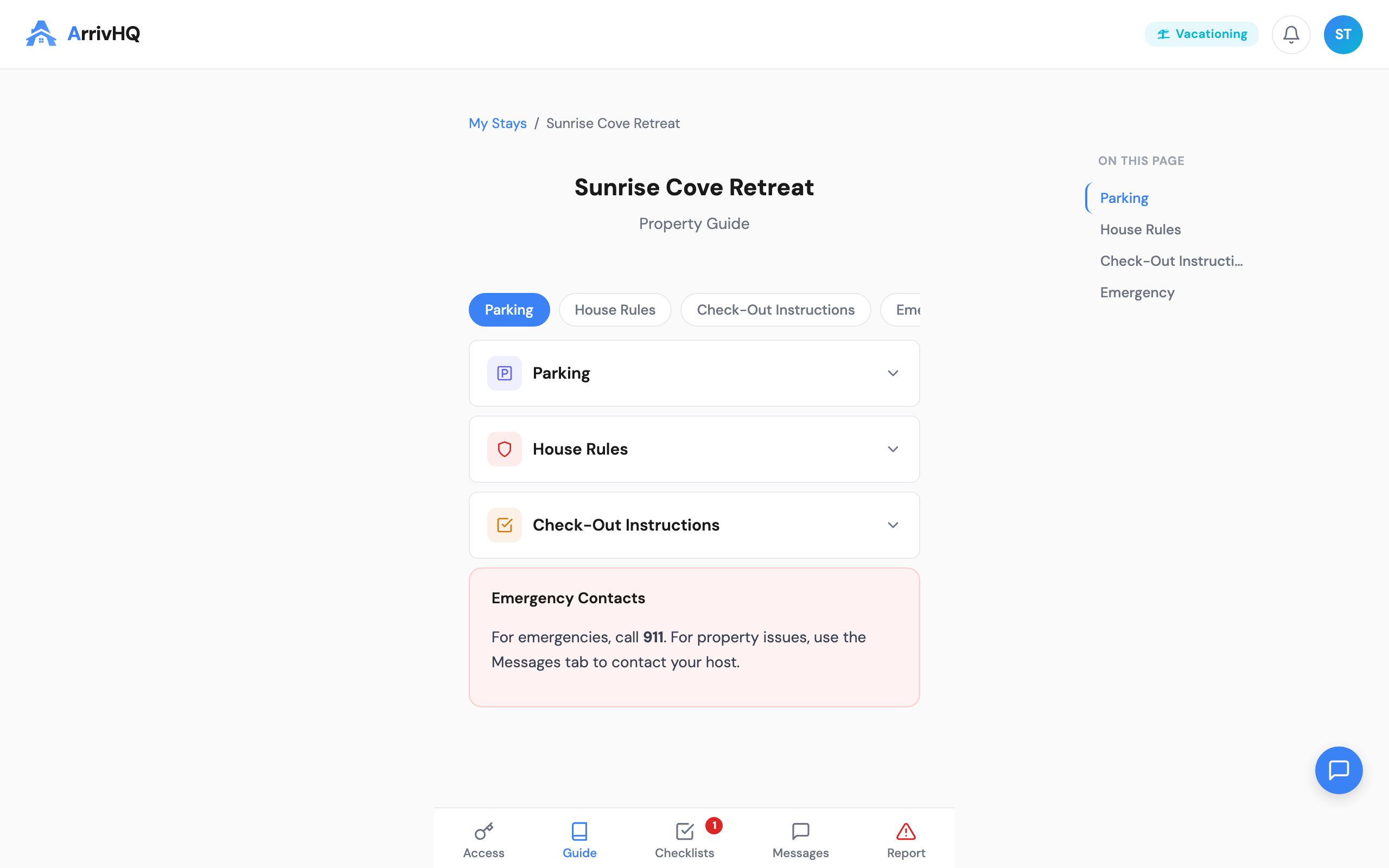
Checklists
Your host may assign checklists for you to complete. Common examples:
- Check-in checklist — acknowledge house rules, sign waivers, confirm guest count
- Check-out checklist — confirm you have taken your belongings, report any issues
Each checklist shows a progress indicator. Tap into a checklist to see the individual steps. Steps can include checkboxes, text inputs, photo uploads, and digital agreement signatures.
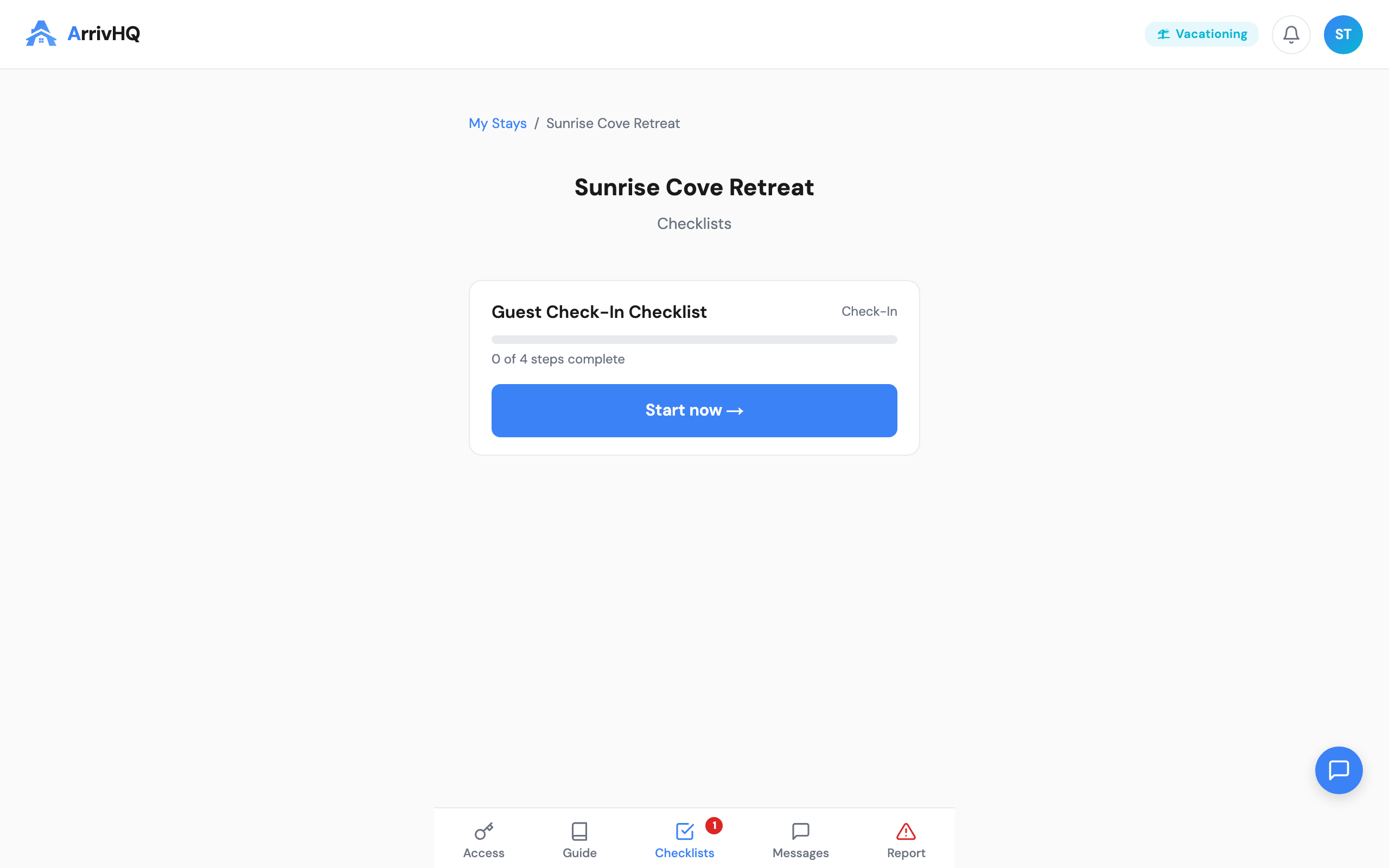
If a waiver requires your signature, you will be walked through the process step by step — read the document, check the consent box, and sign with your name or draw your signature.
Messages
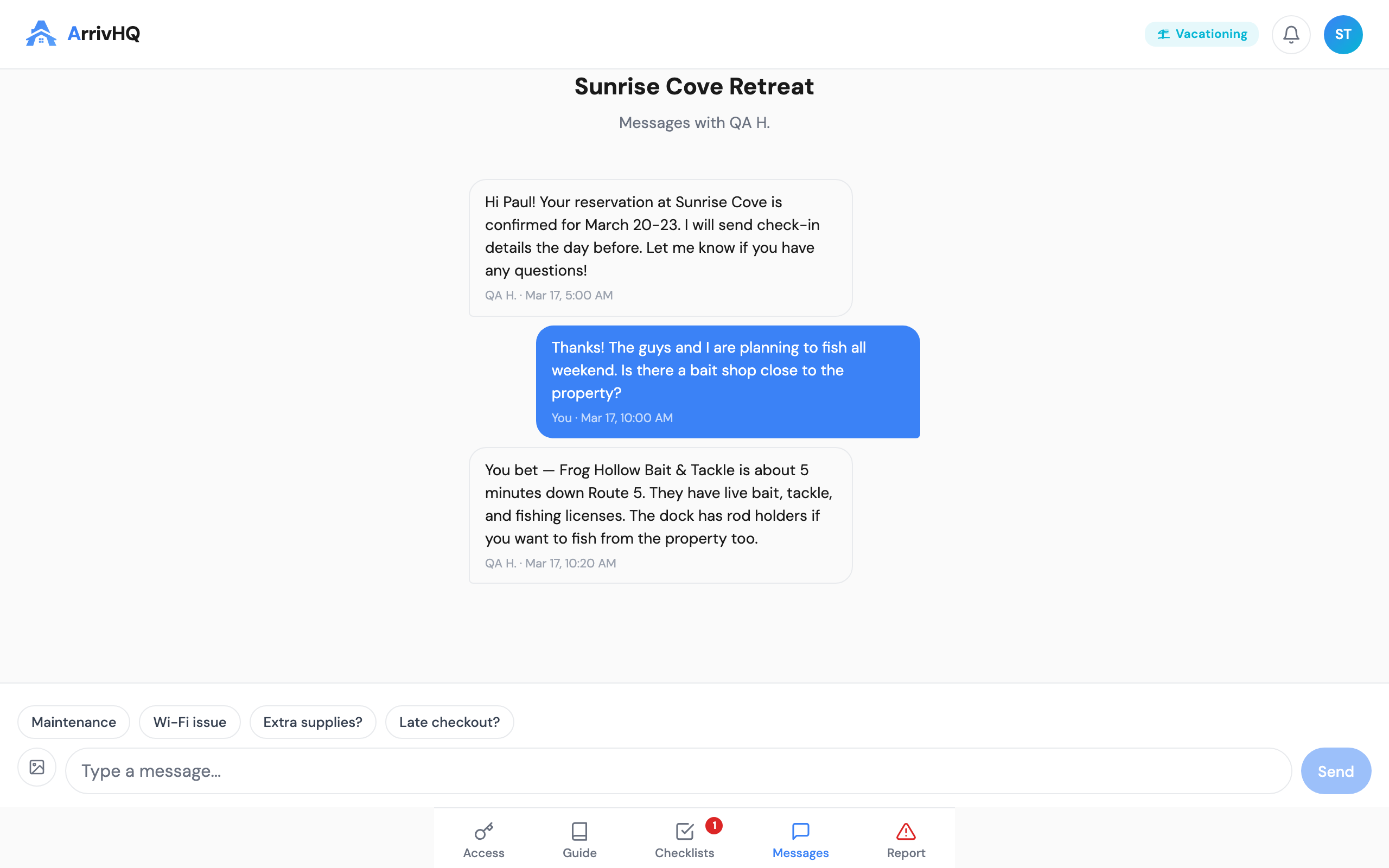
Send and receive messages with your host. This is a direct conversation — no email chains or text threads to lose track of.
Quick action buttons suggest common messages based on your stay phase (pre-arrival questions, check-in confirmations, during-stay requests, checkout notes).
An unread message count appears on the Messages tab when your host has sent you something new.
Report
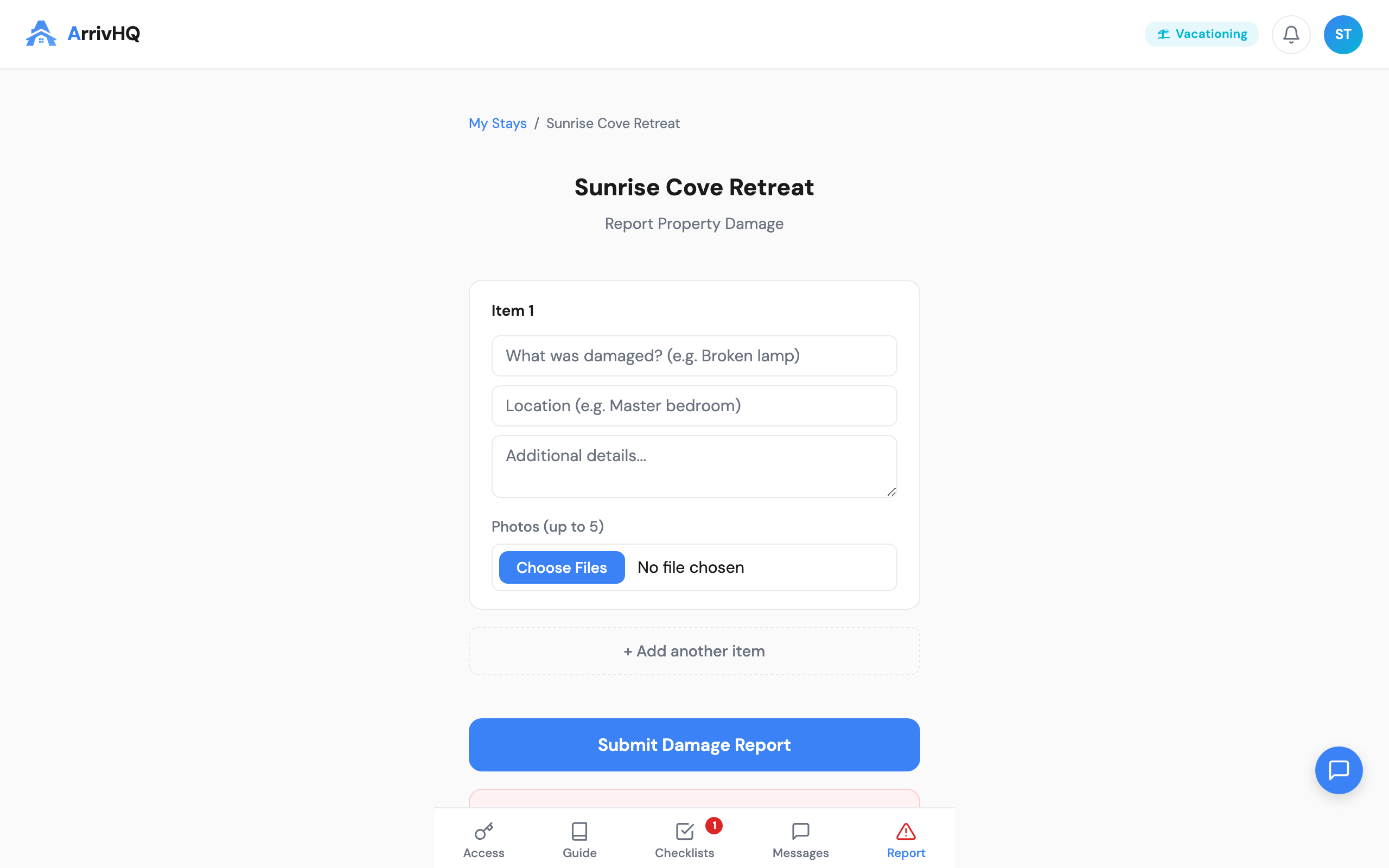
If something is damaged or broken at the property, use the Report tab to document it. You can describe the issue, take photos, and submit a report that your host receives immediately.
Reporting damage proactively protects both you and your host — it creates a clear record of what happened and when.
AI Concierge
Look for the small chat icon in the bottom corner. This is the AI Concierge — it can answer questions about the property using information from the property guide. If it cannot answer something, it will suggest messaging your host directly.
Settings
Tap your avatar in the top corner to access your account settings:
- Email and name — update your contact information
- Phone number — optional, shared with your host for stay-related communication
- Notification preferences — control which emails you receive (message alerts, checklist reminders)
- Password — change your password
Tips for a smooth stay
- Accept your invitation early. Access codes become visible closer to check-in, and your host may have checklists for you to review before arrival.
- Complete checklists promptly. Some checklists are time-sensitive (check-in waivers, check-out confirmations). Your host can see your completion status.
- Use messages for questions. Your host gets notified immediately and can respond in context — much better than a text thread that gets buried.
- Report issues right away. The sooner damage is documented, the easier it is to resolve fairly.
Need help?
If something is not working or you have a question about the portal, contact your host through the Messages tab. The AI Concierge can also help with property-specific questions.
For detailed documentation, visit the Guest Help Center.